ProxyTool Documentation
Complete reference for the Windows client, the macOS client, the Android app, and the web dashboard — proxies, chains, rules, DNS, policies and restrictions.
Core Features
Universal Proxy Routing
Route any application through your proxy — even apps without native proxy support. System-level interception via a Windows WFP driver or a macOS Network Extension.
Split Tunneling & Per-App Rules
Define per-app routing rules. Proxy some apps, let others go direct, or block entirely — with priority ordering.
Proxy Chains
Chain multiple proxies: sequential multi-hop, redundancy failover, or load-balanced rotation.
Real-Time Traffic Monitor
Live connection table, bandwidth analytics, security events, TLS fingerprint detection, and cost tracking.
DNS & IP Protection
Full DNS leak prevention, remote resolution through proxy, UDP/IPv6 kill switch, and SMHNR blocking.
Profiles & Proxifier Migration
Portable config profiles, remote auto-update, encrypted passwords, and one-click Proxifier import.
AI Assistant
Describe what you want in plain language — the assistant proposes proxies, rules, chains and settings, and applies them once you confirm. On Windows, macOS, Android, and in the web dashboard.
Web Dashboard
Manage fleet devices, deploy policies, set restrictions, and control user permissions from the admin portal.
Policy & Restriction Management
Push proxy configs to device groups, lock down client UI, and enforce permissions remotely.
Getting Started
ProxyTool is a Windows desktop application that routes your internet traffic through proxy servers at the kernel level. It intercepts connections using a WFP (Windows Filtering Platform) driver, giving you full control over which applications use which proxy — without modifying individual app settings.
Quick Setup (3 Steps)
- Add a proxy — Enter your proxy server details (host, port, protocol) or paste a proxy string
- Create a routing rule — Choose which applications or traffic should use the proxy
- Activate — Traffic is immediately routed through the proxy
Account & Sign-In
ProxyTool uses a unified account for the web dashboard and desktop client. Sign in at /auth/login with email and password. If two-factor authentication is enabled, complete the TOTP or email OTP step before access is granted.
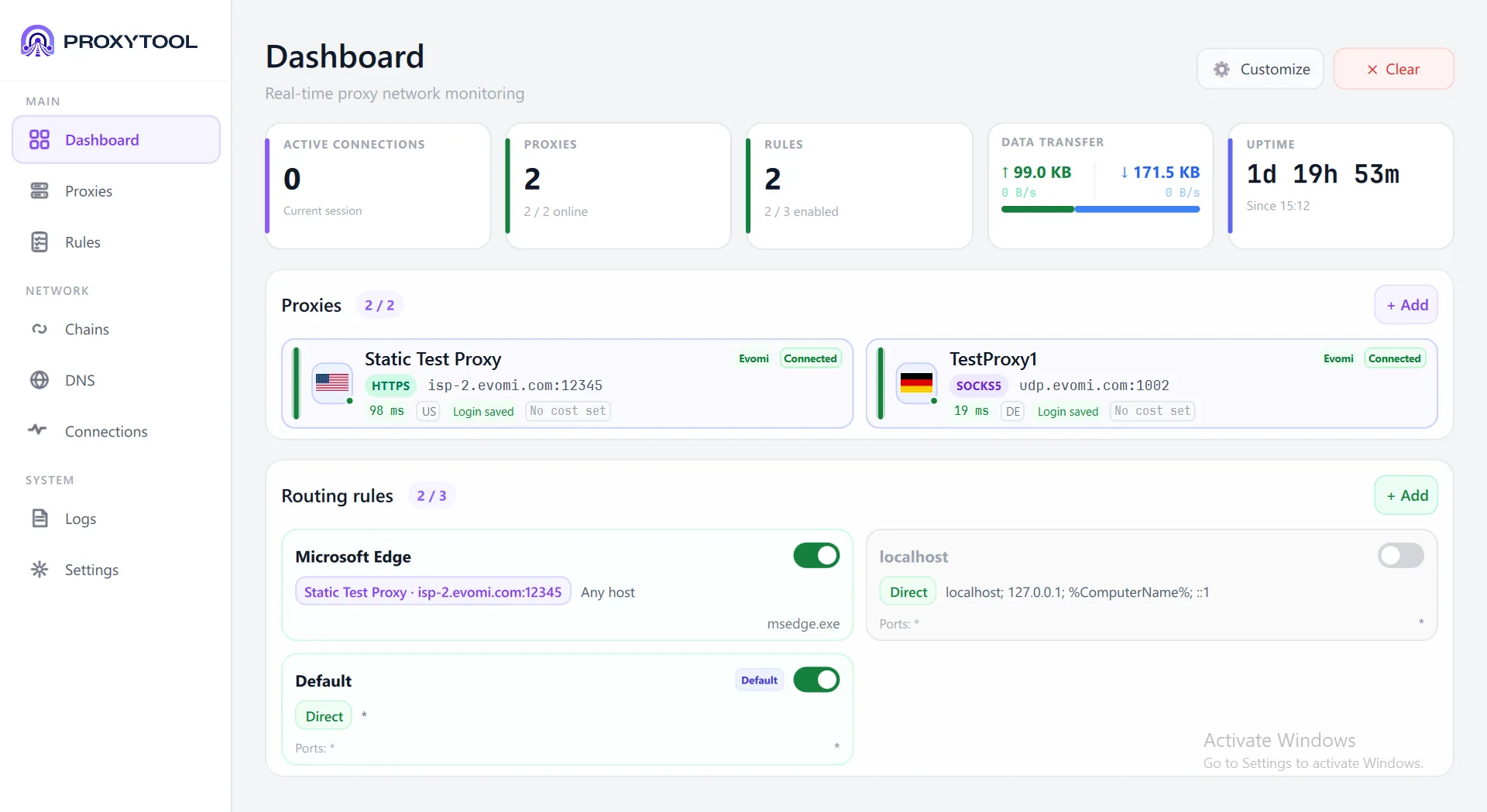
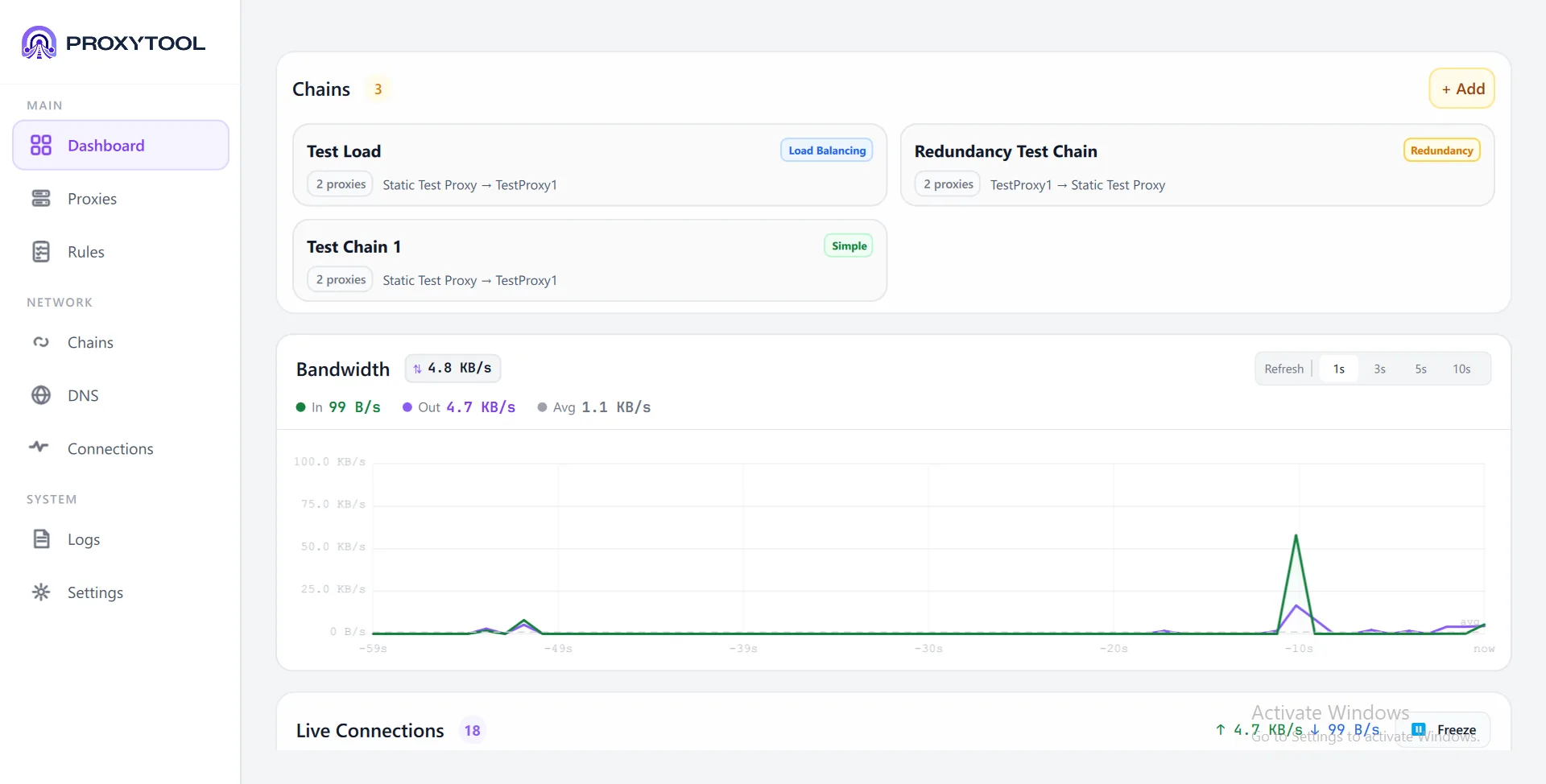
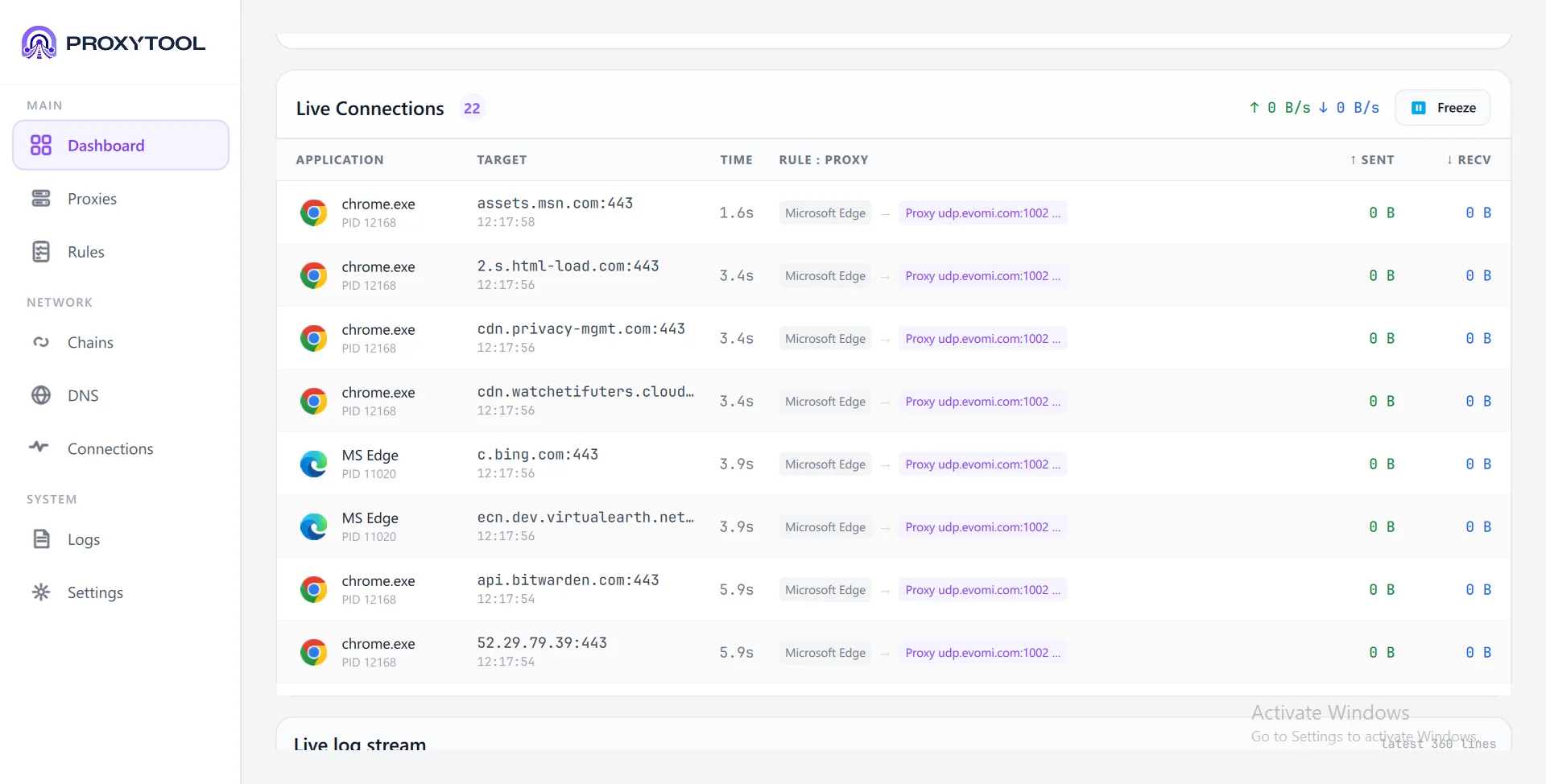
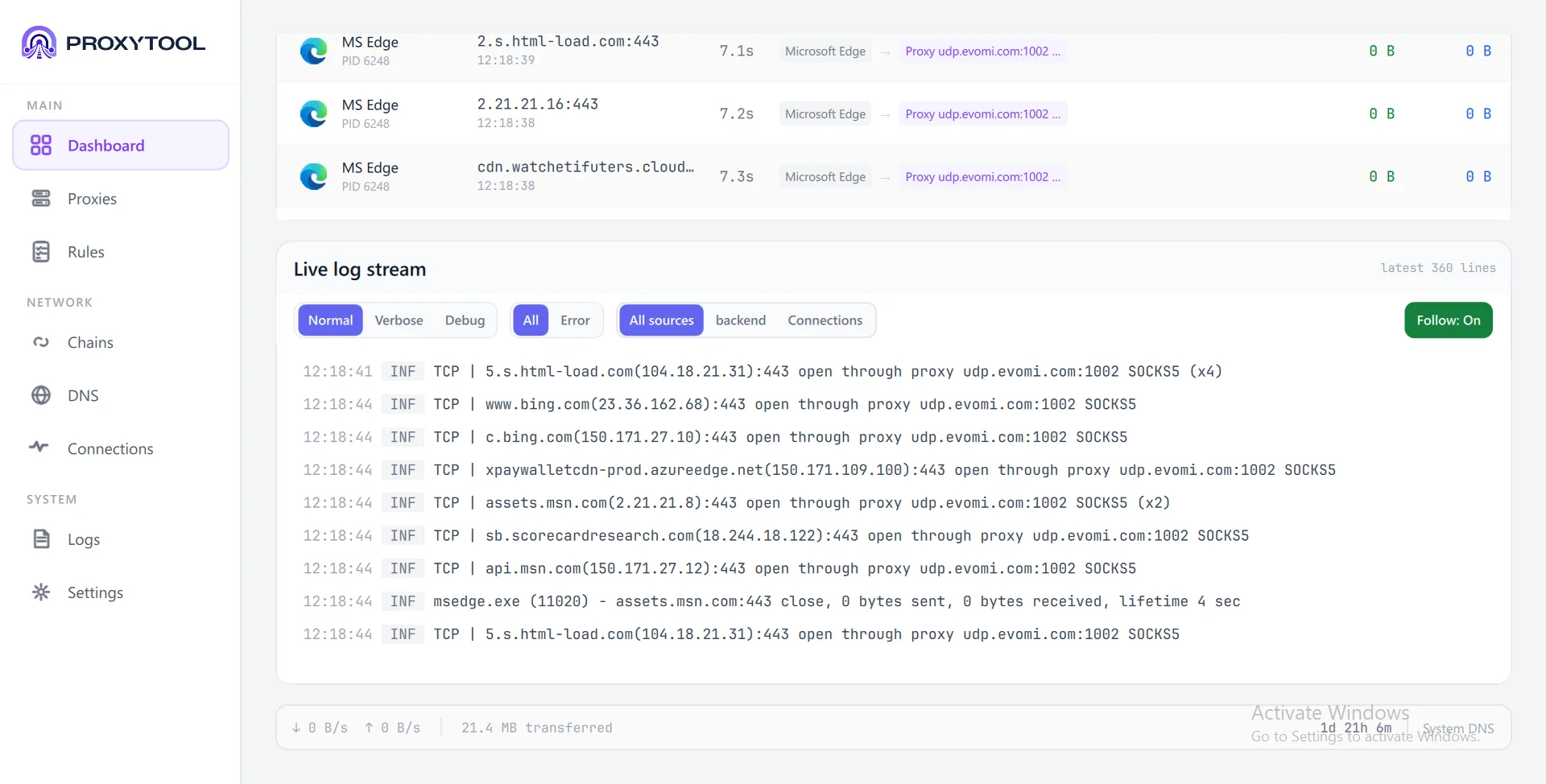
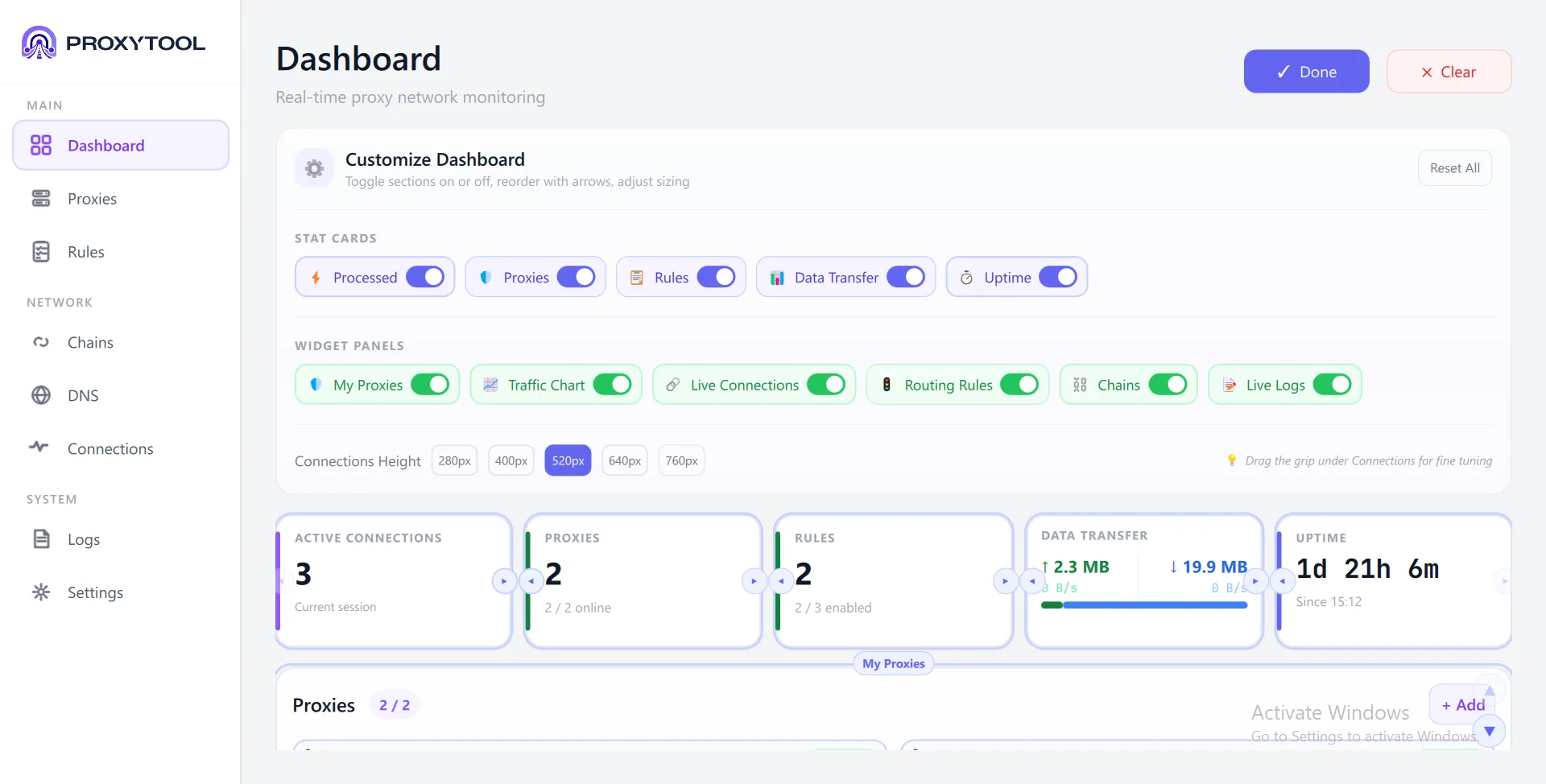
Dashboard at a Glance
The Dashboard is your central hub — it shows everything happening on your network in real time. Here's what each section does:
Customize Your Dashboard
Click Customize in the top-right corner to enter edit mode. A toolbar appears at the top of the dashboard where you can control every section individually.
Stat Cards
Toggle each metric card on or off — disabled cards are hidden from the dashboard entirely.
| Card | Shows |
|---|---|
| Processed | Total connections handled in the current session |
| Proxies | Online proxies vs. total configured (e.g. 2 / 2 online) |
| Rules | Enabled routing rules vs. total (e.g. 2 / 3 enabled) |
| Data Transfer | Total bytes sent and received with a progress bar |
| Uptime | Time since ProxyTool was started (e.g. 1d 21h 6m) |
Widget Panels
Each widget panel represents a major dashboard section. Disable panels you don't need to keep things focused.
| Panel | Content |
|---|---|
| My Proxies | Quick overview of all configured proxy servers with status and latency |
| Traffic Chart | Real-time bandwidth graph with in/out/average throughput |
| Live Connections | Active connection table with process, target, proxy, and transfer data |
| Routing Rules | Rule cards with on/off toggles and assigned proxy details |
| Chains | Proxy chain configurations (Simple, Redundancy, Load Balancing) |
| Live Logs | Real-time event log with verbosity and source filters |
Layout Options
- Connections Height — Choose between 280px, 400px, 520px, 640px, or 760px to control how many connection rows are visible without scrolling
- Reorder — Drag the arrow handles between stat cards to rearrange their order
- Fine-tuning — Drag the grip under the Connections panel to adjust its height precisely
Click Done to save your layout. Use Reset All to restore the default arrangement, or Clear to remove all customizations and start fresh.
Adding a Proxy
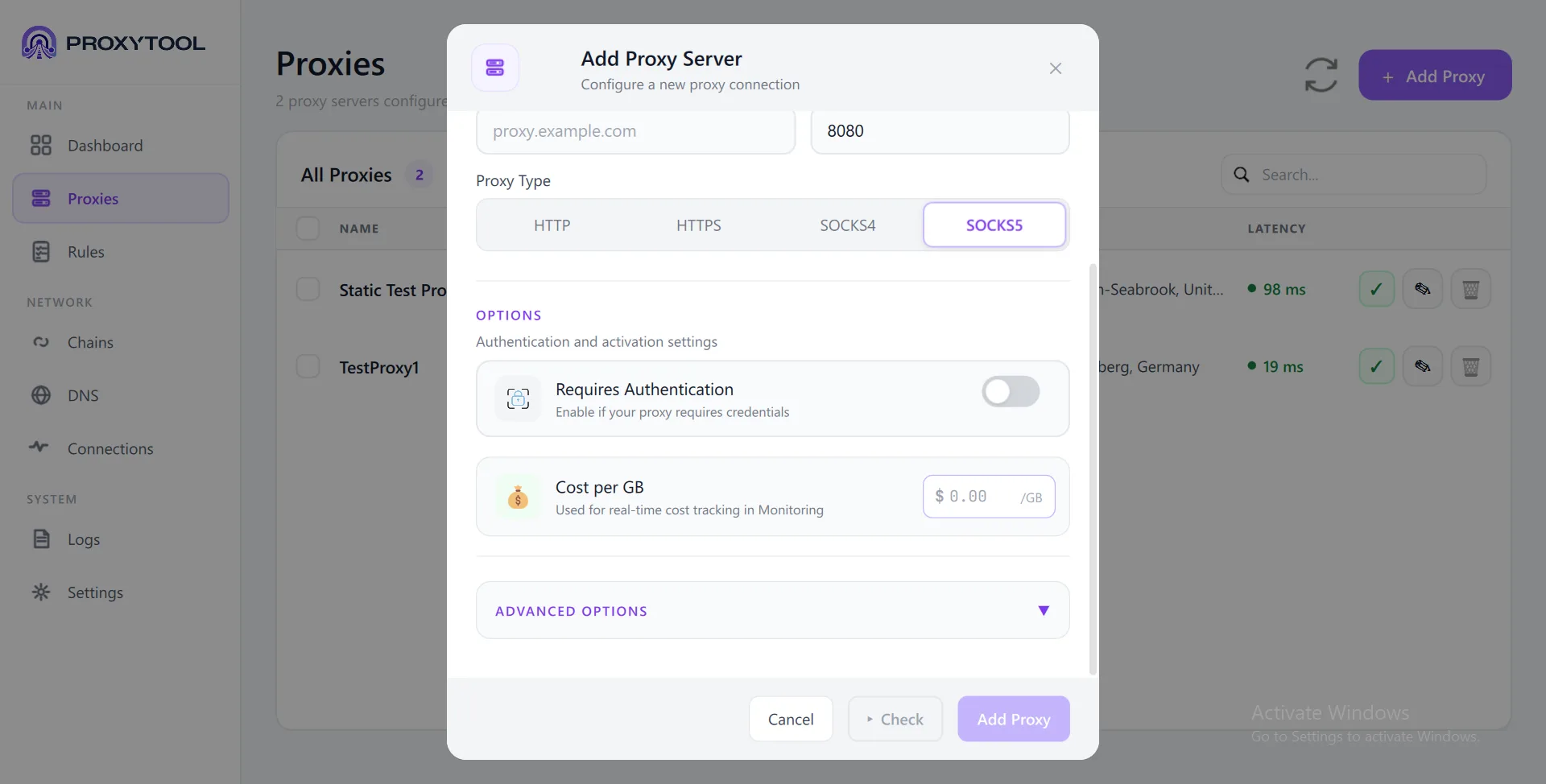
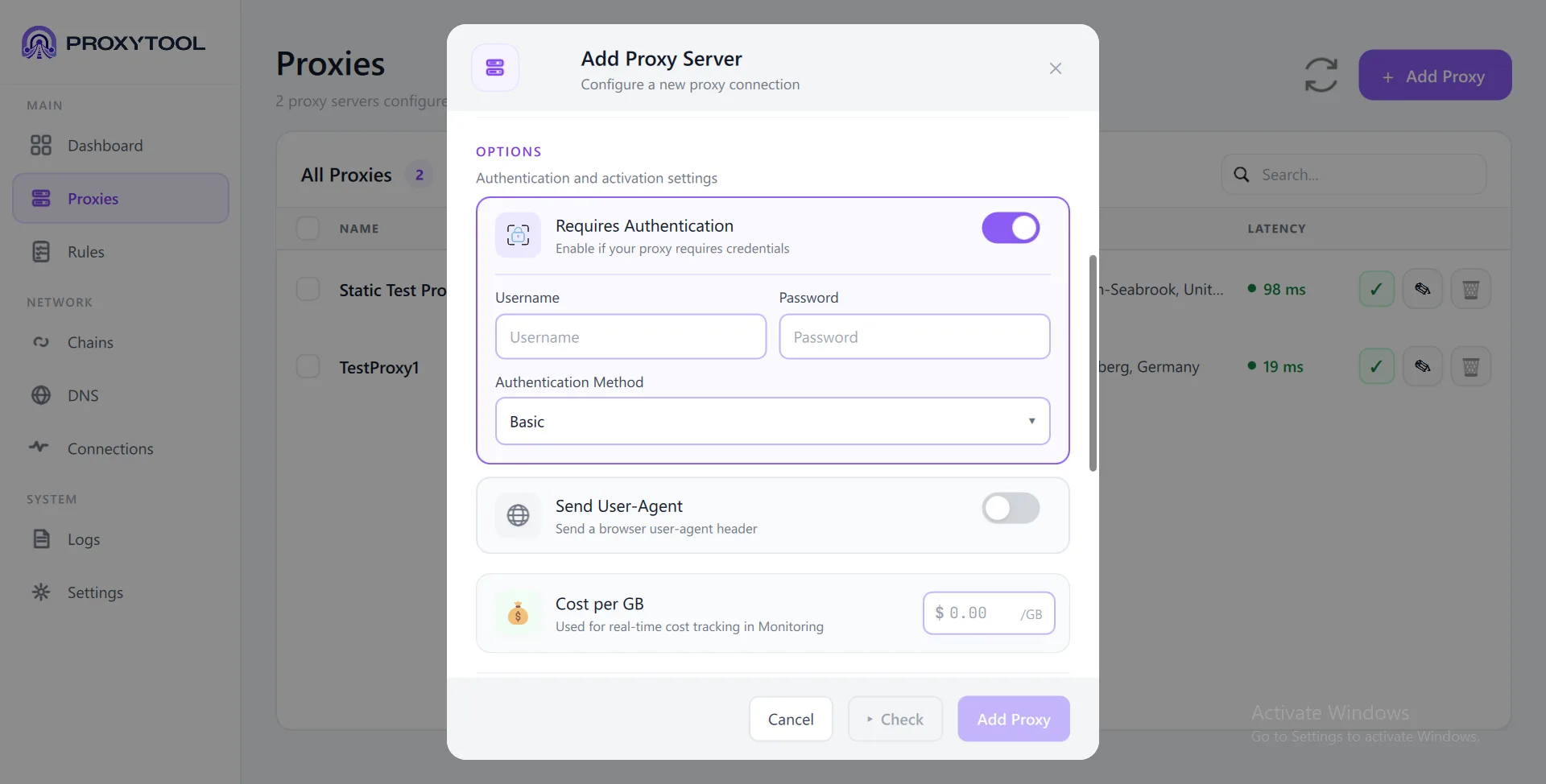
Click Add Proxy on the Proxies page to open the configuration dialog. You can either fill in fields manually or paste a proxy string for instant setup.
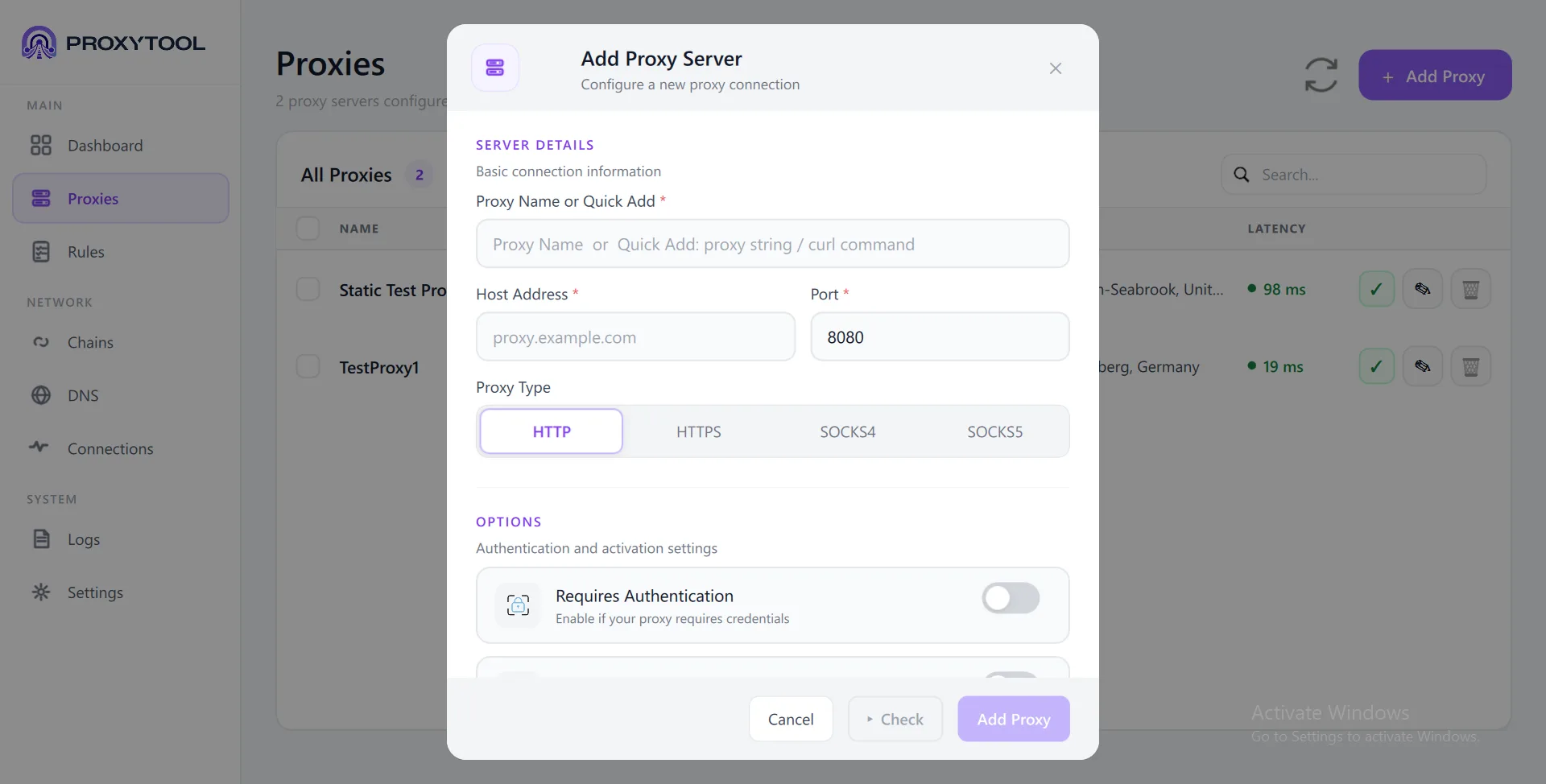
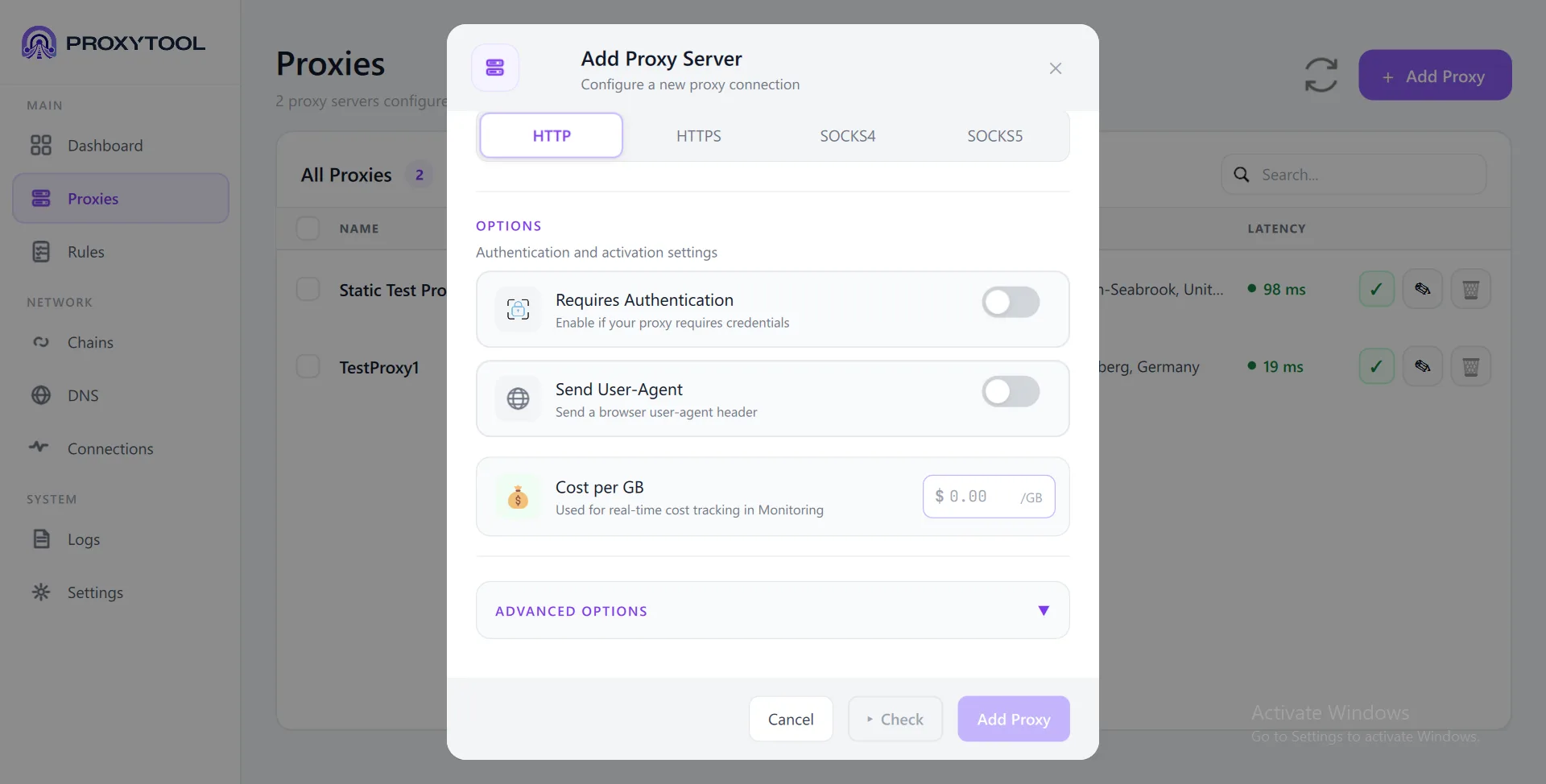
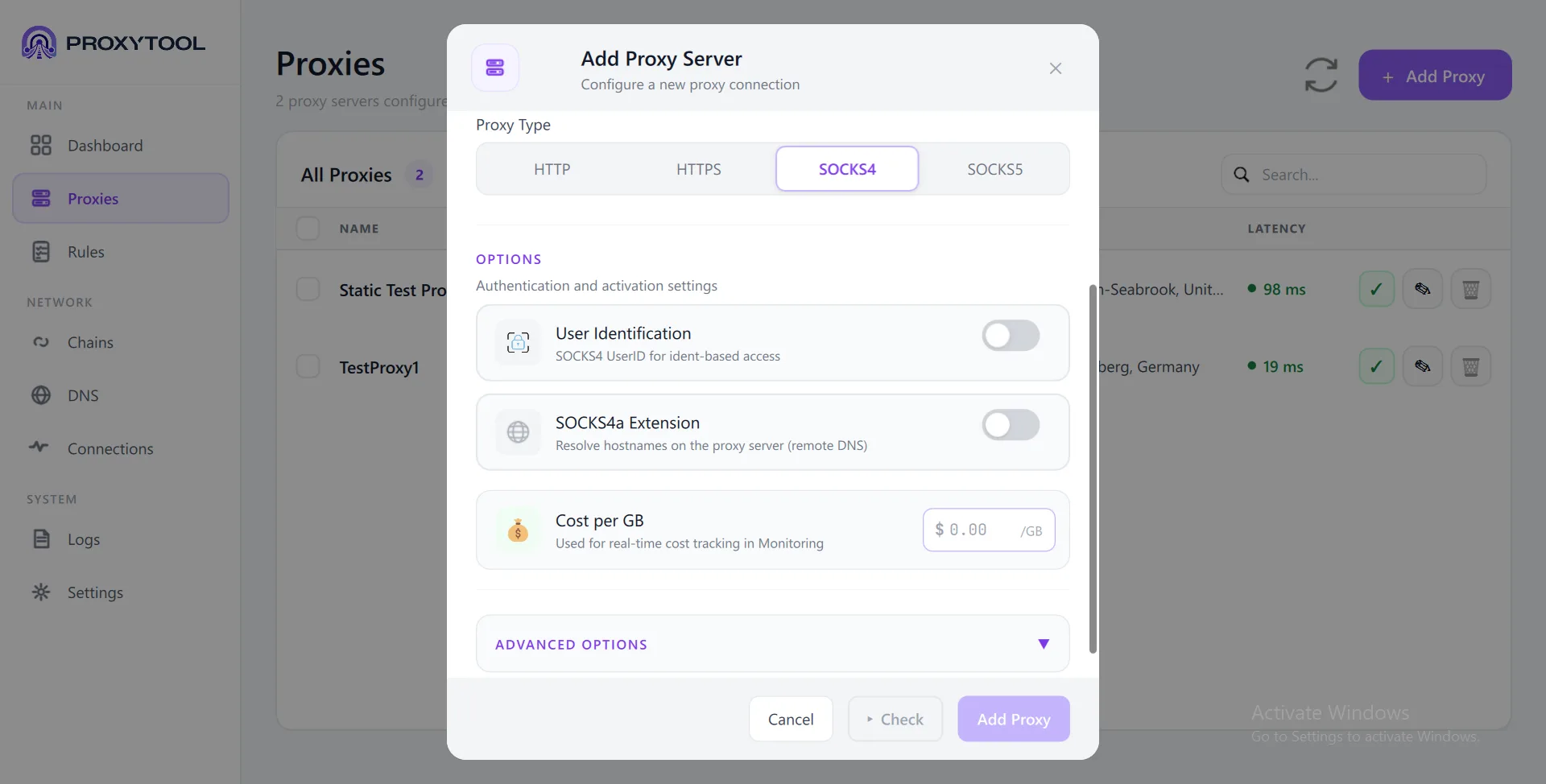
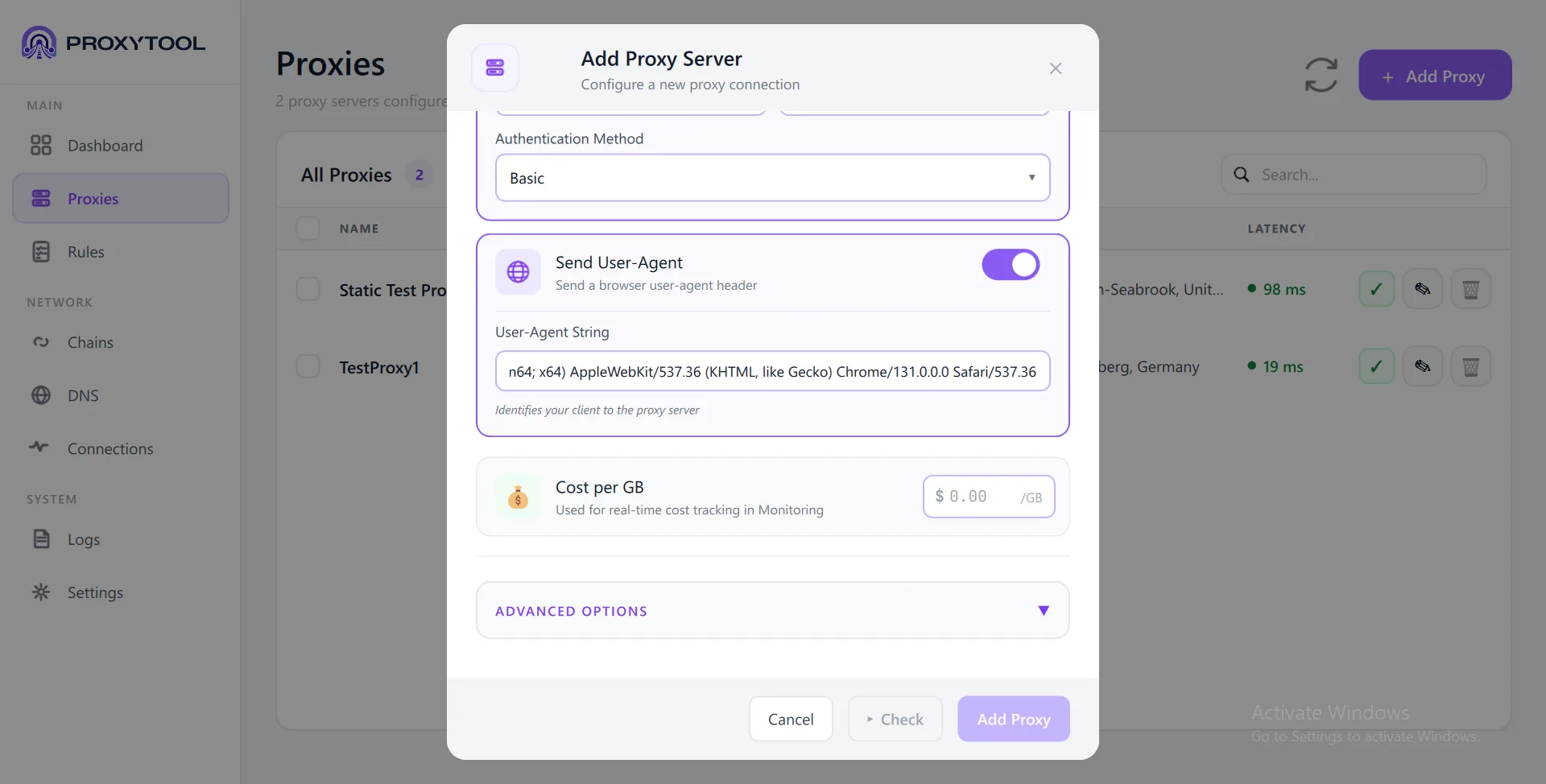
Server Details
These fields are identical for every proxy type. Enter address details manually or use Quick Add: paste a proxy string (e.g. socks5://host:port:user:pass) or a curl -x command and all fields auto-fill instantly.
Options by Protocol
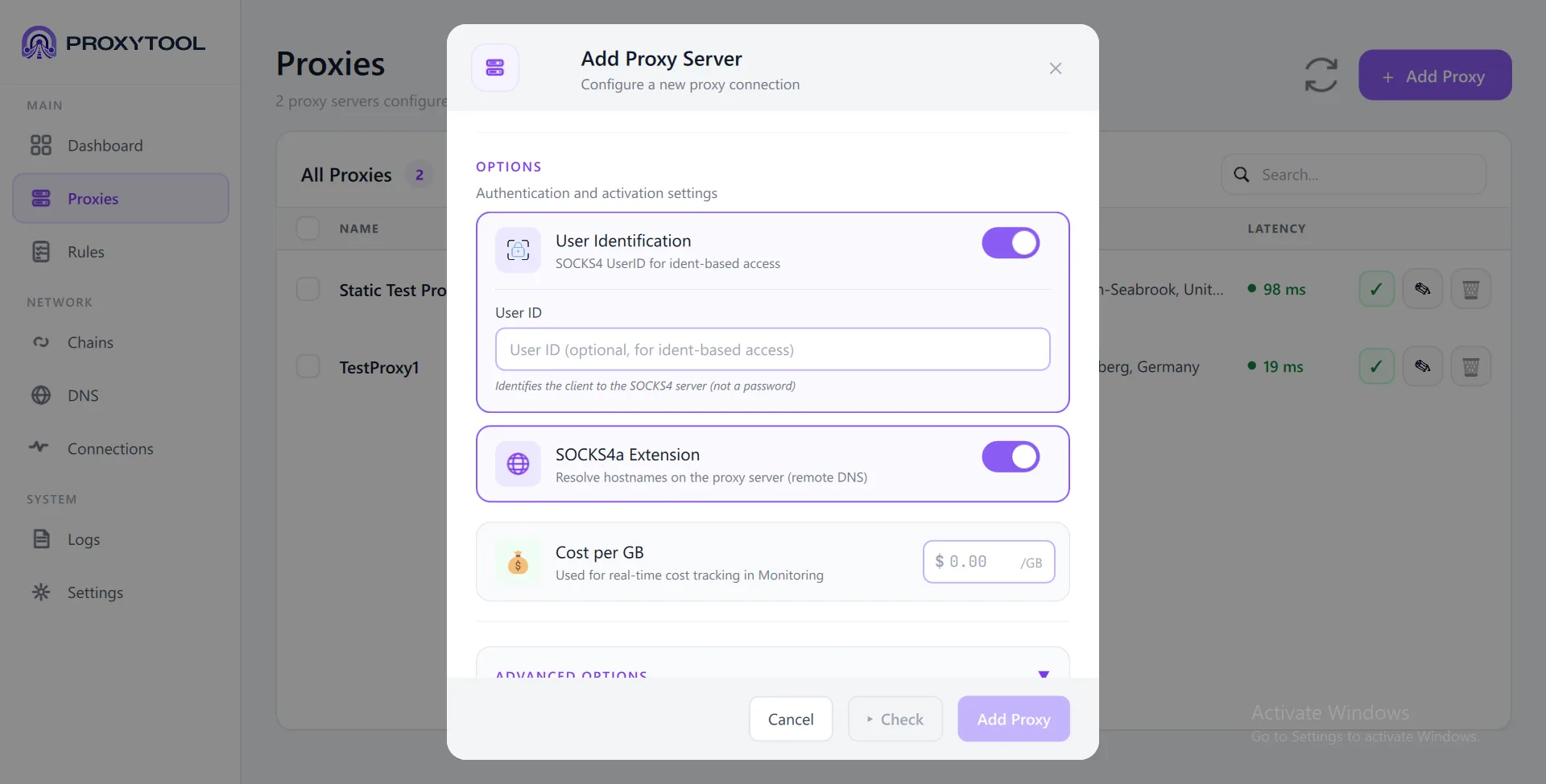
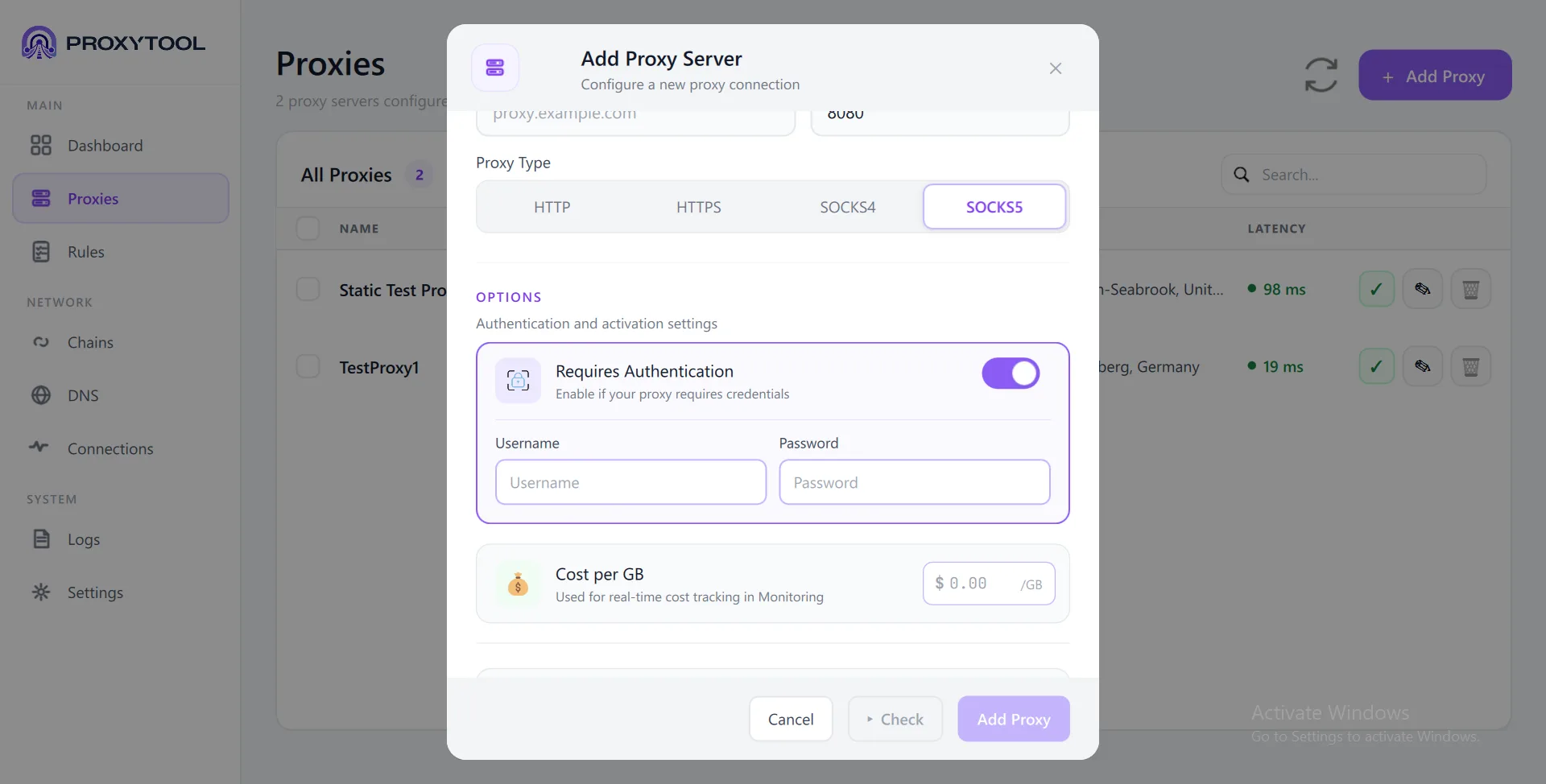
The options shown below the protocol selector differ depending on the type you choose. Use the carousel tabs above to compare each protocol side by side.
| Option | HTTP / HTTPS | SOCKS4 | SOCKS5 |
|---|---|---|---|
| Requires Authentication | Username + Password + Method selector (Basic / NTLM / Negotiate) | N/A — replaced by User Identification | Username + Password (auto-negotiated) |
| User Identification | N/A | User ID string (ident-based access, no password) | N/A |
| SOCKS4a Extension | N/A | Toggle — enables remote DNS via proxy | N/A (remote DNS built-in) |
| Send User-Agent | Toggle — sends browser User-Agent header in CONNECT requests |
N/A | N/A |
| Cost per GB | Yes | Yes | Yes |
| Advanced Options | Yes | Yes | Yes |
Authentication Details
Toggle Requires Authentication (or User Identification for SOCKS4) to reveal credential fields. The layout changes per protocol:
| Feature | HTTP / HTTPS | SOCKS4 | SOCKS5 |
|---|---|---|---|
| Credential fields | Username + Password | User ID only (no password) | Username + Password |
| Auth method | Basic, NTLM, or Negotiate (Kerberos) — dropdown selector | N/A — ident string sent with CONNECT | N/A — method auto-negotiated (RFC 1929) |
| Use Current User Login | Yes (NTLM/Negotiate — uses Windows SSPI credentials) | N/A | N/A |
Send User-Agent (HTTP / HTTPS only)
When enabled, ProxyTool adds a User-Agent header to the HTTP CONNECT handshake. Some proxies require this to allow the connection. A default Chrome 131 string is pre-filled, but you can set any custom value. This option does not appear for SOCKS4 or SOCKS5 because these protocols do not use HTTP headers.
SOCKS4a Extension (SOCKS4 only)
Standard SOCKS4 resolves hostnames locally before forwarding — which leaks DNS queries. With SOCKS4a enabled, the hostname is sent to the proxy for remote resolution, keeping your DNS private.
ProxyTool sends a dummy IP (0.0.0.1) along with the target hostname. The proxy resolves the hostname on its end — your local DNS never sees the domain name.
| Mode | DNS Resolution | Privacy |
|---|---|---|
| SOCKS4 (off) | Client resolves locally to IPv4 | DNS visible to ISP |
| SOCKS4a (on) | Proxy resolves remotely | DNS hidden from ISP |
Cost per GB
Available for all protocol types. Enter your cost rate (e.g. $2.50 /GB) to enable real-time cost tracking in the Connection Monitor — especially useful for residential or metered proxies.
Advanced Proxy Settings
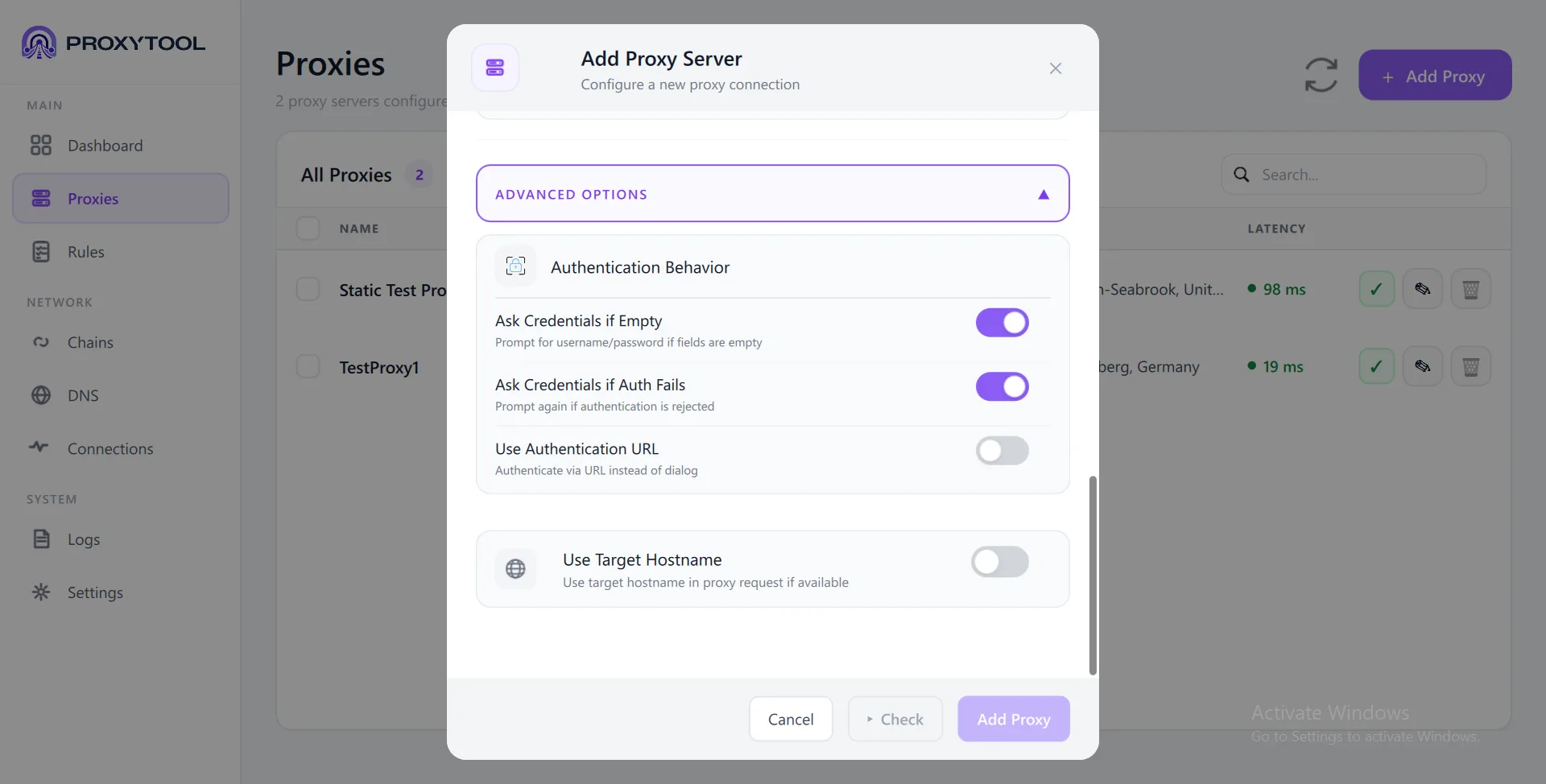
Expand the Advanced Options section in the Add Proxy dialog to access these settings. They apply to all proxy types unless noted.
 Advanced Options expanded — auth prompts, authentication URL, and Use Target Hostname
| Option | Default | What it does |
|---|---|---|
| Ask Credentials if Empty | On | Shows an interactive login prompt at connect time if no credentials are saved for this proxy |
| Ask Credentials if Auth Fails | On | Re-prompts for credentials when the proxy rejects authentication (HTTP 407, SOCKS rejection) |
| Use Authentication URL | Off | Authenticate via a URL instead of stored credentials. Used for enterprise proxies (e.g. Blue Coat) that use web-based auth portals |
| Authentication URL | — | The URL to use for authentication. Supports embedded credentials: scheme://user:pass@host. Required when the toggle is enabled |
| Use Target Hostname | Off | Sends the original hostname (not resolved IP) in the proxy CONNECT request. Useful when the proxy needs to see domain names for routing or logging |
Inline Proxy Checker
Before saving, click Check to verify connectivity. The checker runs a multi-step test against a configurable target (default: google.com):
- Proxy connection — TCP connect to the proxy server, measures latency
- HTTPS handshake — Sends the CONNECT request to the proxy
- Authentication — Handles proxy auth (407 response → sends credentials)
- Credential check — Verifies credentials were accepted (HTTP 200)
- Target connection — Reaches the target through the proxy end-to-end
All steps show a green checkmark on success with detailed status messages. The total latency is displayed at the top right (e.g. 99 ms), and a summary line confirms the result: PASSED — All tests OK.
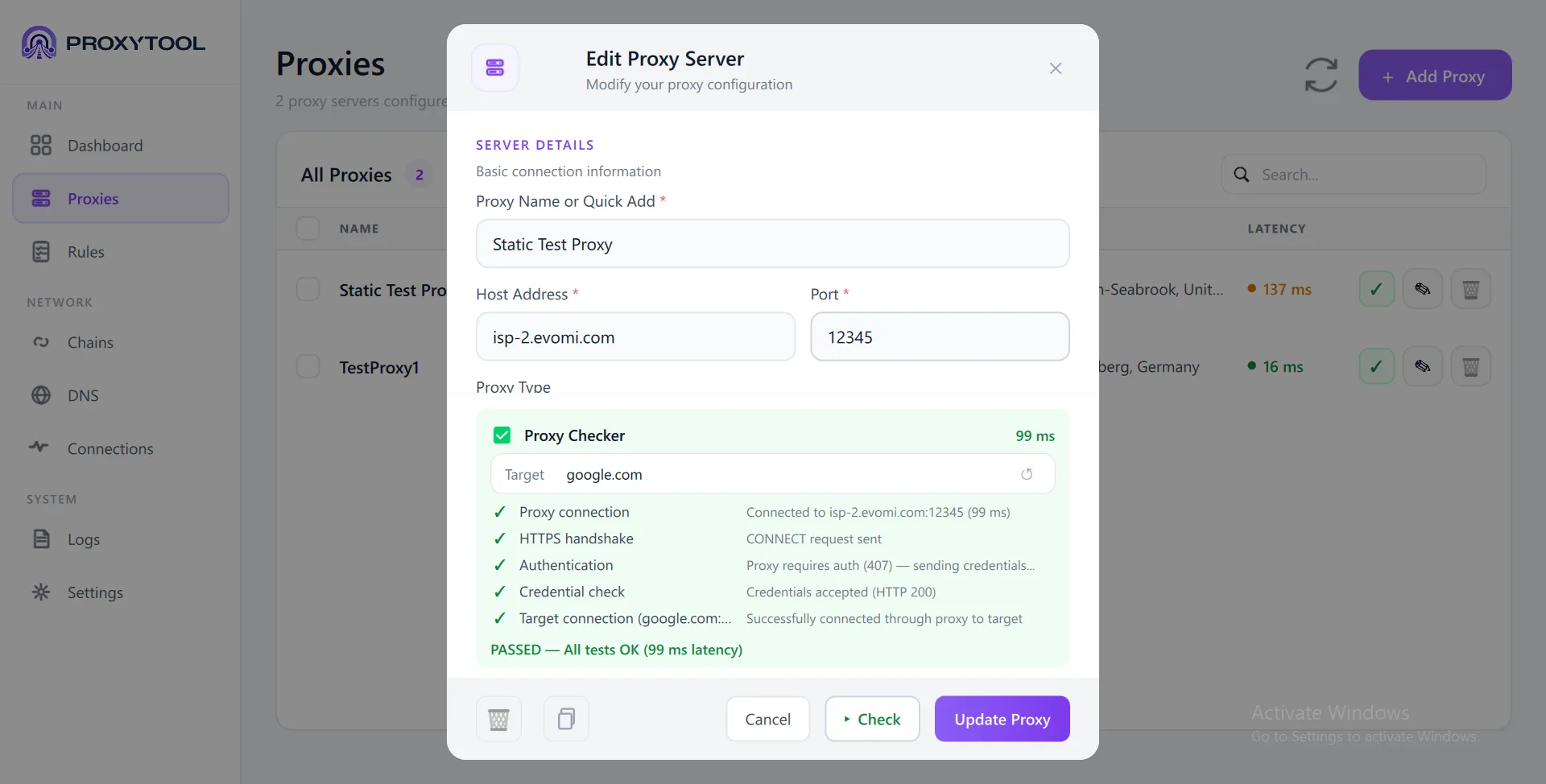 Inline Proxy Checker — all 5 tests passed (99 ms latency) with target google.com
Managing Proxies
The Proxies page displays all configured proxy servers in a sortable table with real-time status indicators.
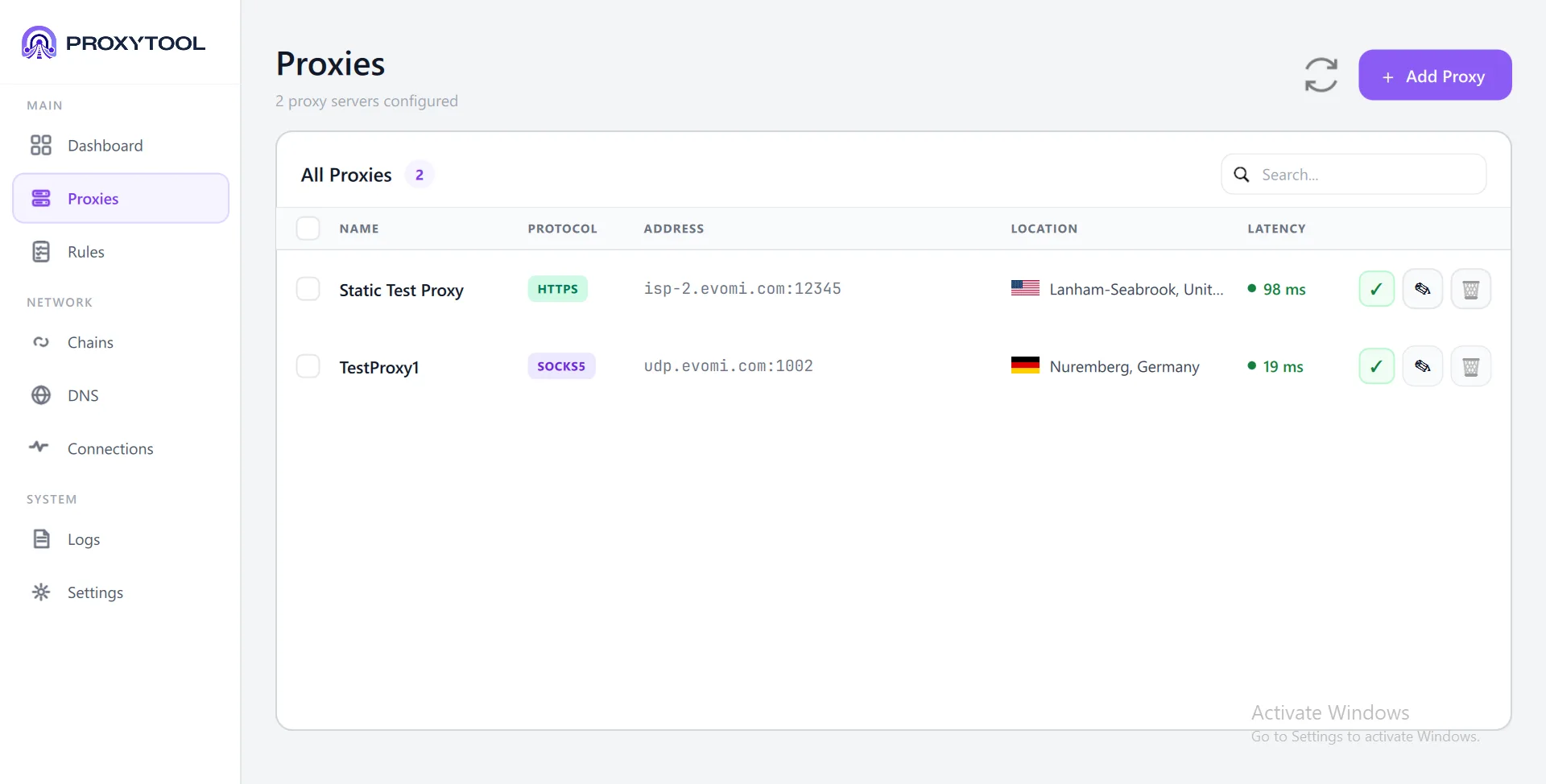 Proxies — Server list with protocol, address, location, latency, and quick actions
Table Columns
| Column | Shows |
|---|---|
| Name | Display name you assigned |
| Type | Protocol badge (HTTP, HTTPS, SOCKS4, SOCKS5) |
| Address | host:port |
| Location | Country flag + city (auto-detected via GeoIP lookup) |
| Status | Active (green dot) or Inactive (gray dot) |
| Latency | Response time in ms, color-coded (green/yellow/red) |
| Actions | Toggle on/off, Edit, Delete, Test |
Filters & Search
- Search — Filter by name, address, or location
- Type filter — All / HTTP / HTTPS / SOCKS4 / SOCKS5
- Status filter — All / Active / Inactive
Actions
- Toggle — Activates/deactivates the proxy (starts or stops the bridge)
- Edit — Reopens the Add Proxy dialog in edit mode with all fields pre-filled
- Delete — Stops the proxy if active, then removes it. Shows a warning if the proxy is used in chains or rules
- Test — Runs the connectivity checker without opening the dialog
Routing Rules
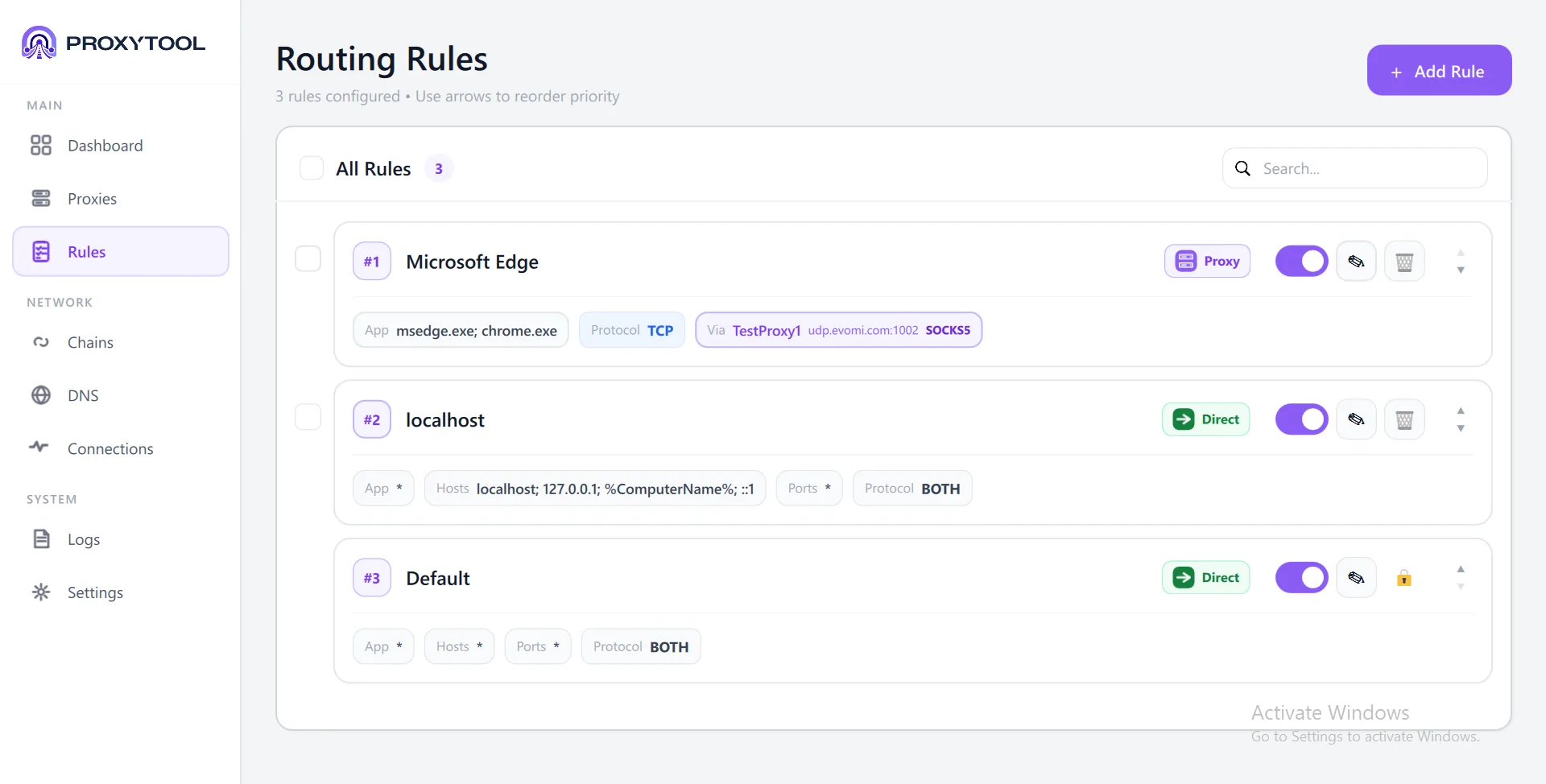
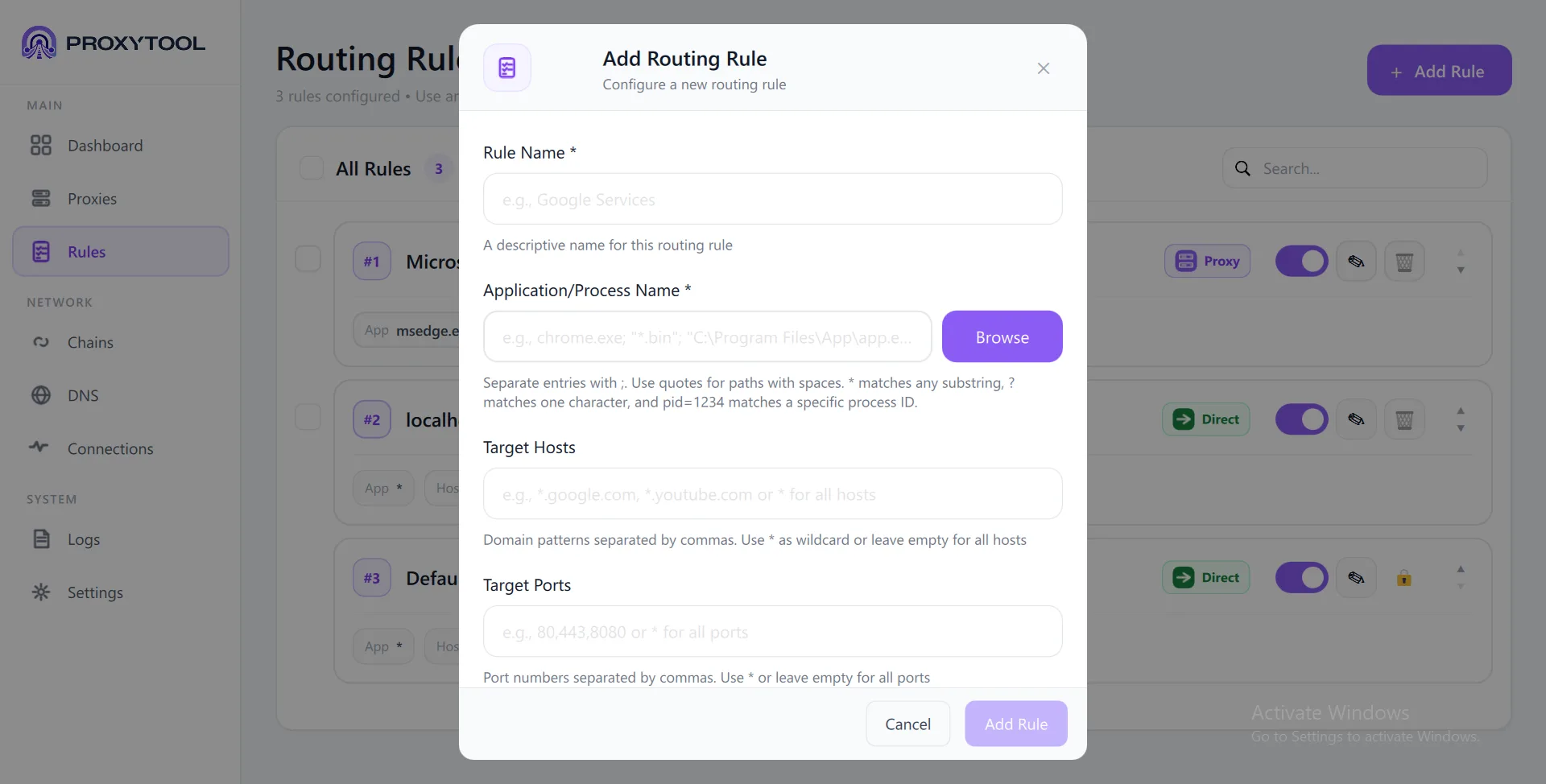
Rules determine which traffic goes through which proxy (or chain), goes direct, or gets blocked. They are evaluated top-to-bottom by priority — the first matching rule wins. Click + Add Rule to open the configuration dialog.
Rules Overview
The Rules page lists all configured routing rules with their priority number, action badge (Proxy / Direct / Block), on/off toggle, and summary tags showing matched apps, hosts, ports, and protocol. Use the up/down arrows on the right to reorder priorities — the first matching rule wins.
Rule Setup
The top half of the dialog defines what traffic this rule matches. All four criteria are optional — leave a field empty (or *) to match everything.
| Field | Format | Examples |
|---|---|---|
| Rule Name | Descriptive label | Google Services, Dev Server |
| Application / Process | Name, path, wildcards (*, ?), multiple separated by ;. Use Browse to pick an EXE. |
chrome.exe; msedge.exe, *bin*, pid=1234 |
| Target Hosts | Domain patterns, comma-separated. * = all hosts. |
*.google.com, api.example.org |
| Target Ports | Numbers, comma-separated. * = all ports. |
80,443,8080 |
Protocol
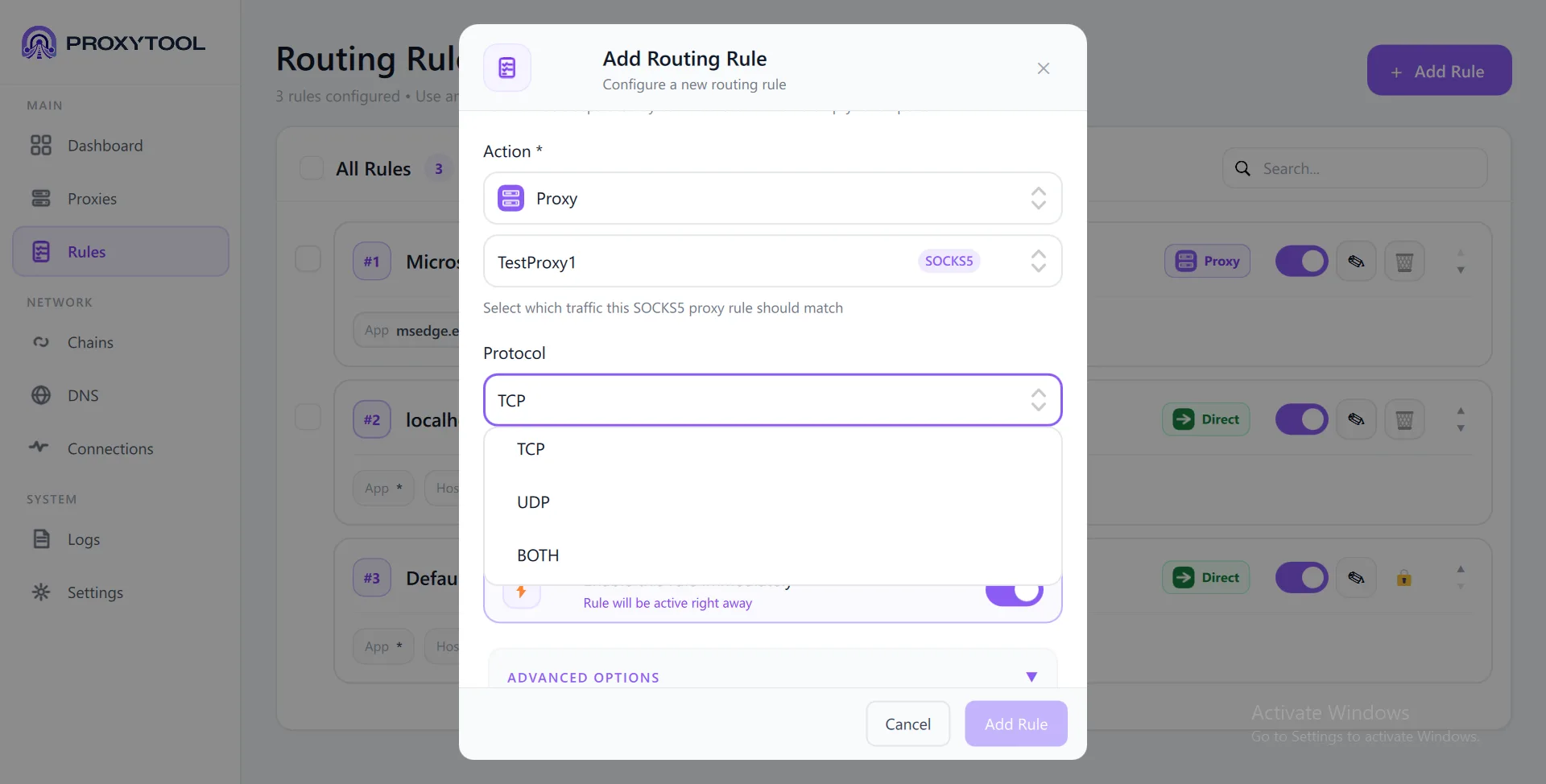
Select which transport protocol this rule applies to. The dropdown offers TCP, UDP, or BOTH. Note that UDP routing requires a SOCKS5 proxy — HTTP and SOCKS4 proxies only support TCP.
.dmp logs of all proxied TCP and UDP connections. Useful for verifying that game, VoIP, or streaming traffic is actually routed through your proxy.
Actions
The Action dropdown defines how matched traffic is routed. Each action type shows different follow-up options:
| Action | What it does | Follow-up options |
|---|---|---|
| Direct | Bypass proxy — traffic goes straight to the destination | Priority, Enable toggle |
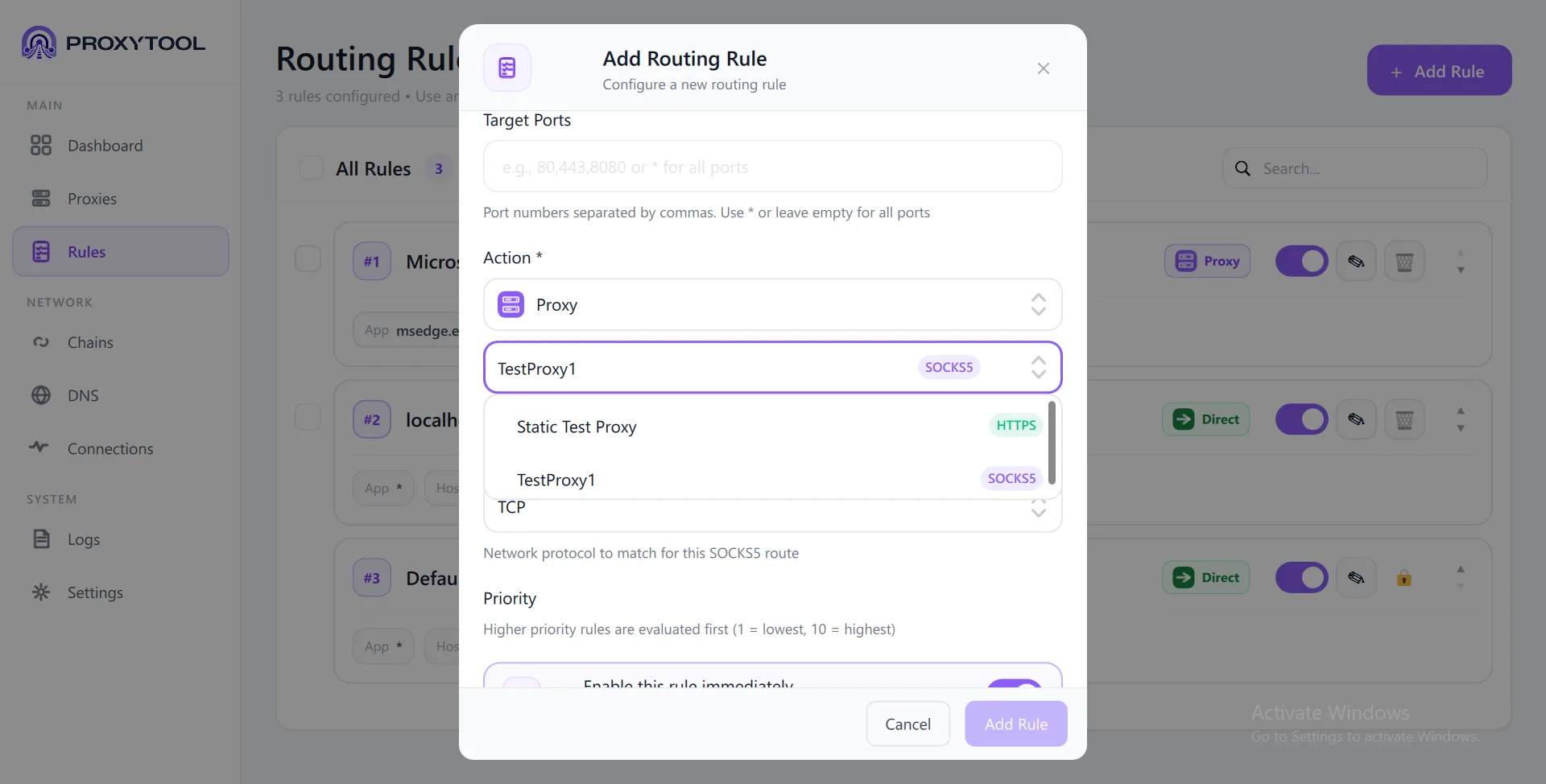
| Proxy | Route through a specific proxy server | Proxy selector (shows all configured servers with protocol badge), Protocol (TCP/UDP/BOTH), Priority, Enable toggle, Advanced Options |
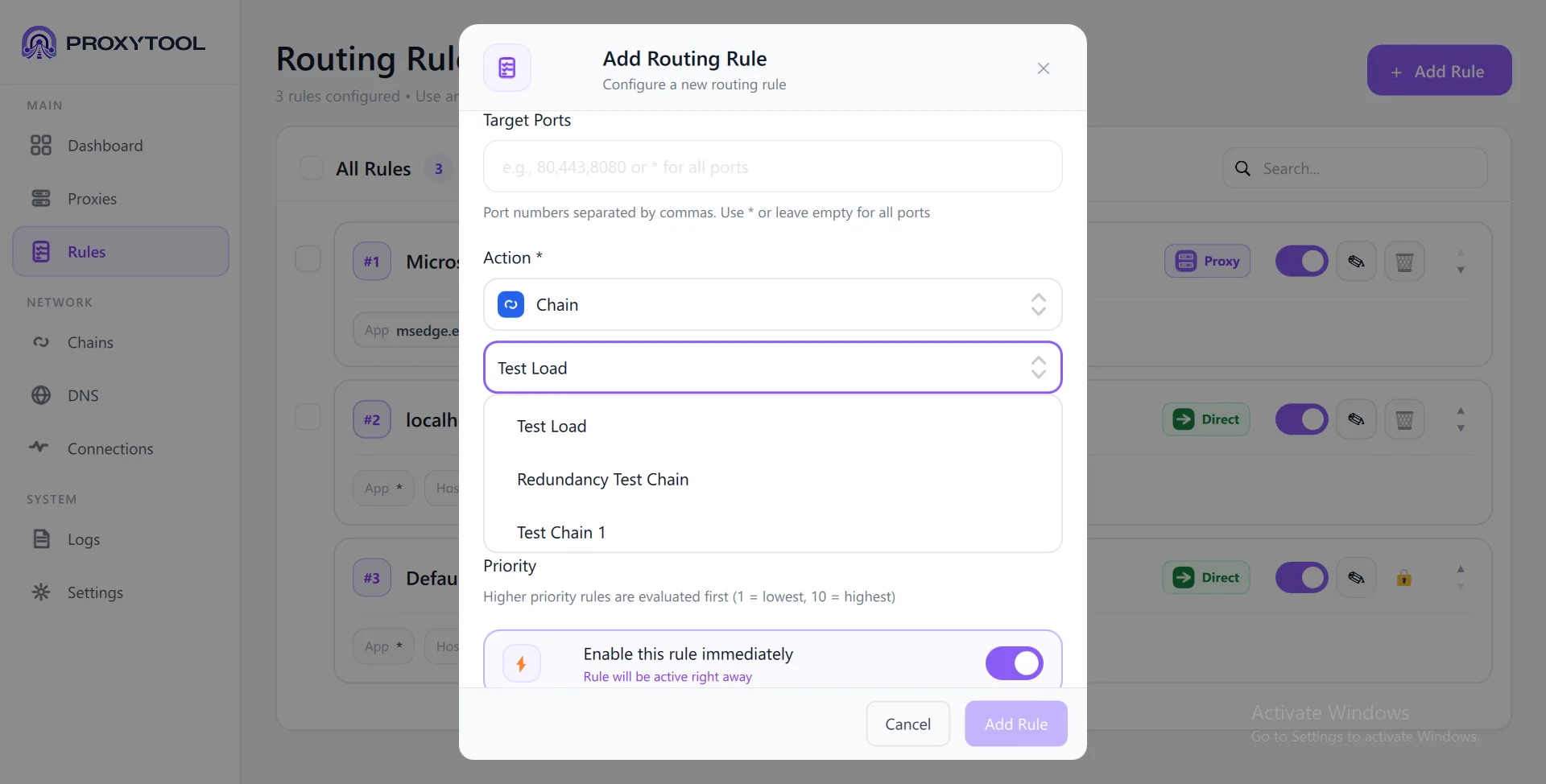
| Chain | Route through a proxy chain | Chain selector (shows all configured chains), Priority, Enable toggle, Advanced Options |
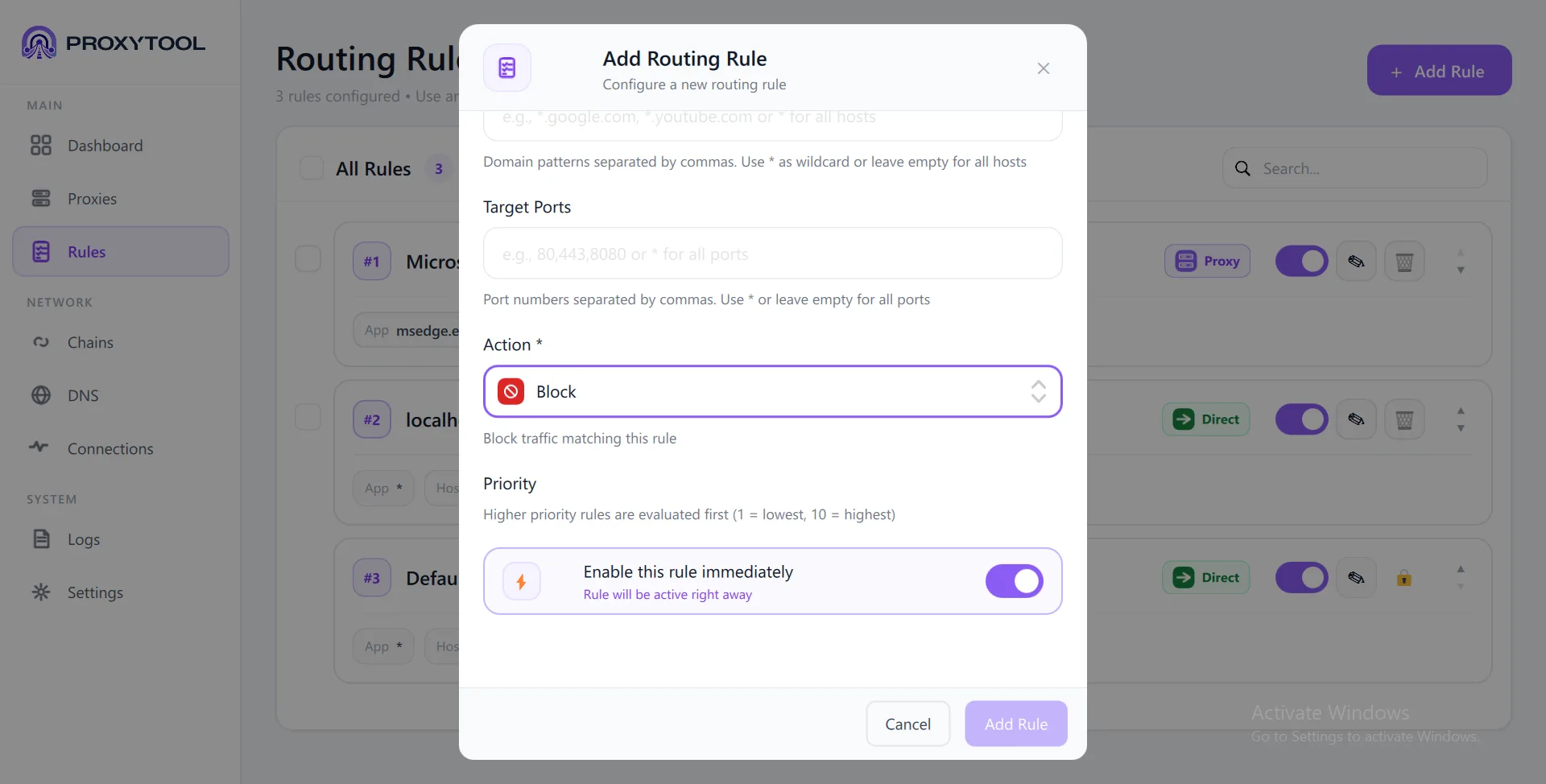
| Block | Drop the connection — app receives connection refused | Priority, Enable toggle |
When selecting Proxy, the dropdown lists all configured servers with their protocol badge (HTTPS, SOCKS5). When selecting Chain, you choose from your configured chain setups (Load Balancing, Redundancy, Simple).
Priority & Enable
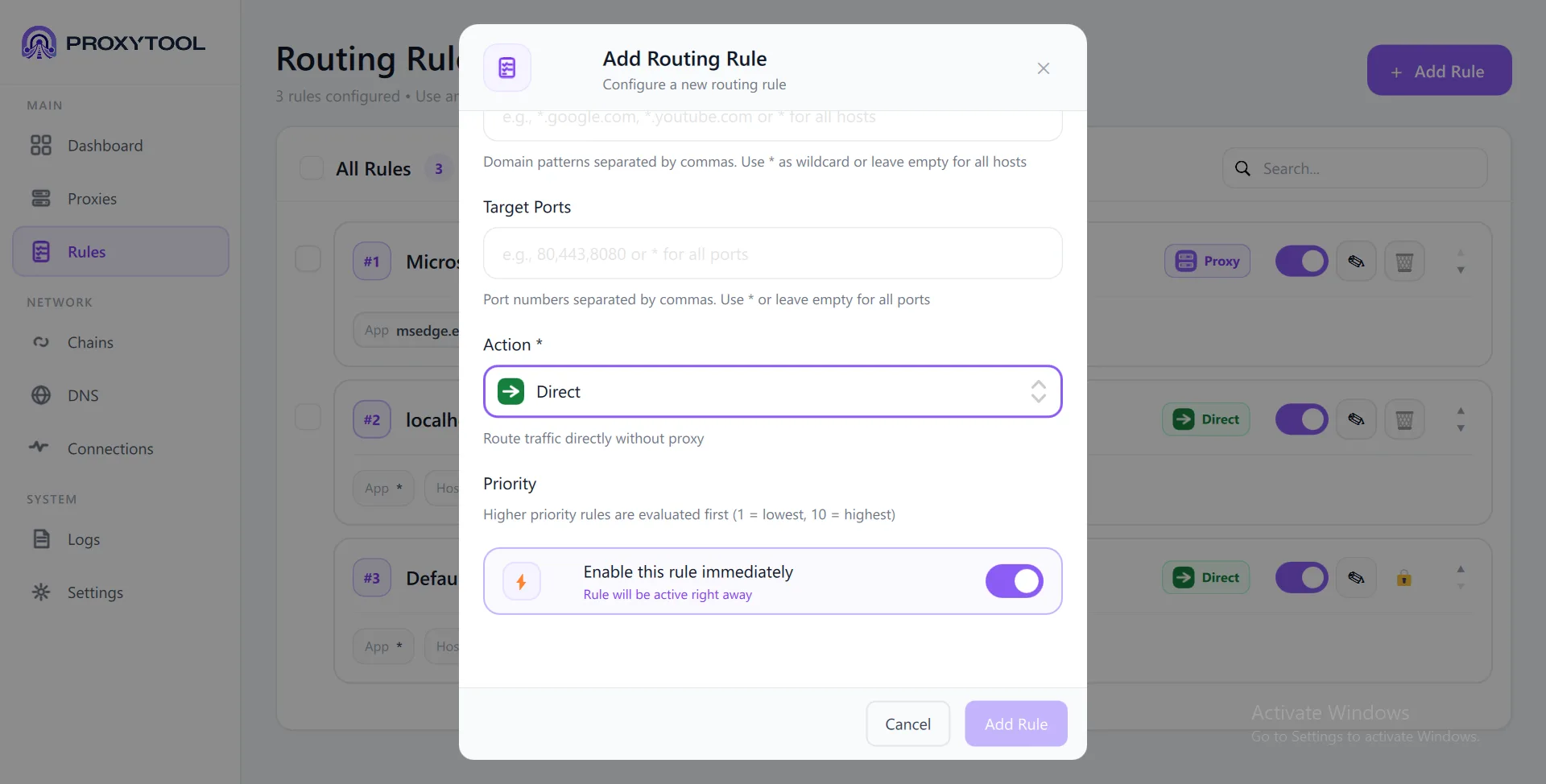
Every rule has a Priority level (1 = lowest, 10 = highest). Higher priority rules are evaluated first. The Enable this rule immediately toggle (on by default) activates the rule right after creation — disable it to save a rule for later use.
Advanced Routing Options
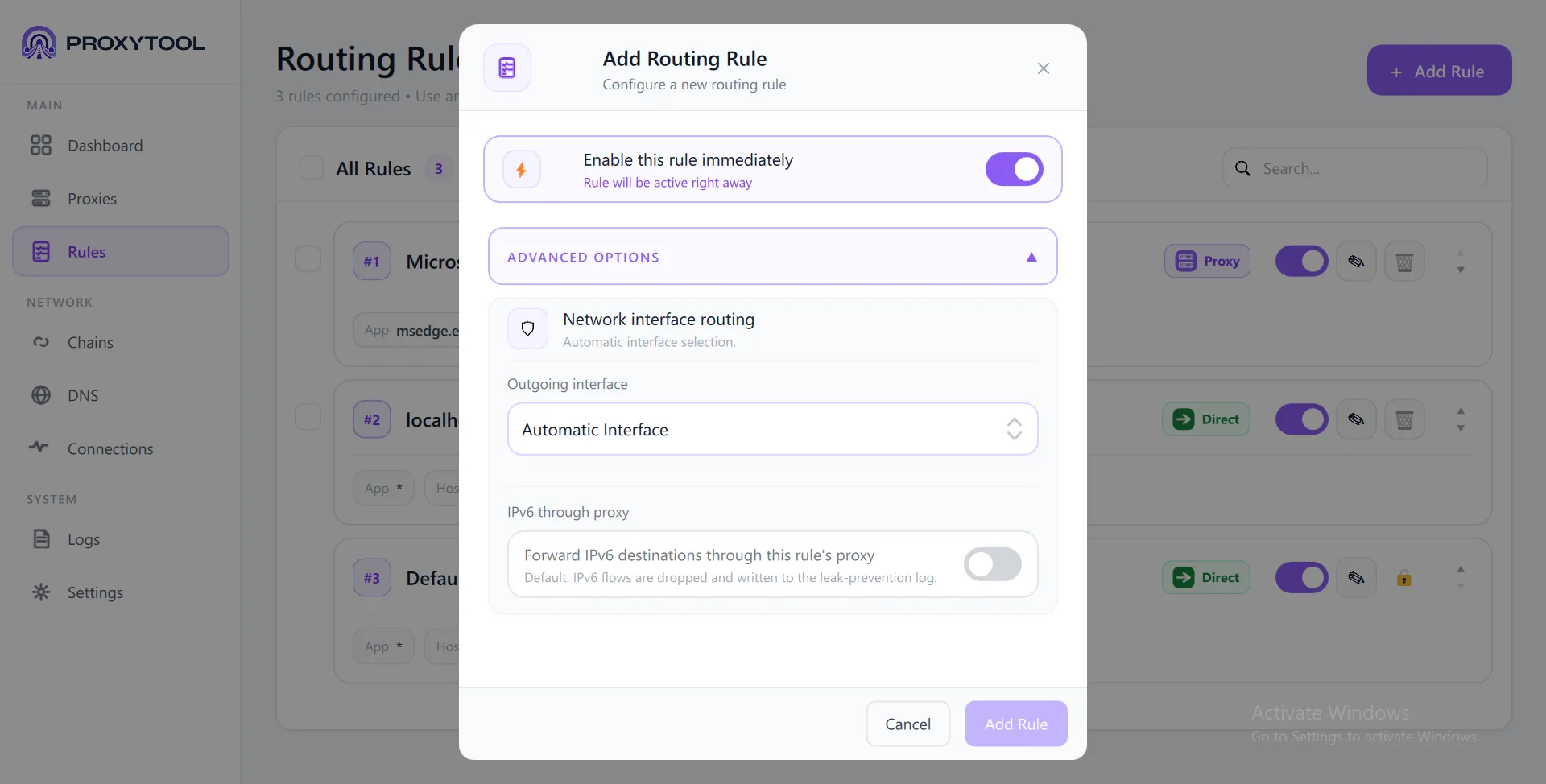
Expand Advanced Options at the bottom of the Add Rule dialog (available for Proxy and Chain actions) to access network interface control and IPv6 settings.
| Option | Default | Description |
|---|---|---|
| Outgoing Interface | Automatic Interface | Force this rule's traffic through a specific network adapter (e.g. WiFi, Ethernet, VPN). Automatic lets the OS decide. |
| IPv6 through proxy | Off | Off: IPv6 connections are dropped and logged to the leak-prevention log. On: IPv6 traffic is forwarded through the rule's proxy or chain. |
Proxy Chains
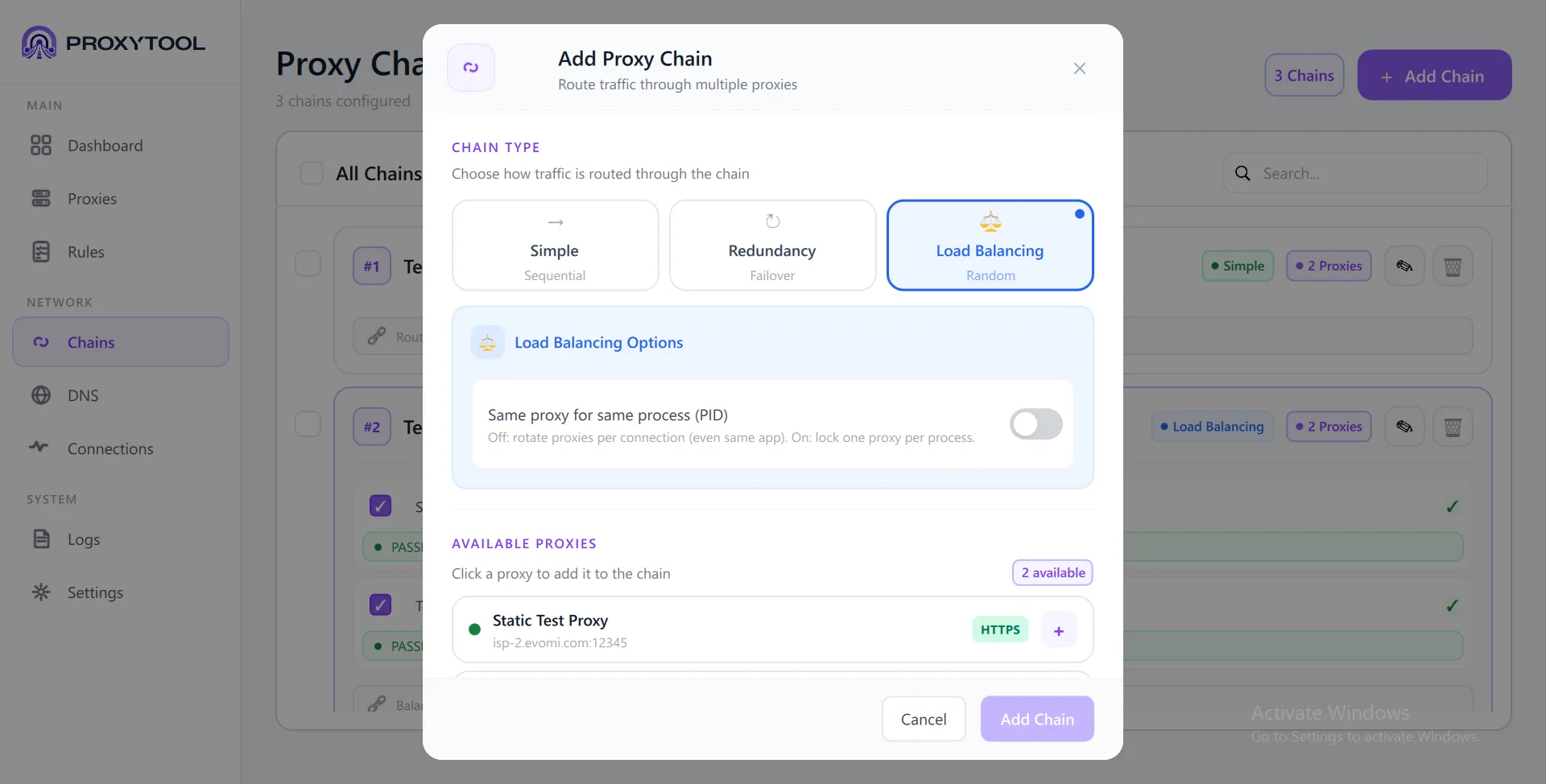
Proxy chains combine multiple proxies into a single routing target. ProxyTool supports three chain types — Simple (sequential multi-hop), Redundancy (automatic failover), and Load Balancing (random distribution). Click + Add Chain to open the configuration dialog.
Chains Overview
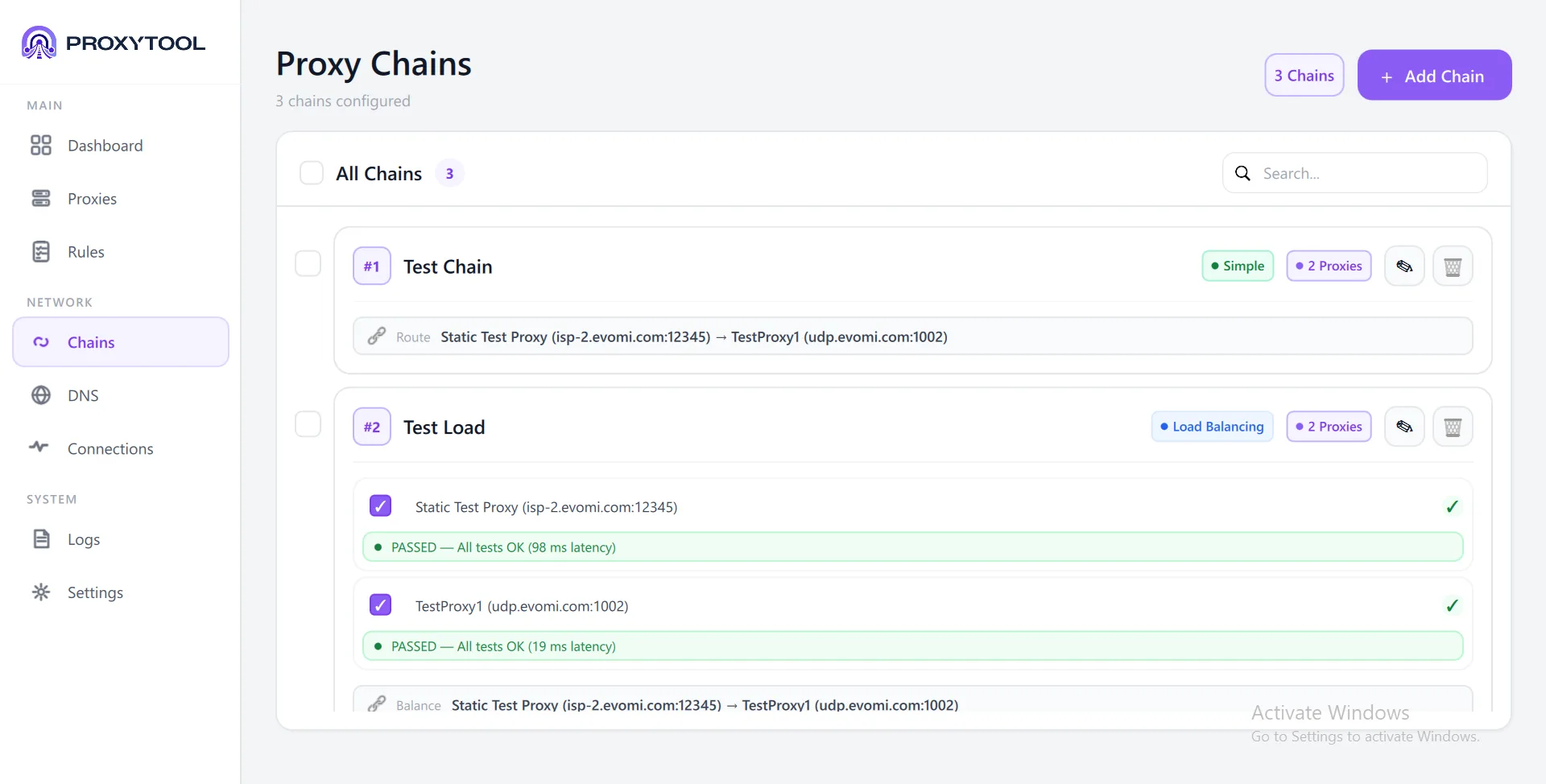
The Chains page lists all configured chains with their type badge (Simple, Load Balancing, Redundancy), proxy count, and a route visualization showing the traffic path (e.g. Static Test Proxy → TestProxy1). Expand a chain to see per-proxy health status with test results and latency.
Chain Setup
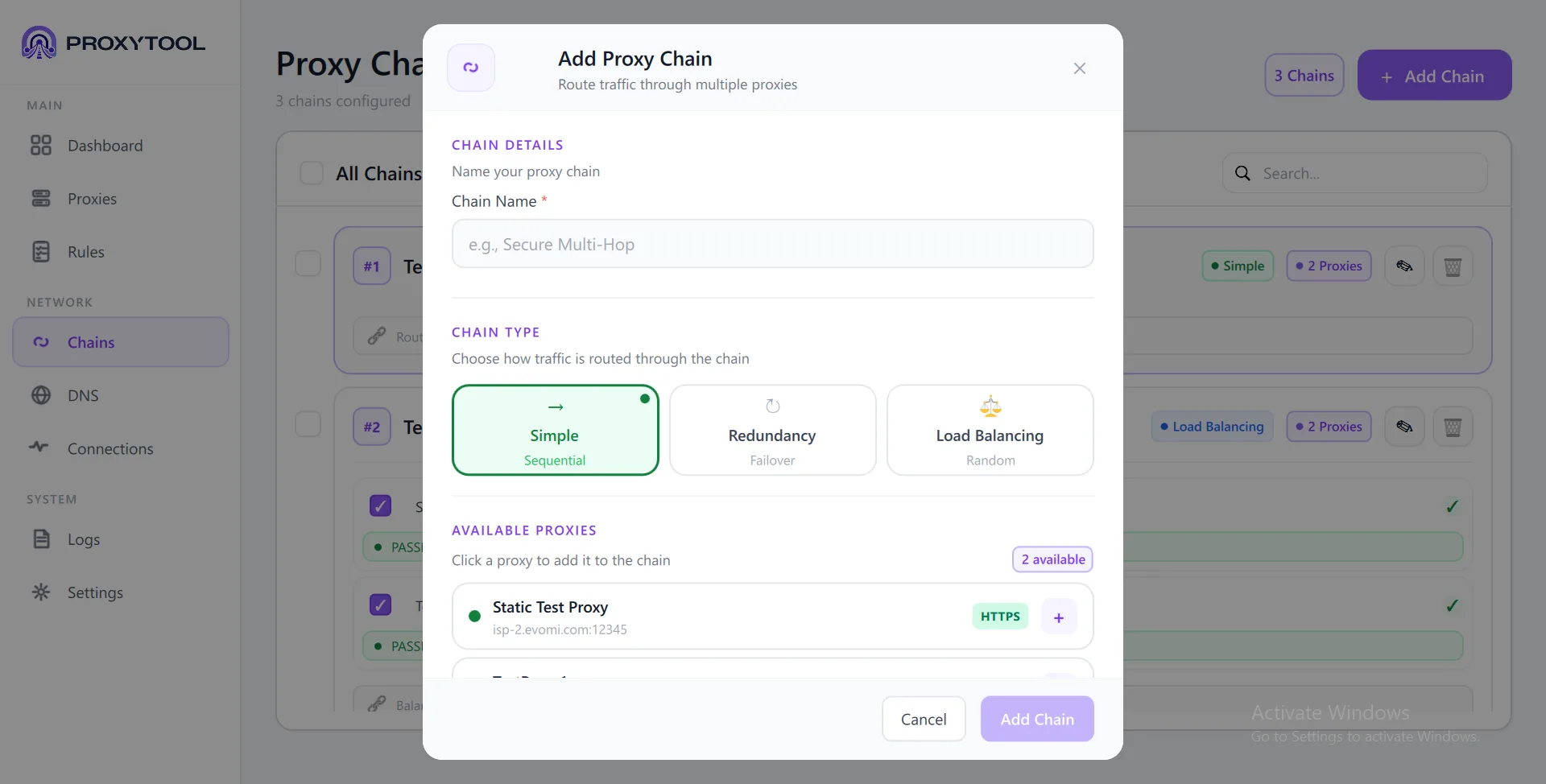
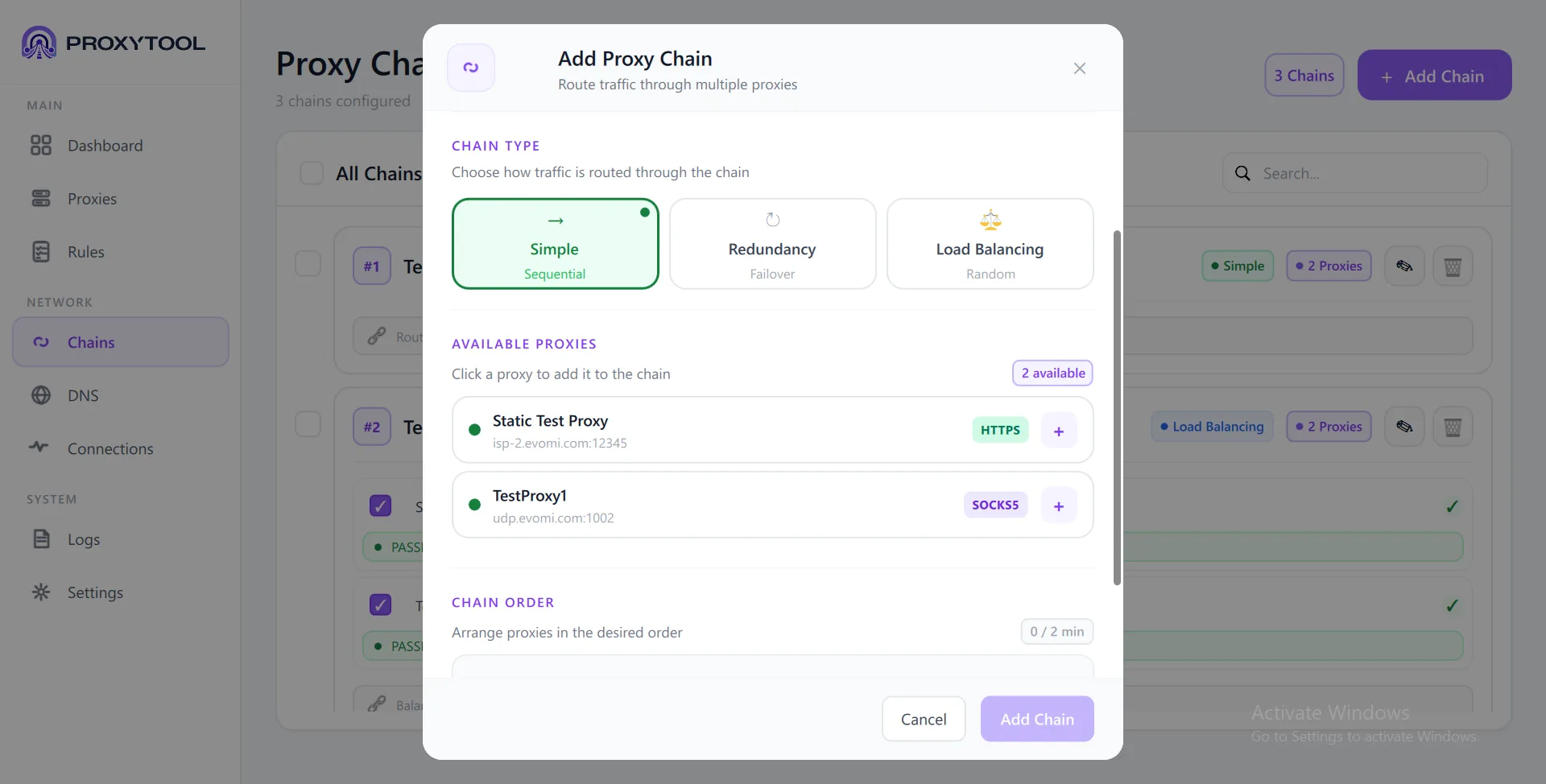
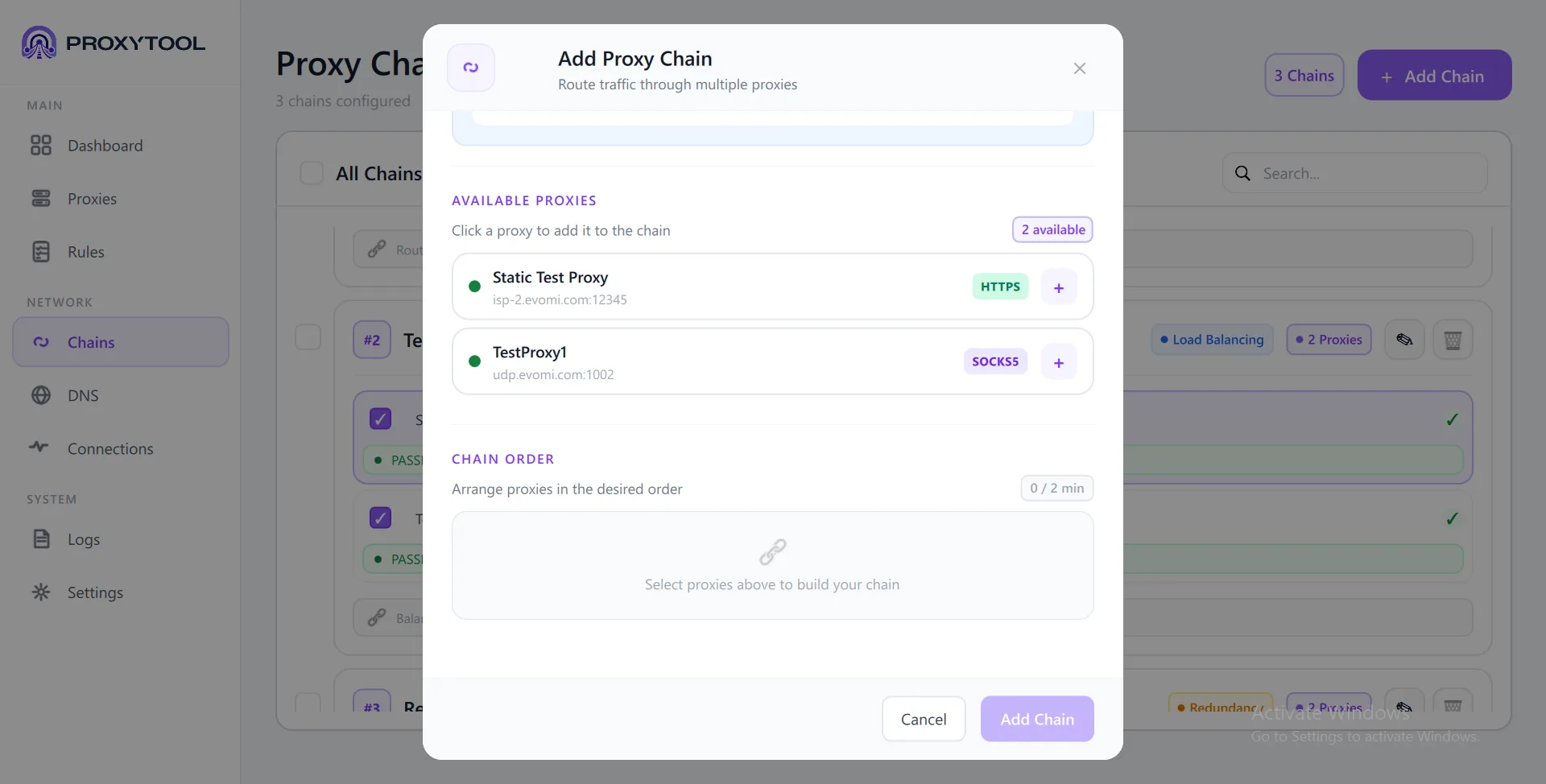
Enter a Chain Name, then select one of the three chain types. Each type shows its own configuration options below the selector. The Available Proxies panel lists all configured proxy servers — click the + button next to a proxy to add it to the chain.
| Aspect | Simple | Redundancy | Load Balancing |
|---|---|---|---|
| How it works | All proxies in sequence (multi-hop) | One proxy at a time (failover) | Random proxy per connection |
| Traffic flow | Client → A → B → Target | Client → first working proxy → Target | Client → random proxy → Target |
| Use case | Multi-hop anonymity | High availability / backup proxies | IP rotation / load distribution |
| On failure | Whole chain fails | Tries next proxy in order | Excludes failed proxy from pool |
| Order matters? | Yes — defines hop sequence | Yes — defines failover priority | No — random selection from pool |
Simple Sequential Chain
Routes traffic through every proxy in order as a true multi-hop chain. Each proxy becomes a hop between your device and the destination. Adds latency but increases anonymity. The order you set in the Chain Order section determines the hop sequence.
Redundancy Failover Chain
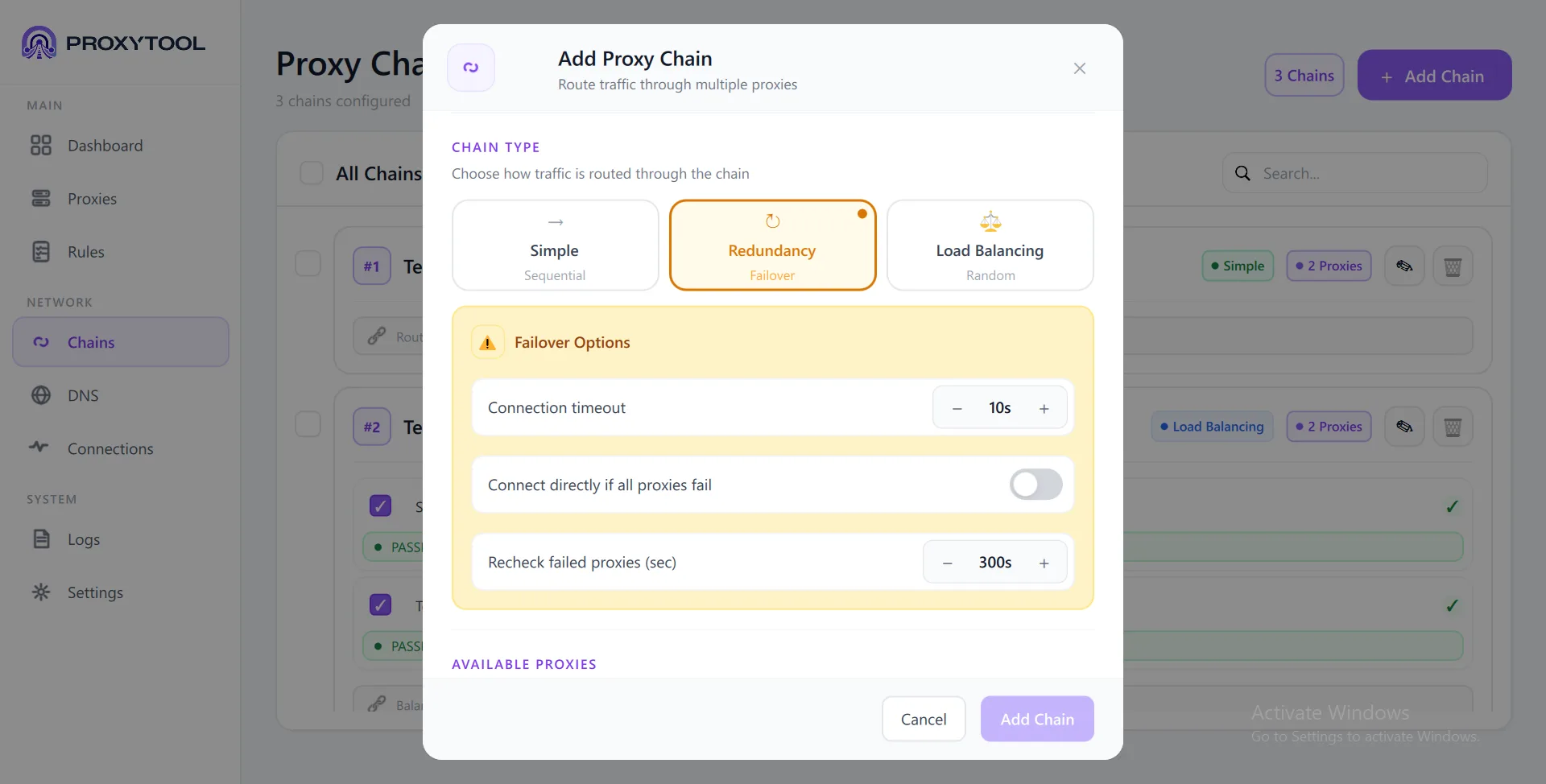
Uses one proxy at a time from the ordered list. Tries the first enabled proxy; if it fails validation within the timeout, automatically switches to the next.
| Option | Default | Description |
|---|---|---|
| Connection Timeout | 10s |
How long to wait before declaring a proxy failed. Adjustable with + / − buttons (1–120 seconds). |
| Connect directly if all fail | Off | On: bypass proxies entirely when all fail. Off: block the connection. |
| Recheck failed proxies | 300s |
Background timer re-tests failed proxies automatically. Set to 0 to disable. |
Load Balancing Random Distribution
Distributes connections across multiple parallel proxies. Each new connection gets assigned a random proxy from the pool.
| Option | Default | Description |
|---|---|---|
| Same proxy for same process (PID) | Off | Off: rotate proxy per connection (even within the same app). On: lock one proxy per process for session stickiness. |
Creating a Chain
Steps
- 1. Name your chain — Enter a descriptive name (e.g. "Secure Multi-Hop")
- 2. Select chain type — Simple, Redundancy, or Load Balancing — each shows its own configuration options
- 3. Add proxies — Click the + button next to a proxy in the "Available Proxies" panel. Proxies show their protocol badge (HTTPS, SOCKS5) and can only appear once per chain.
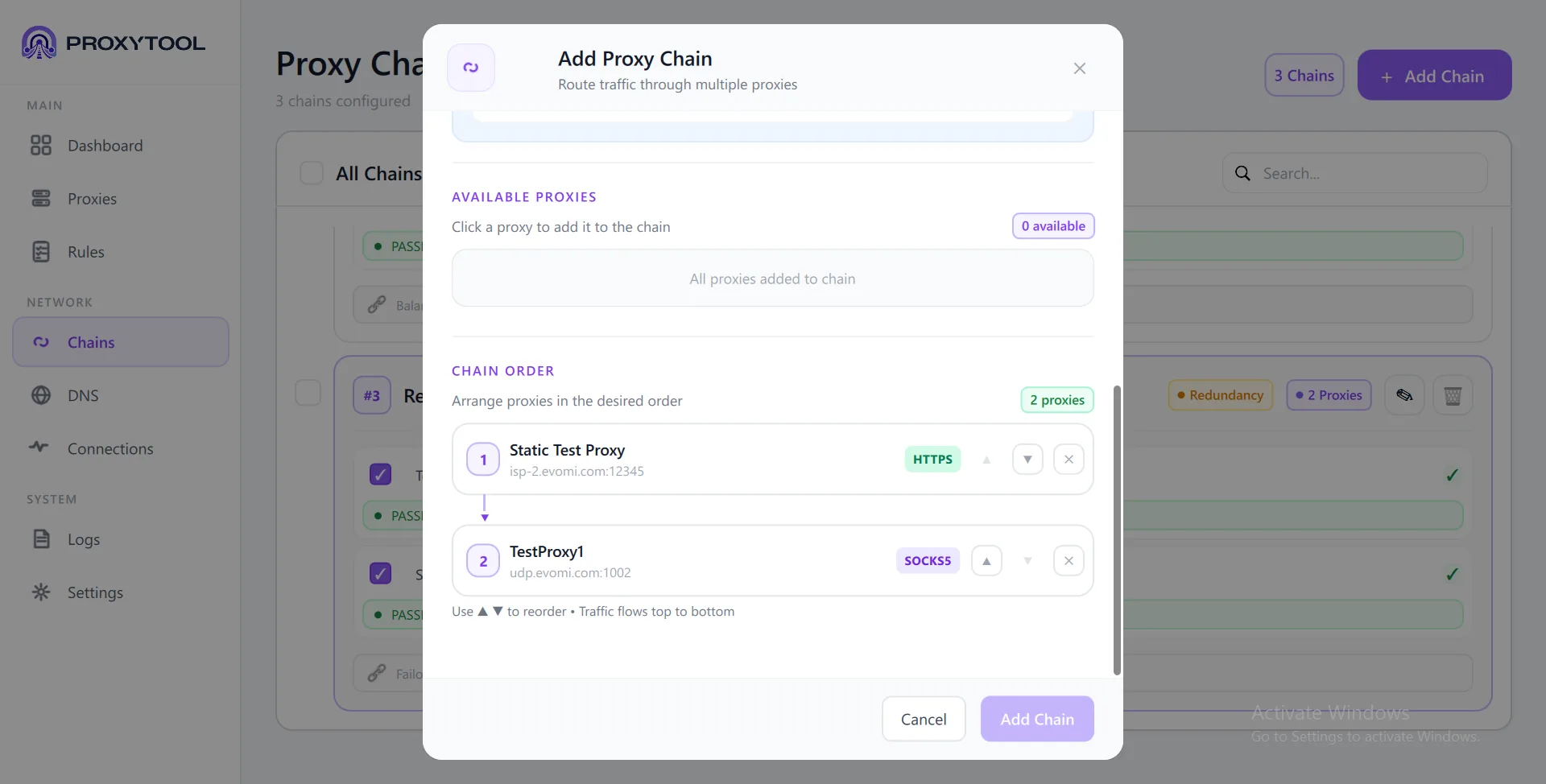
- 4. Set order — In the Chain Order section, use the ▲ ▼ arrow buttons to move proxies up or down. Traffic flows top to bottom. Click ✕ to remove a proxy from the chain.
- 5. Configure options — Set type-specific options (timeout for Redundancy, PID stickiness for Load Balancing)
- 6. Save — Click Add Chain. Assign the chain to a routing rule to start using it.
Redundancy (failover)
Pick Redundancy to try proxies in priority order. Configure connection timeout, optional direct fallback, and how often failed hops are rechecked.
Redundancy — failover timeout, direct fallback, and recheck timer
Load Balancing
Pick Load Balancing to distribute connections across the pool. Enable Same proxy for same process (PID) when an app needs a stable IP for its session.
Load Balancing — PID stickiness and available proxies
Adding proxies to the chain
In Available Proxies, click + next to each hop. They appear in Chain Order where you can reorder or remove them.
Available Proxies — add hops with the + button
Chain Order — numbered hops with reorder arrows
Chain Order
The Chain Order section shows all added proxies as numbered cards. Each card displays the proxy name, address, and protocol badge. Use the ▲ (up) and ▼ (down) arrow buttons to reorder — traffic flows from position 1 downward. A visual arrow connects the hops to illustrate the routing path. The counter (e.g. 2 proxies) shows how many are in the chain, with a minimum of 2 required.
Chain List Features
- Type badge — Color-coded: Simple, Load Balancing, Redundancy
- Route visualization — Shows the proxy flow:
Proxy A → Proxy B → ... - Per-proxy health — Expand a chain to see individual proxy test results with latency, e.g. PASSED — All tests OK (98 ms)
- Edit / Delete — Edit reopens the dialog, Delete removes the chain. Shows a warning if the chain is used in routing rules.
DNS & Name Resolution
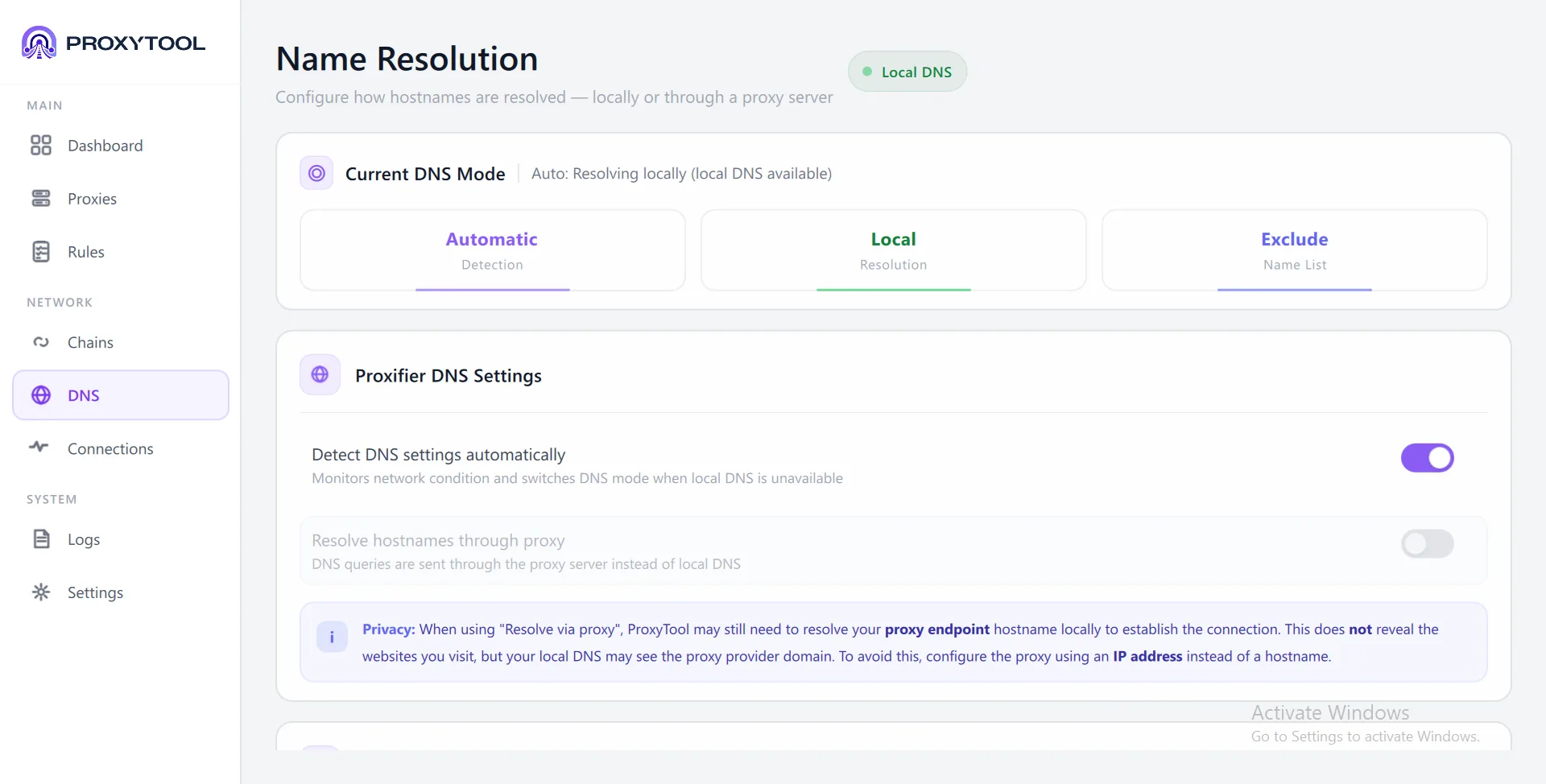
The DNS page controls how hostnames are resolved and provides leak-prevention features that keep your real IP address hidden. Three tabs at the top let you switch between detection modes, while the settings below fine-tune privacy behaviour.
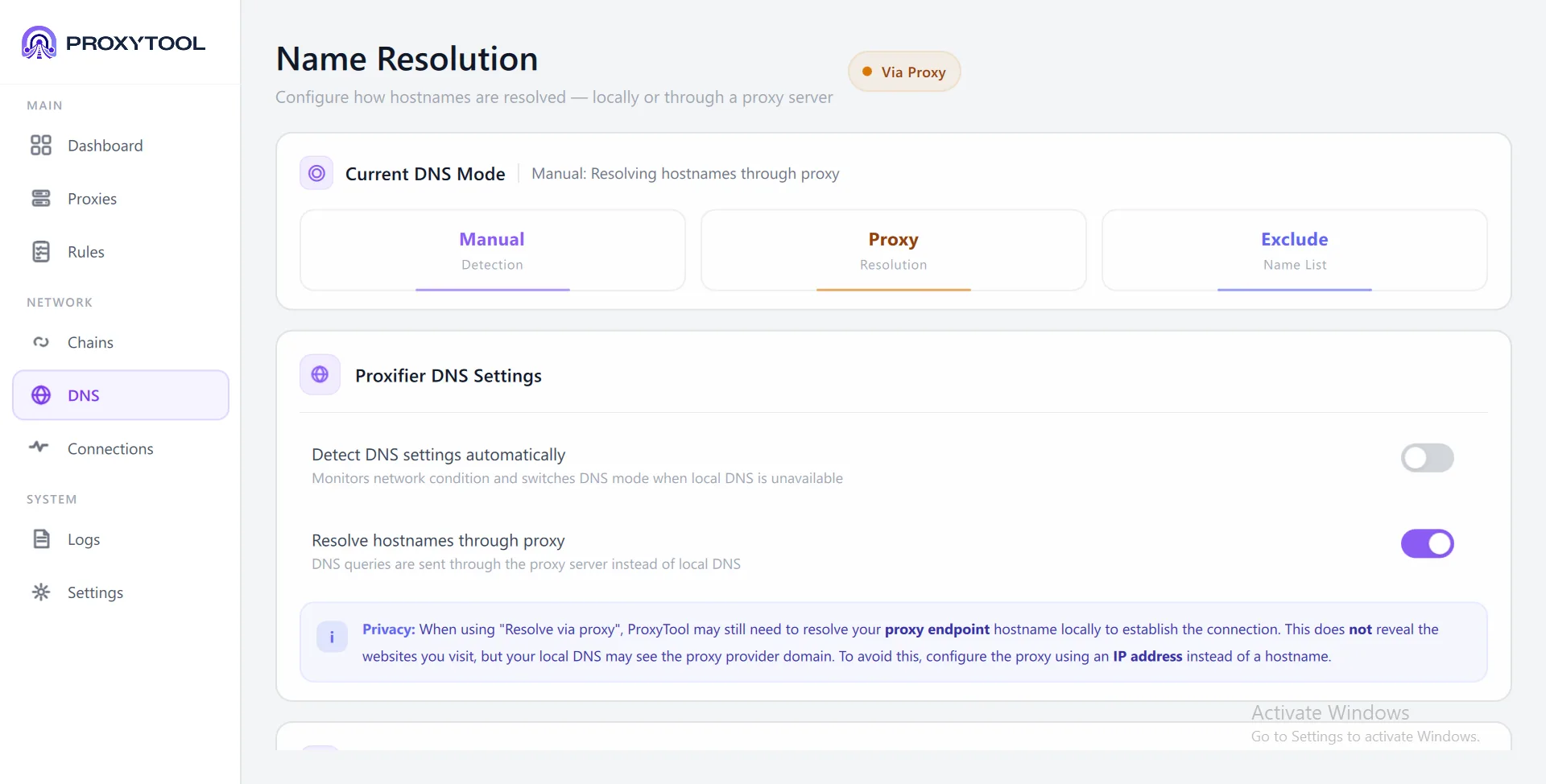
Current DNS Mode
The status badge in the top-right corner (Local DNS or Via Proxy) shows the active resolution path at a glance. Three tabs below it control the detection mode:
| Tab | How it works | Best for |
|---|---|---|
| Automatic Detection | Monitors network conditions and switches to proxy DNS automatically when local DNS is unavailable | General use — best balance of speed and privacy |
| Local Resolution | Always uses the system's own DNS resolver | Performance priority — fastest resolution |
| Exclude / Name List | Fine-tune which domains bypass proxy DNS. Supports wildcards (*, ?) and constants like %ComputerName% |
Hybrid setups where some domains must resolve locally |
Proxifier DNS Settings
Two toggles control the connection between auto-detection and proxy resolution:
- Detect DNS settings automatically — monitors network conditions and switches DNS mode when local DNS becomes unavailable (on by default)
- Resolve hostnames through proxy — sends all DNS queries through the proxy server instead of local DNS. When enabled, the badge changes to Via Proxy and the detection tab switches to Manual / Proxy
IP Protection & Leak Prevention
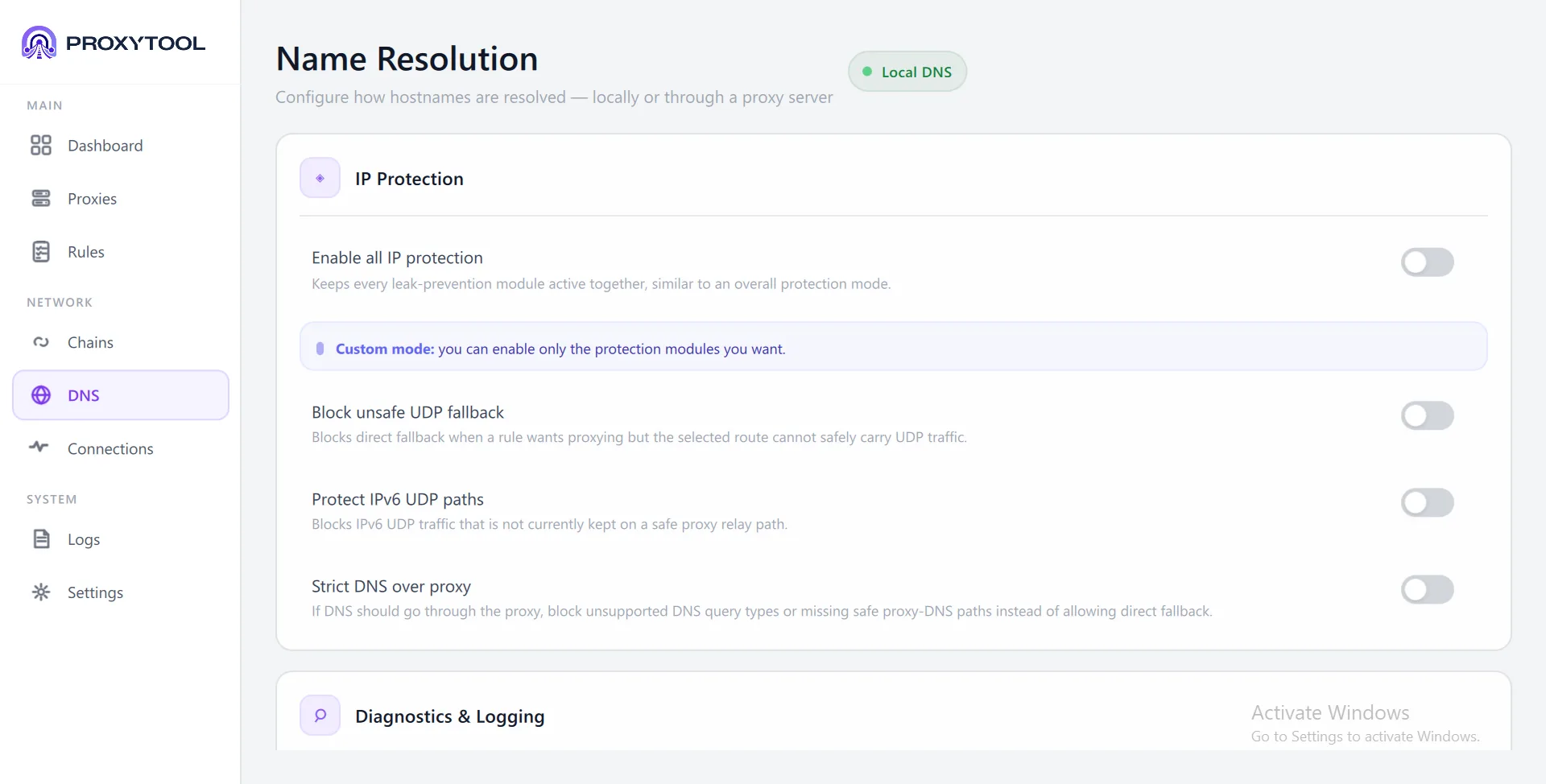
Scroll down on the DNS page to find the IP Protection panel. These settings prevent traffic from leaking outside the proxy when the operating system or applications attempt alternative network paths. You can enable everything at once or pick individual modules in custom mode.
| Option | Default | What it prevents |
|---|---|---|
| Enable all IP protection | Off | Master toggle — activates all protection modules below and locks them on |
| Block unsafe UDP fallback | Off | Blocks direct UDP connections (incl. QUIC/HTTP3 and WebRTC) when a rule requires proxying but the route cannot carry UDP |
| Protect IPv6 UDP paths | Off | Blocks IPv6 UDP traffic that is not currently kept on a safe proxy relay path |
| Strict DNS over proxy | Off | If DNS should go through the proxy, blocks unsupported query types or missing safe paths instead of allowing direct fallback |
Windows may send DNS queries across all available network interfaces simultaneously (Smart Multi-Homed Name Resolution), which can bypass proxy DNS even when "Resolve via proxy" is enabled.
When IP Protection or Strict DNS is active, ProxyTool warns about this. To switch SMHNR off system-wide, open Command Prompt as Administrator and run both commands:
reg add "HKLM\SOFTWARE\Policies\Microsoft\Windows NT\DNSClient" /v DisableSmartNameResolution /t REG_DWORD /d 1 /f
reg add "HKLM\SYSTEM\CurrentControlSet\Services\Dnscache\Parameters" /v DisableParallelAandAAAA /t REG_DWORD /d 1 /f
Then restart Windows. The DNS Client service (Dnscache) cannot be restarted on its own on Windows 10 and 11, so a reboot is what applies both values. Missing keys are created by reg add, so the commands also work on a machine where the DNSClient key does not exist yet.
What the two values change:
DisableSmartNameResolution— stops Windows from issuing DNS, LLMNR and NetBIOS queries across every interface at once. This is the same value that the group policy Computer Configuration → Administrative Templates → Network → DNS Client → Turn off smart multi-homed name resolution writes, so on Windows Pro and Enterprise you can usegpedit.mscinstead of the command.DisableParallelAandAAAA— stops A and AAAA lookups from running in parallel across all configured DNS servers, where the fastest answer wins and an IPv6 lookup can slip past the proxy path.
ProxyTool's DNS page shows the same two settings as PowerShell Set-ItemProperty commands. To undo the change, run the commands again with /d 0 and restart Windows.
Additionally, disable browser Secure DNS (DoH) to prevent browsers from resolving names independently.
Traffic Monitor
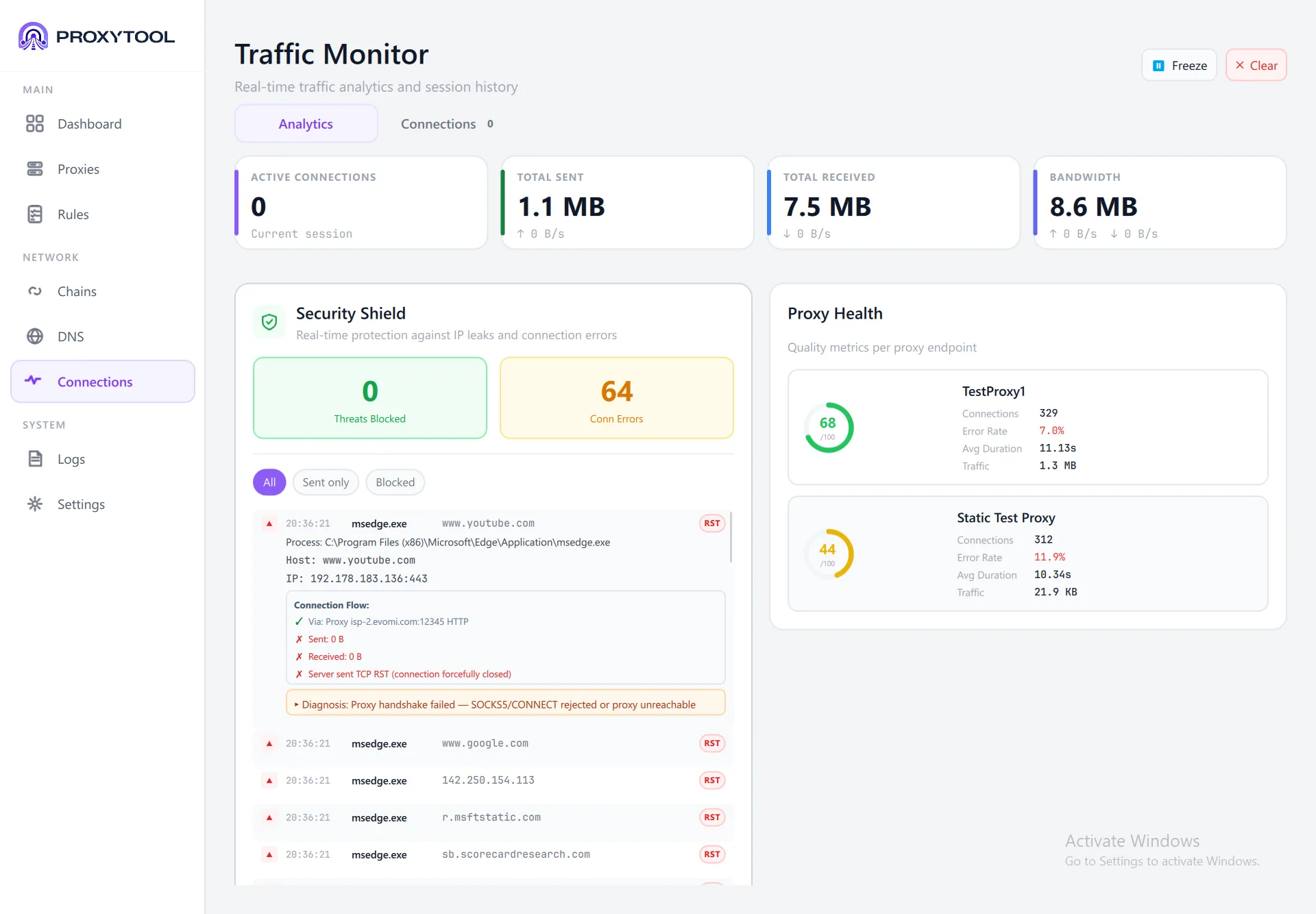
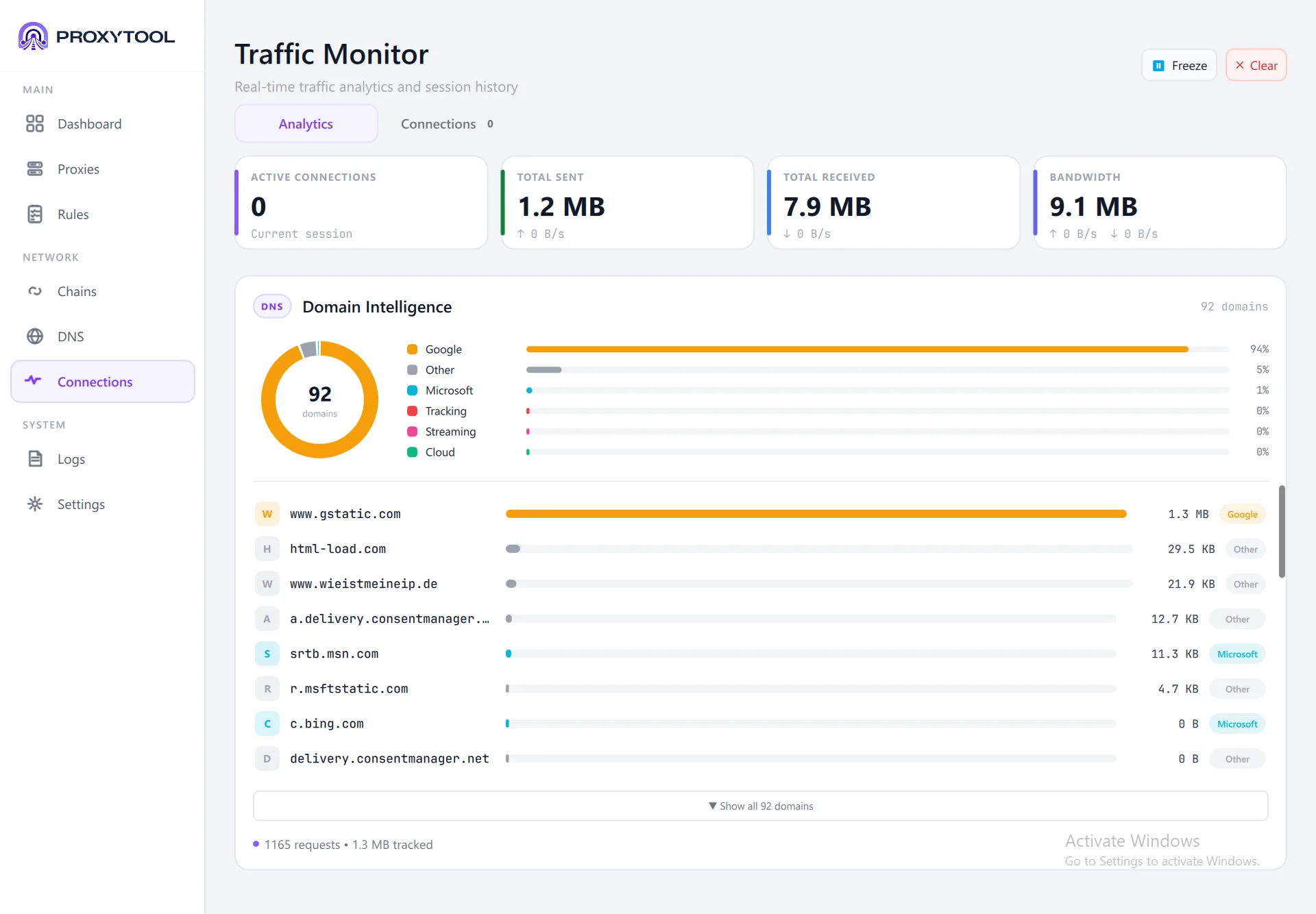
The Traffic Monitor page is your real-time command center for network visibility. Two tabs at the top — Analytics and Connections — let you switch between high-level insights and a detailed connection table. Use Freeze to pause all counters for analysis, or Clear to reset session data.
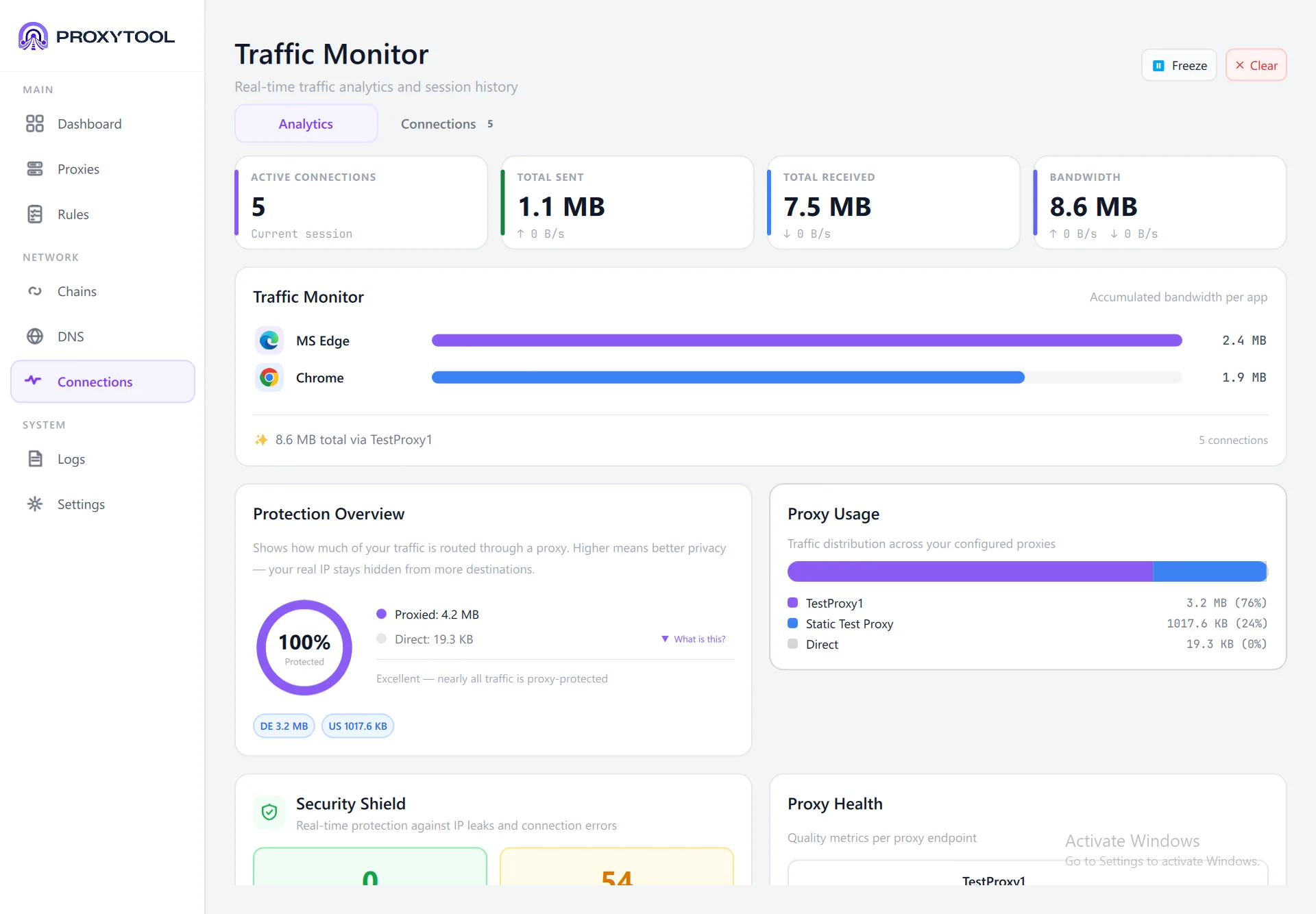
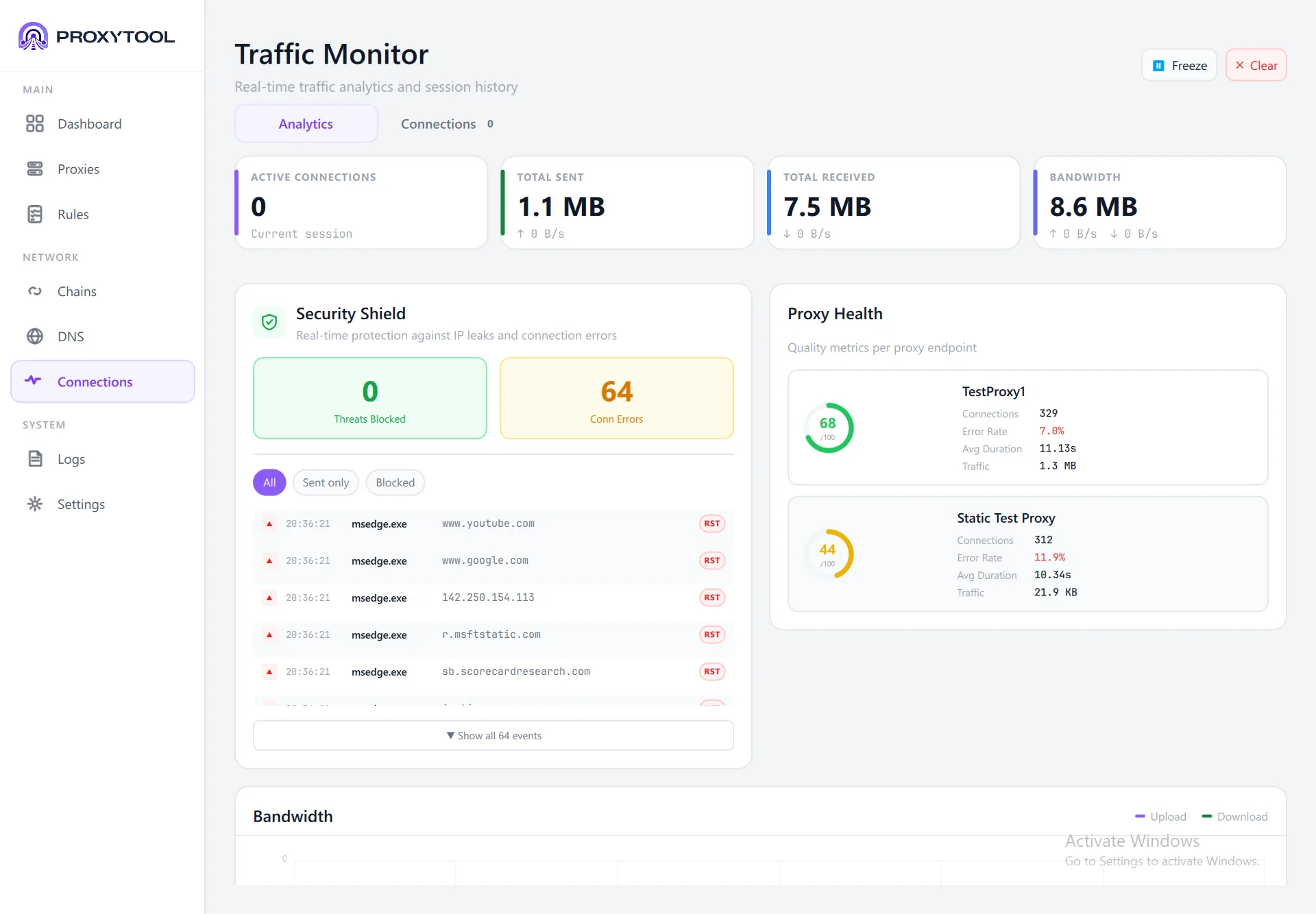
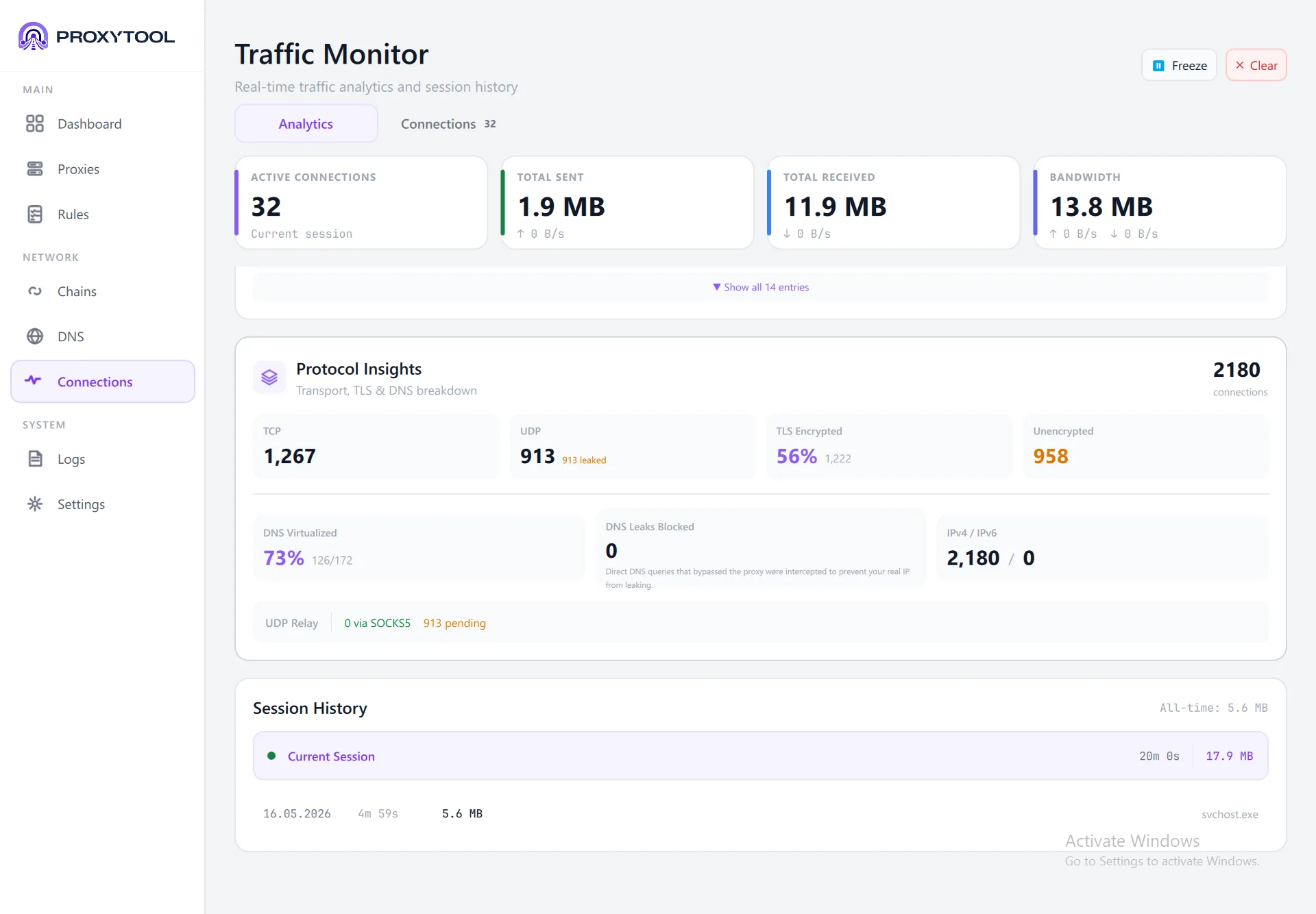
Summary Cards
Four cards at the top provide session-level metrics at a glance:
Analytics Tab
The Analytics tab organizes traffic data into several cards that scroll vertically:
| Card | What it shows |
|---|---|
| Traffic Monitor | Per-app bandwidth bars (e.g. Chrome 1.9 MB, MS Edge 2.4 MB) with total and primary proxy name |
| Protection Overview | Ring chart showing proxied vs. direct ratio (e.g. 100% Protected), geo-badges (DE, US), and a privacy assessment |
| Proxy Usage | Stacked bar with traffic distribution across proxies (e.g. TestProxy1 76%, Static Test Proxy 24%, Direct 0%) |
| Security Shield | Threats Blocked + Conn Errors counters. Click any event to expand Connection Flow details: process path, host, IP, proxy route, bytes sent/received, and a diagnosis (e.g. "Proxy handshake failed") |
| Proxy Health | Per-proxy quality score ring (0–100), connection count, error rate, average duration, and traffic volume |
| Domain Intelligence | DNS-based category ring (Google, Microsoft, Tracking, Streaming, Cloud, Other) with per-domain breakdown showing request count and traffic percentage |
| Protocol Insights | TCP/UDP split, TLS encryption ratio, DNS virtualization percentage, DNS leaks blocked, IPv4/IPv6 balance, UDP relay status, and session history |
Connections Tab
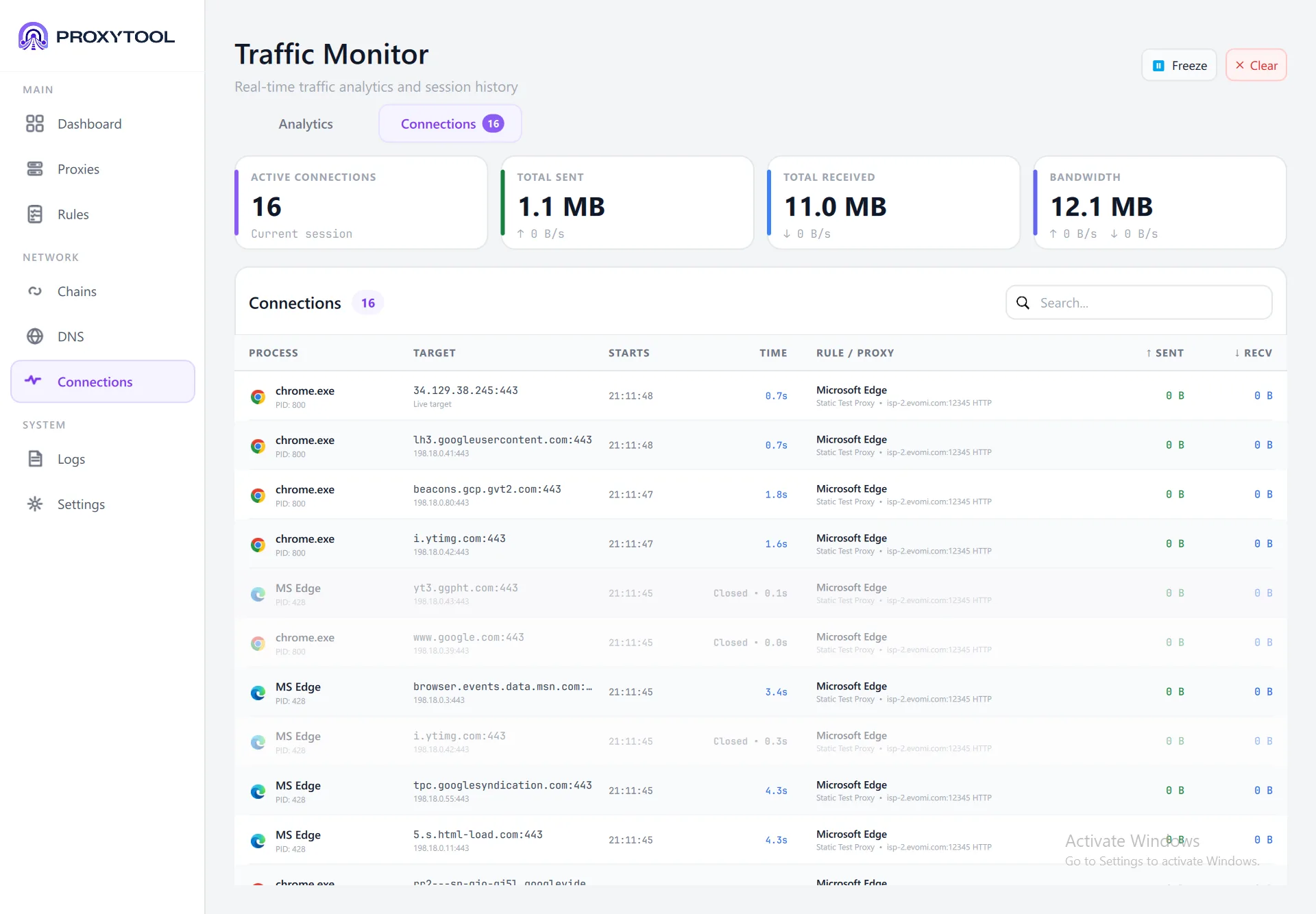
The Connections tab shows a live table of every active and recent connection:
| Column | Shows |
|---|---|
| Process | Application name + PID (e.g. chrome.exe PID: 800) |
| Target | Hostname and resolved IP with port |
| Starts | Connection start time |
| Time | Connection duration (or "Closed" for finished connections) |
| Rule / Proxy | Which rule matched and the full proxy route (e.g. "Static Test Proxy • isp-2.evomi.com:12345 HTTP") |
| Sent / Recv | Bytes transferred in each direction |
Connection Forensics
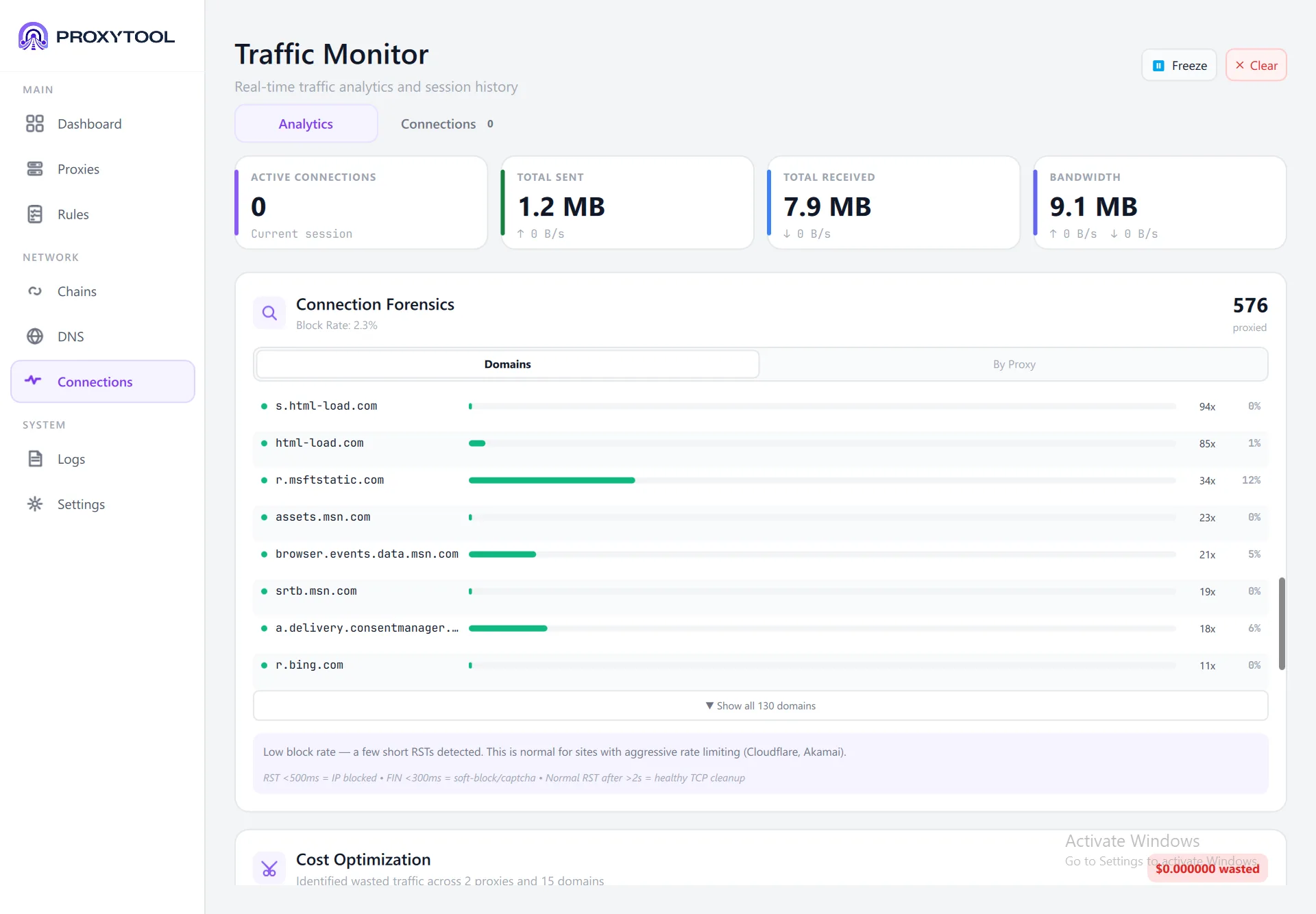
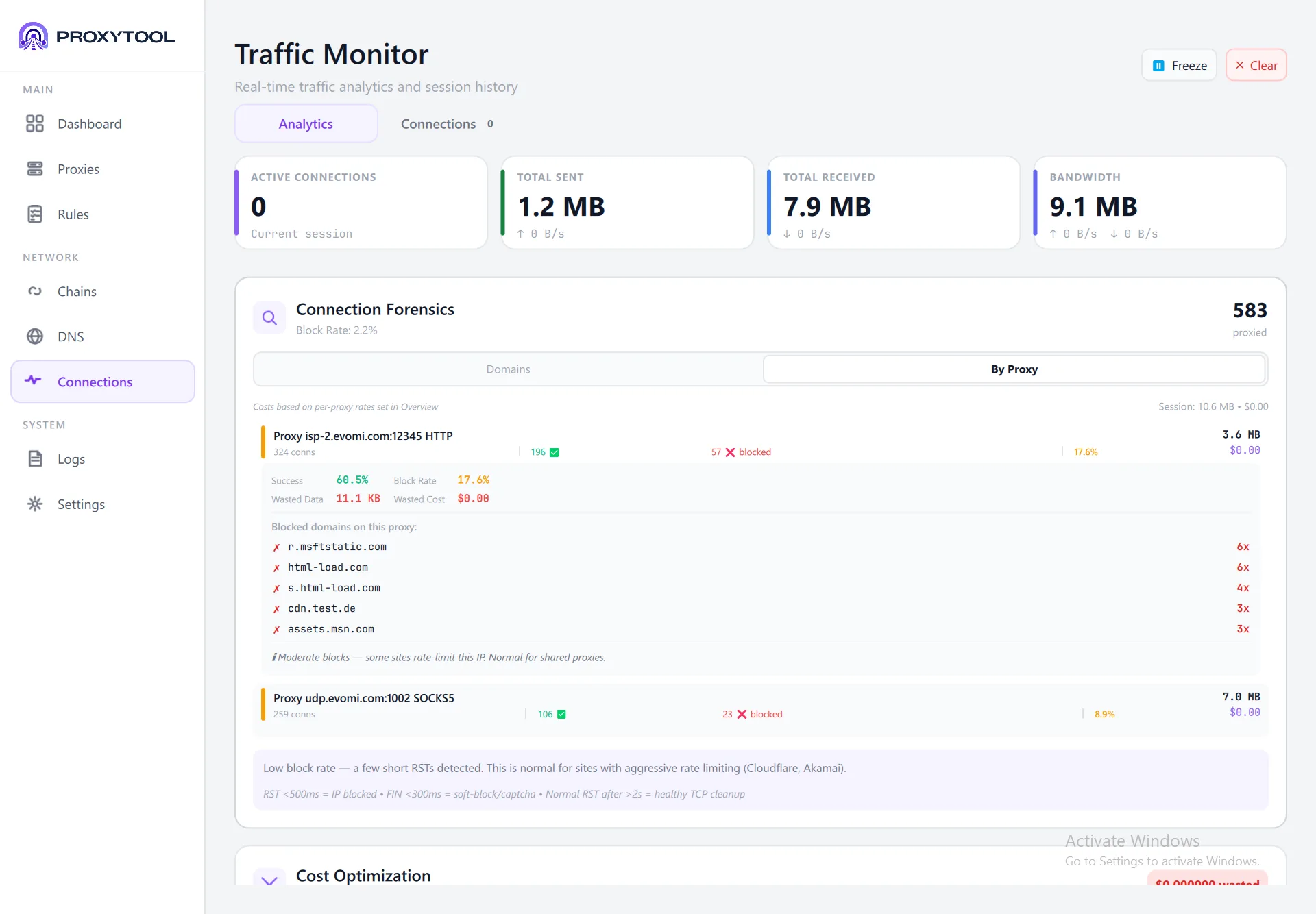
Scroll down in the Connections tab to find Connection Forensics. Two sub-tabs — Domains and By Proxy — provide deep analysis:
- Domains — Shows all contacted domains with request count and traffic percentage. The overall block rate is displayed in the header
- By Proxy — Expand each proxy to see success rate, block rate, wasted data, and blocked domains with frequency
Cost Overview
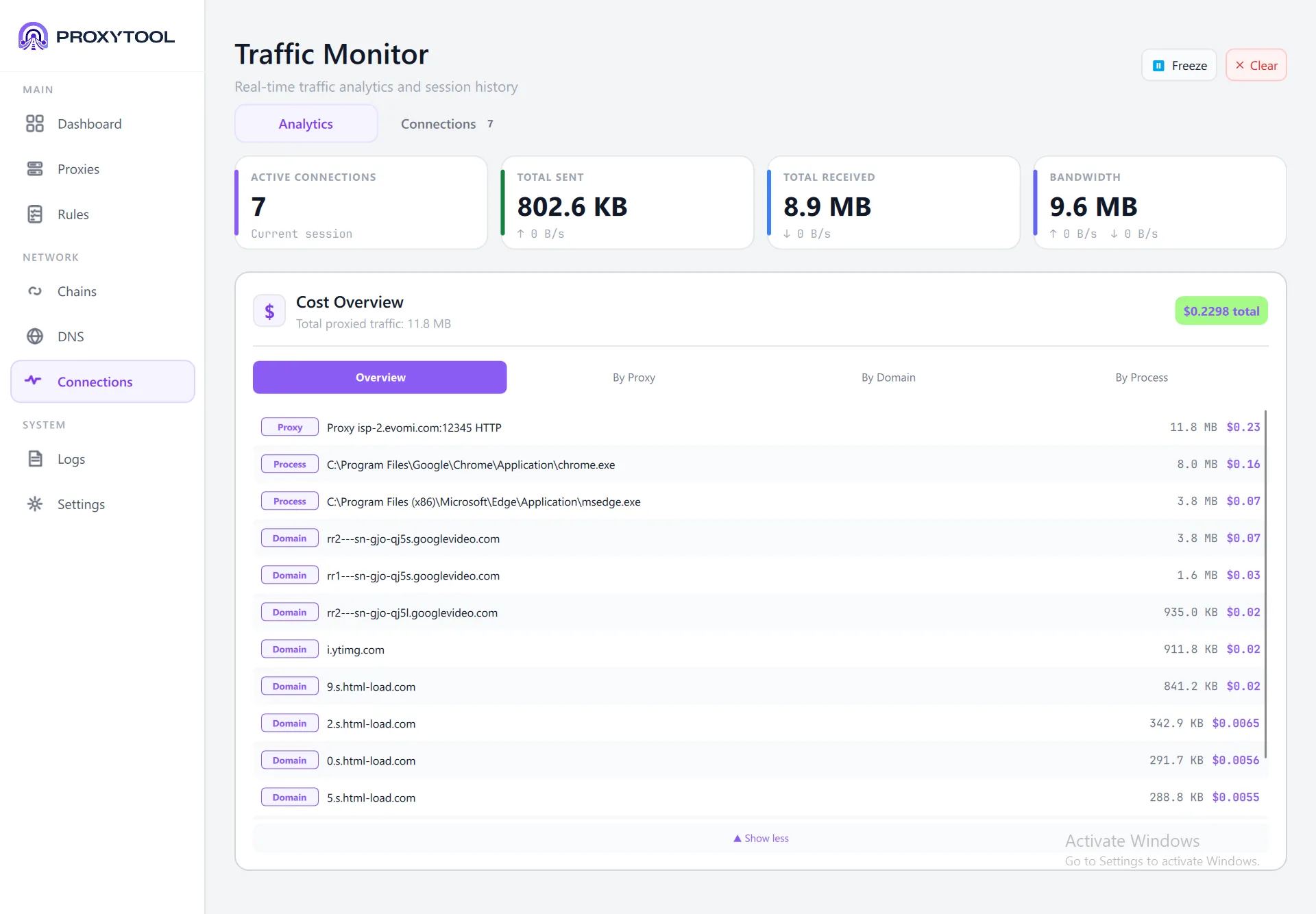
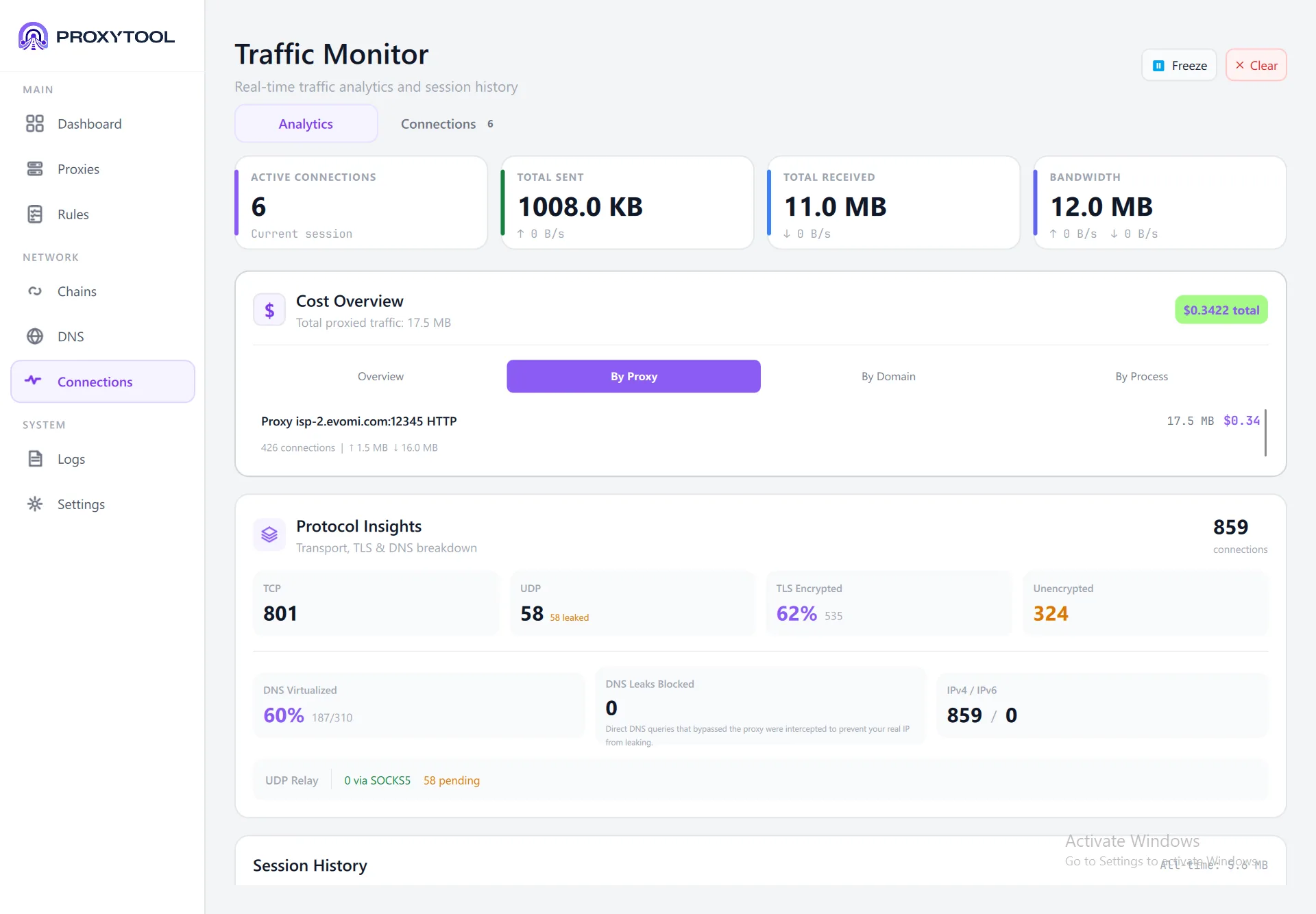
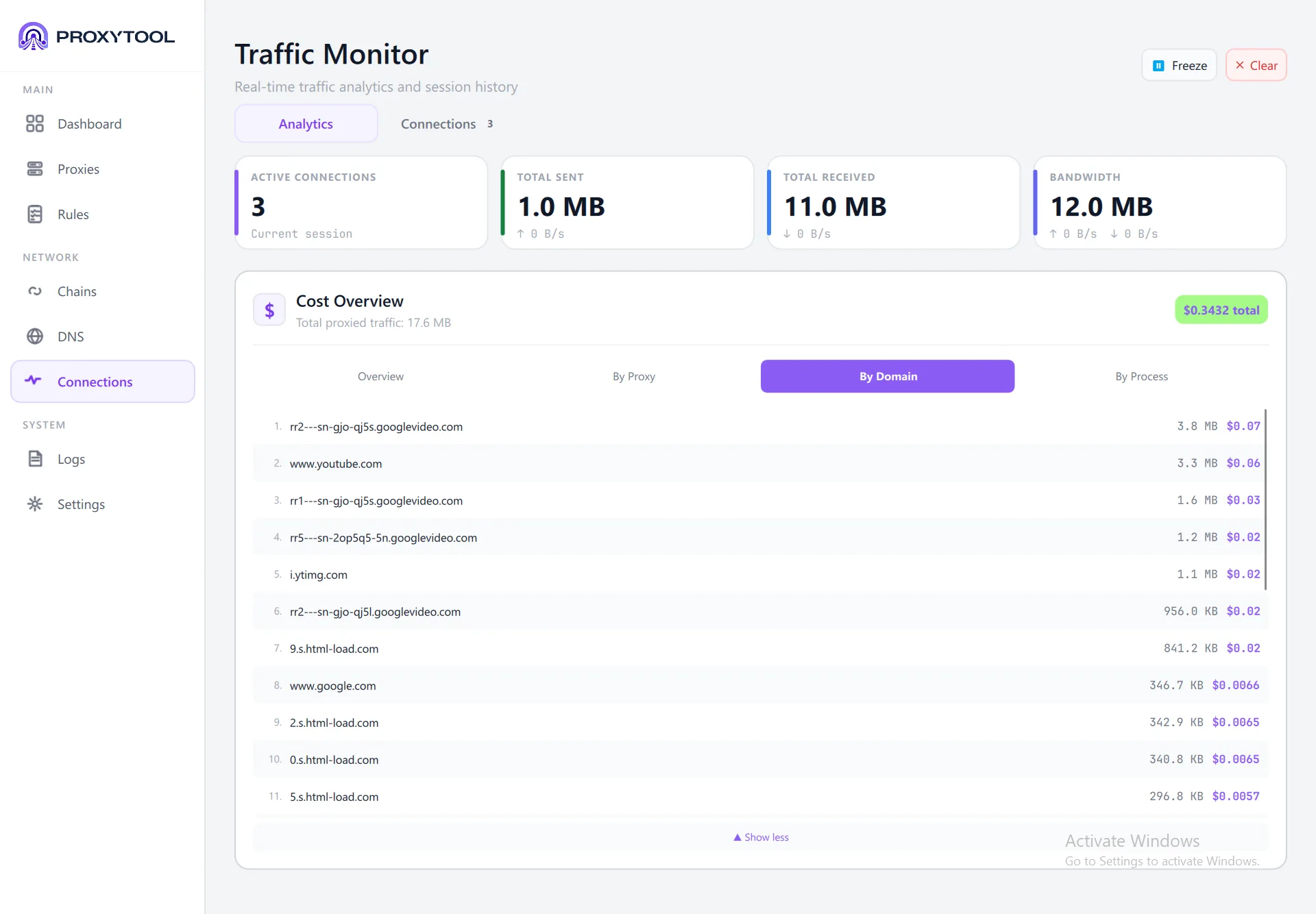
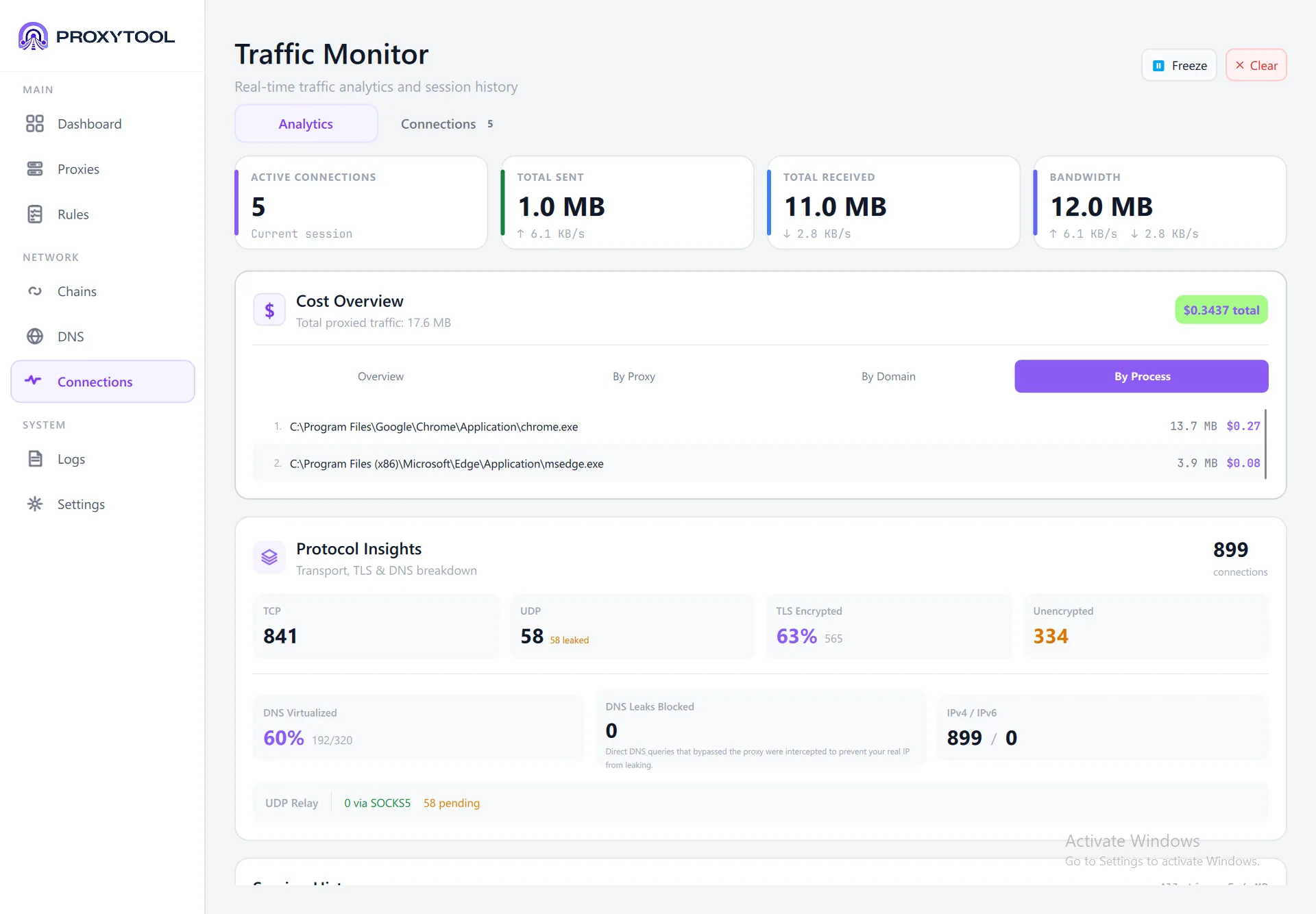
The Cost Overview card calculates real-time proxy expenses based on the per-GB rate you set on each proxy. The total cost badge (e.g. $0.2298 total) appears in the top-right corner. Four tabs let you slice the data differently:
- Overview — Unified ranking of all proxies, processes, and domains sorted by traffic. Each entry shows a type badge (Proxy / Process / Domain), traffic volume, and cost
- By Proxy — Traffic and cost per proxy endpoint with connection count breakdown
- By Domain — Ranked list of domains by traffic, useful for identifying bandwidth-heavy sites
- By Process — Per-application cost breakdown so you can see which processes generate the most proxy traffic
Cost Optimization
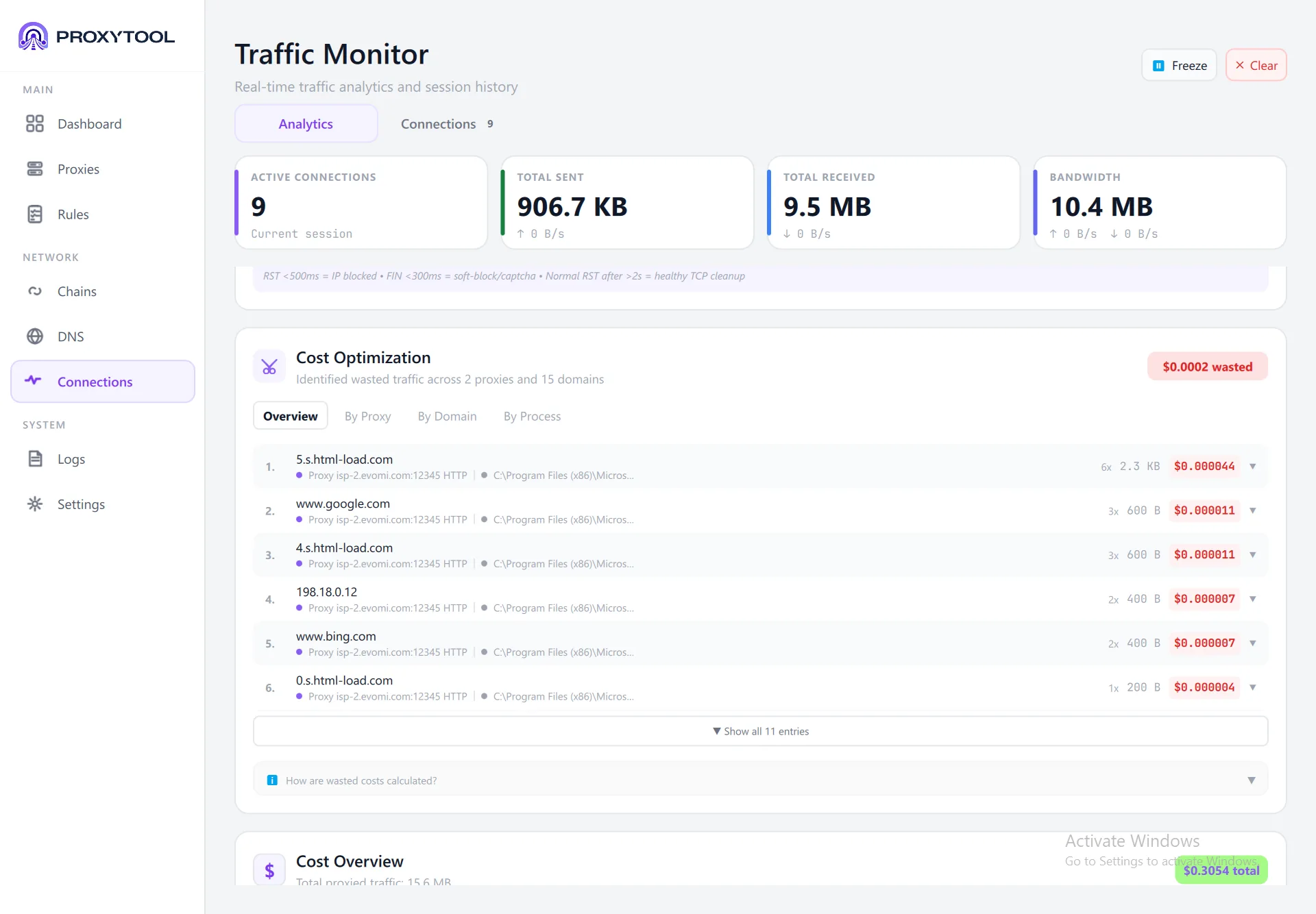
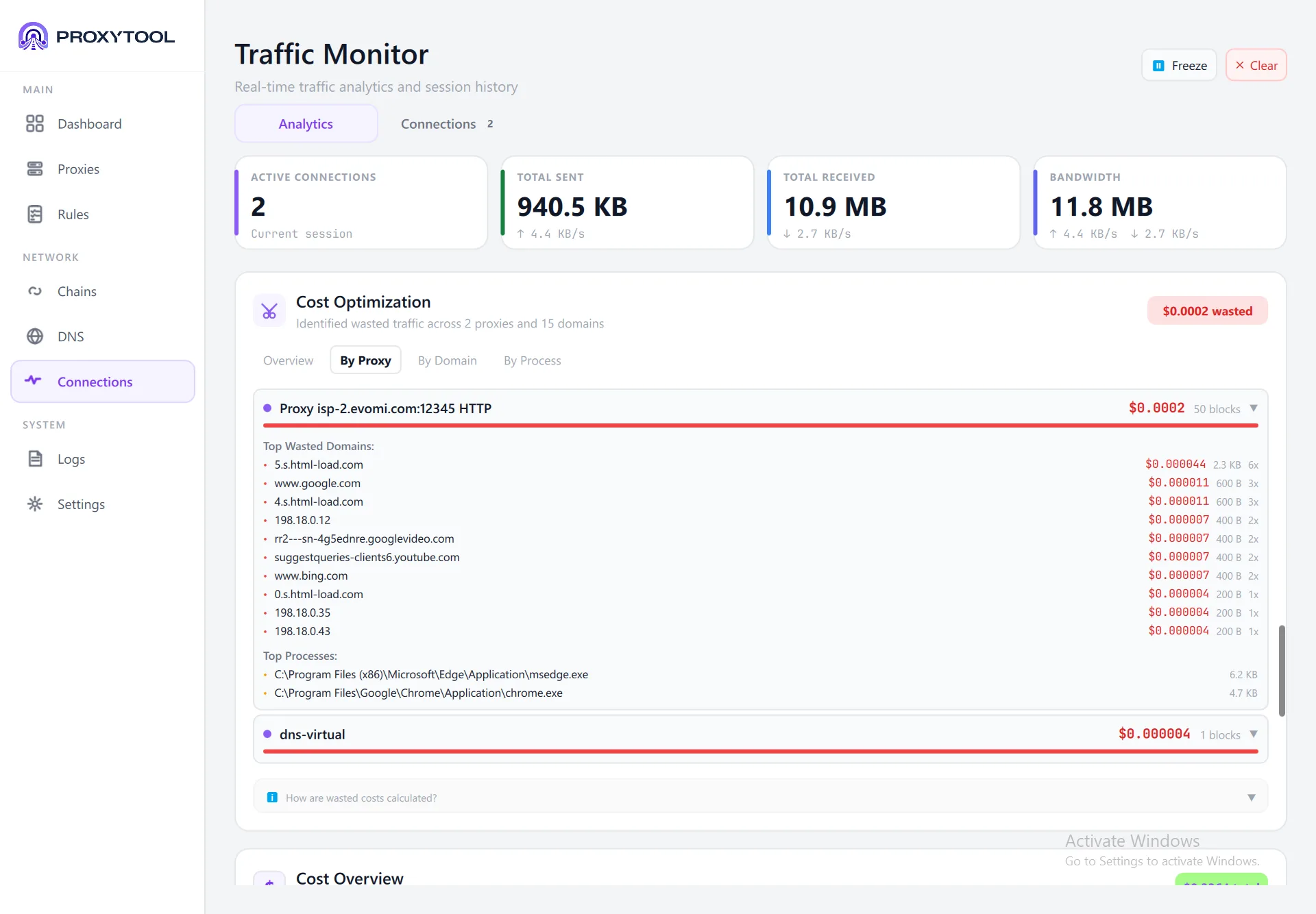
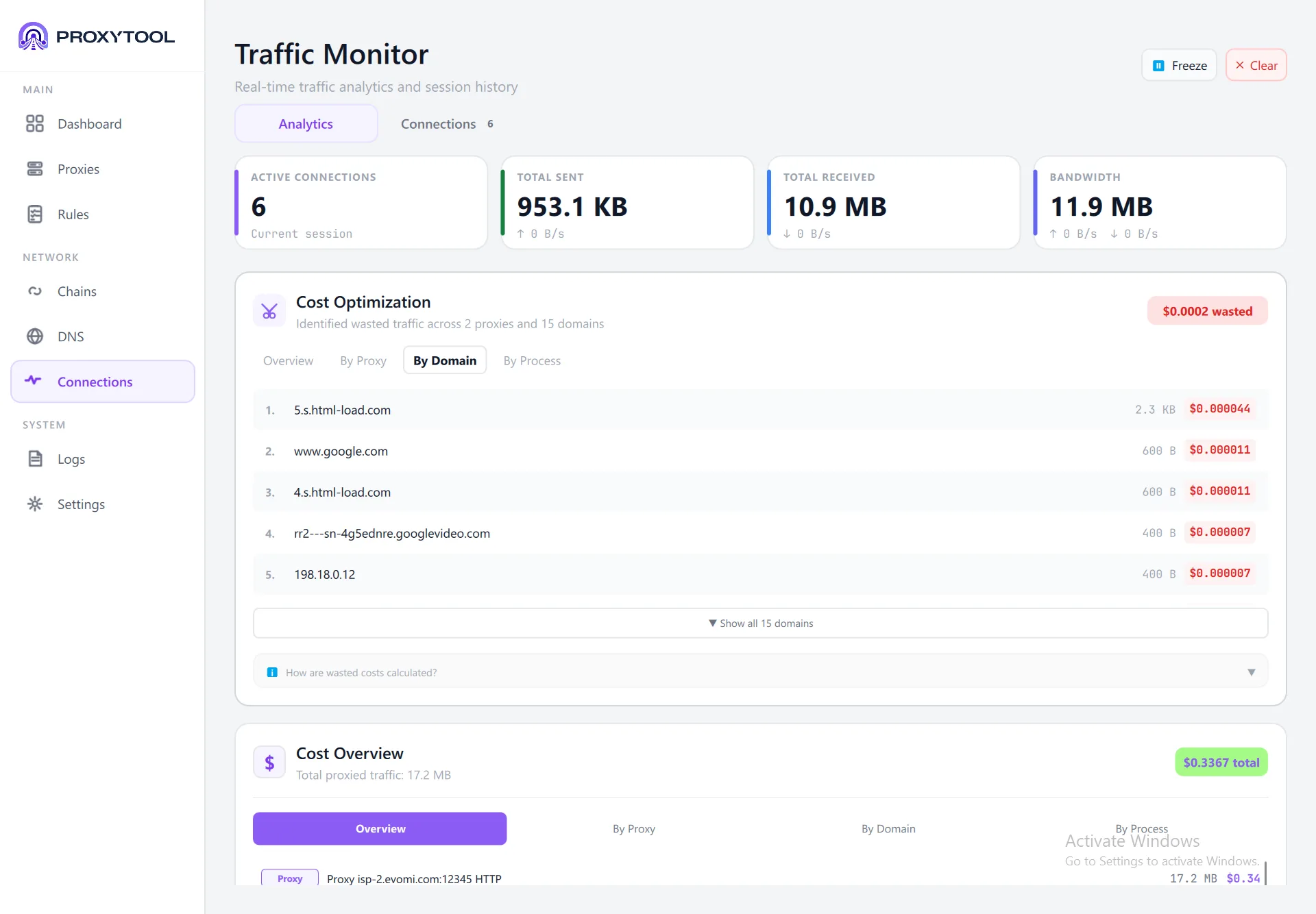
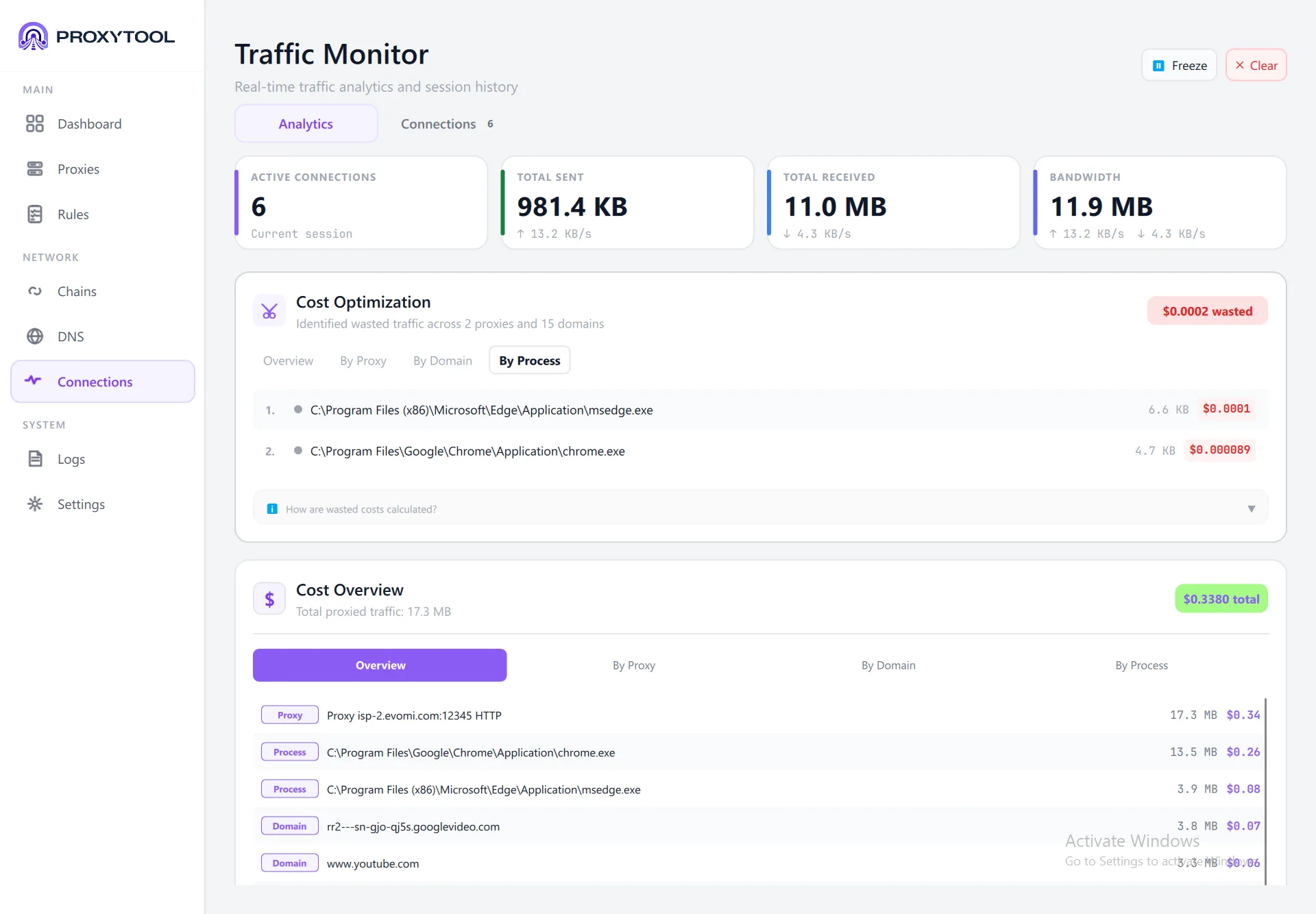
The Cost Optimization card identifies wasted proxy traffic — connections that were blocked or failed (RST) but still consumed bandwidth. The badge (e.g. $0.0002 wasted) highlights the total wasted cost. Click any entry to expand details:
- Overview — Ranked list of domains with wasted bytes, associated proxy and process, and cost per entry
- By Proxy — Click a proxy to see its top wasted domains and processes. Shows total block count, success rate, and block rate per proxy
- By Domain — Wasted traffic grouped by domain name
- By Process — Wasted traffic grouped by application (e.g. msedge.exe, chrome.exe)
TLS Fingerprint Detection
ProxyTool monitors TLS Client Hello packets and compares JA3 fingerprint hashes against a known database. When a connection's fingerprint indicates a potentially detectable automation tool, a warning card appears in the Analytics tab with fix suggestions.
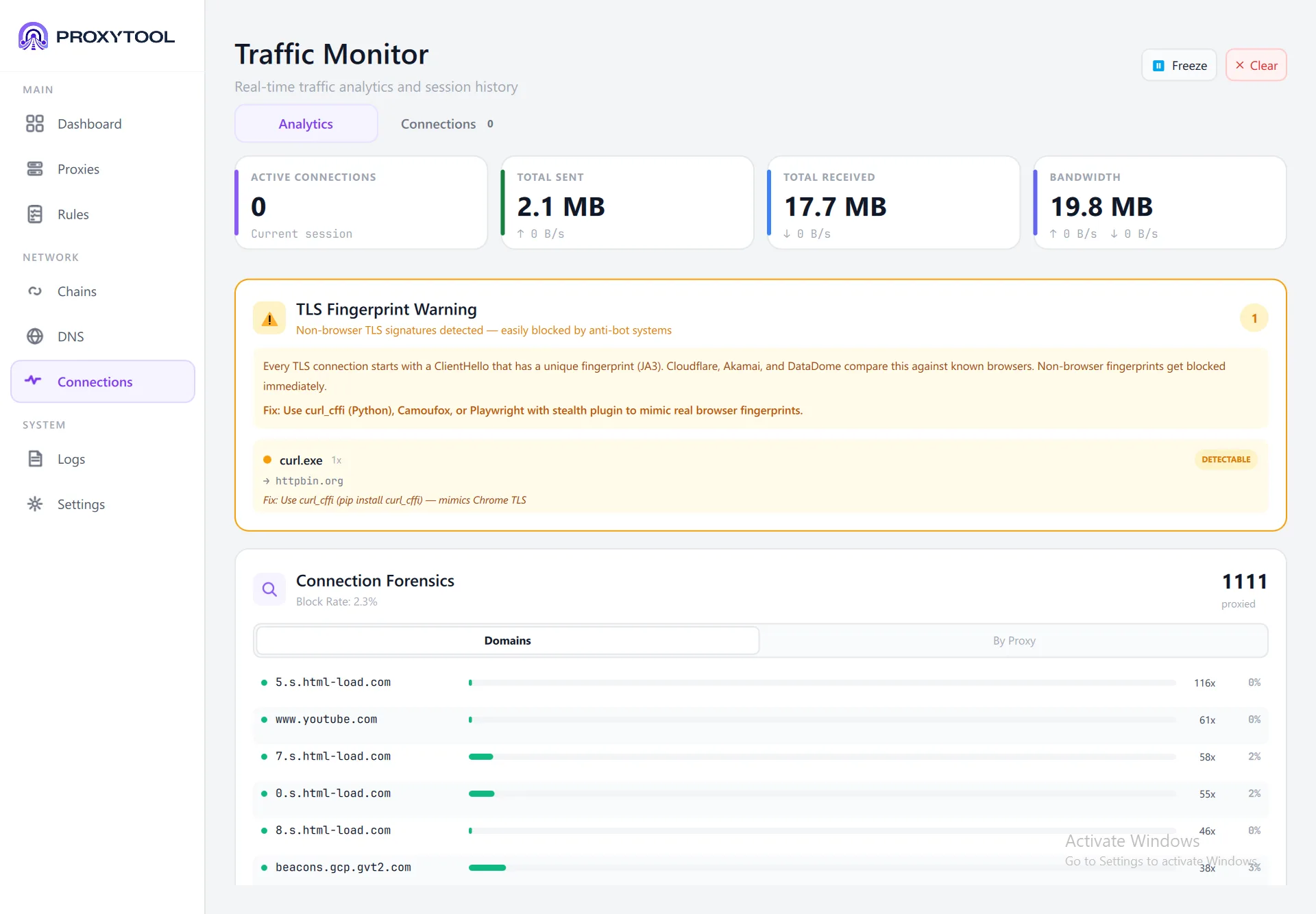
In this example, curl.exe was flagged as DETECTABLE because its TLS fingerprint does not match any known browser. The warning card explains that anti-bot systems like Cloudflare, Akamai, and DataDome compare JA3 hashes against known browsers, and suggests using curl_cffi, Camoufox, or Playwright with stealth plugins instead.
| Risk | Fingerprint Source | Badge | Action |
|---|---|---|---|
| Low | Chrome, Firefox, Safari, Edge (real browsers) | No warning | Normal browser-like traffic — no detection risk |
| Medium | Playwright, Puppeteer, Selenium, curl_cffi, Camoufox | DETECTABLE | Destination may flag as automation — consider fingerprint masking |
| High | Python requests, curl, Go net/http, Java HttpClient, wget, Scrapy | BLOCKED | Known bot fingerprint — likely blocked by anti-bot services |
The warning panel shows: process name, number of flagged connections, affected domains (last 5), and process-specific suggestions for fixing the fingerprint.
Cost Tracking
If you've configured a Cost per GB rate on your proxies, the Monitoring page calculates real-time spending based on actual traffic.
How Cost Is Calculated
cost = (bytes_transferred / 1,073,741,824) × cost_per_gb
- Calculated per proxy based on the rate set in the proxy's configuration
- Includes both upload and download bytes
- Displayed with up to 6 decimal places for precision on small transfers
- Visible in Security Shield events and the Cost Optimization card
Cost Optimization
When you have at least 5 proxied connections, the analytics tab shows a Cost Optimization card that breaks down wasted bandwidth by proxy, domain, and process — helping you identify where to reduce costs.
Application Settings
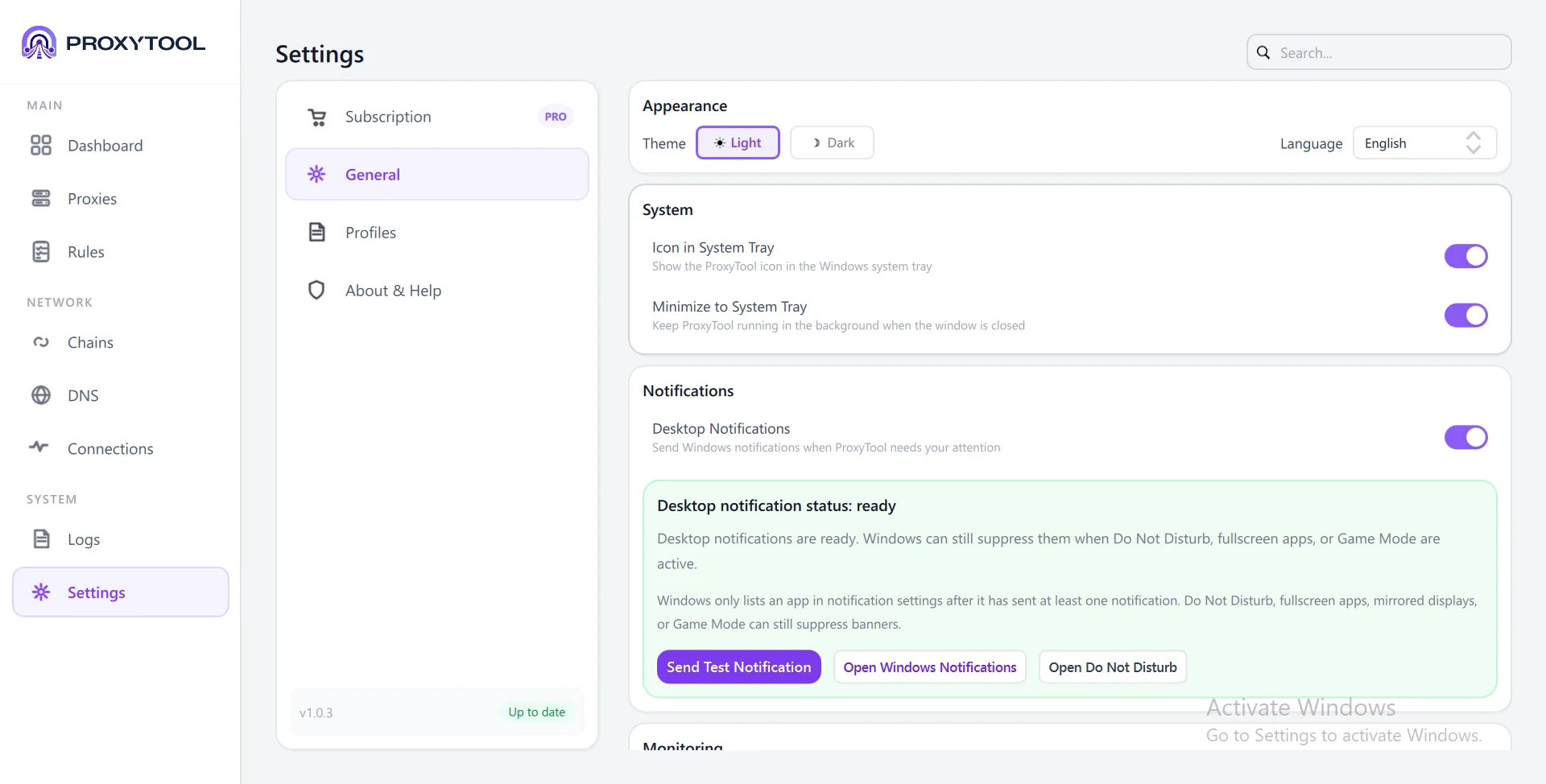
The Settings page provides centralized control over subscription management, appearance, system behavior, privacy, and diagnostics. A search bar at the top filters settings in real time — type any keyword to locate and navigate directly to the matching setting.
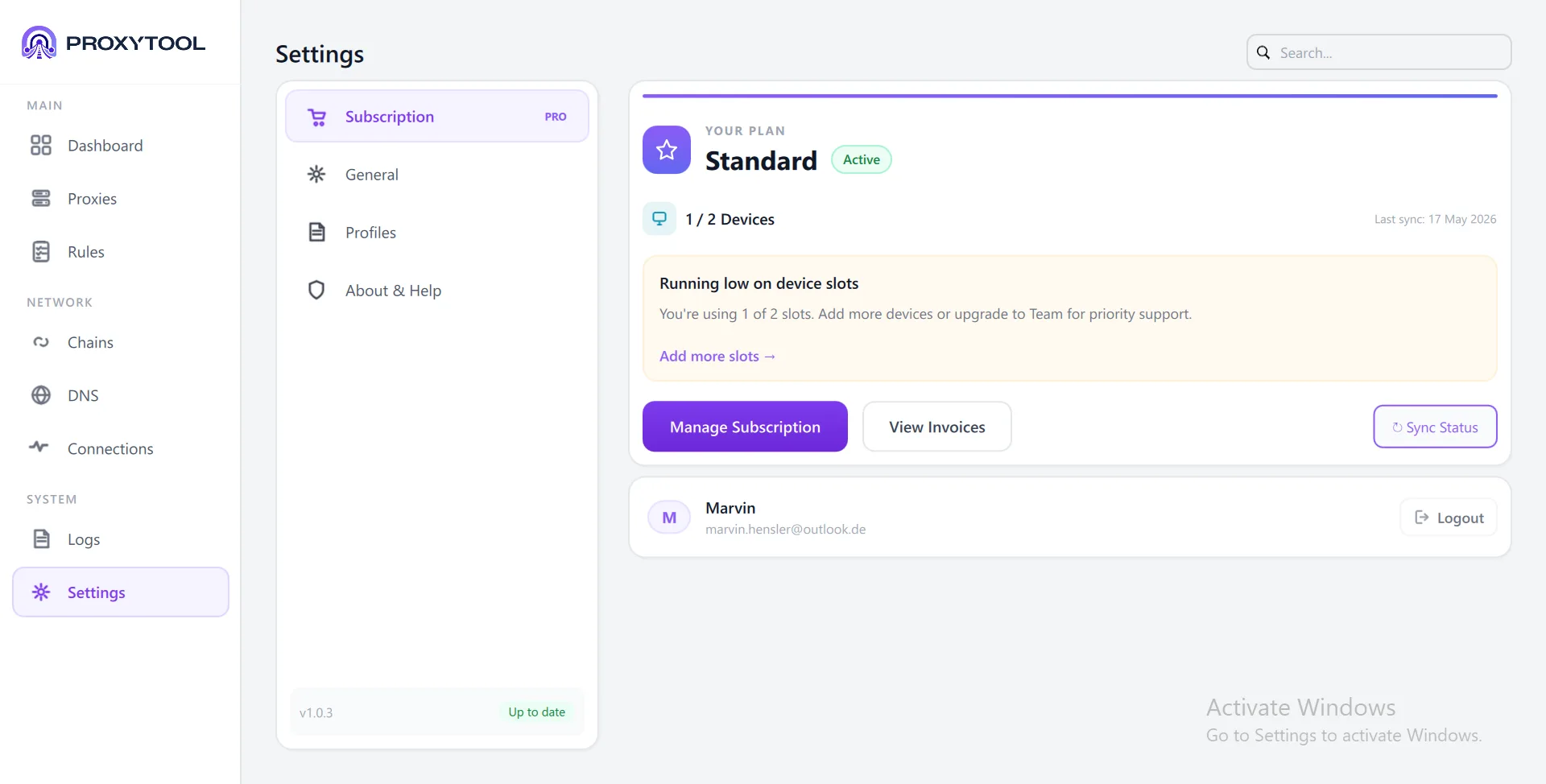
Settings Search
The search bar at the top of the Settings page provides instant filtering. Typing a keyword (e.g. "tray", "DNS", "encryption") highlights and scrolls to the matching setting, making it easy to locate options without browsing through tabs.
Subscription
| Setting | Description |
|---|---|
| Current Plan | Displays the active subscription tier (Free, Pro, etc.) and expiration date |
| Device Management | Shows the number of device slots used vs. available. Displays a warning when the device limit is reached |
| Sync Status | Indicates whether profile and settings are synced with the cloud account |
| User Account | Shows account name and email. Provides a Logout button to disconnect the device from the account |
General
| Setting | Default | Description |
|---|---|---|
| Theme | System | Light or Dark appearance |
| Language | English | English or Deutsch |
| System Tray Icon | On | Show ProxyTool icon in the notification area |
| Minimize to Tray | On | Close button minimizes to tray instead of quitting |
| Desktop Notifications | On | Show system notifications for connection events |
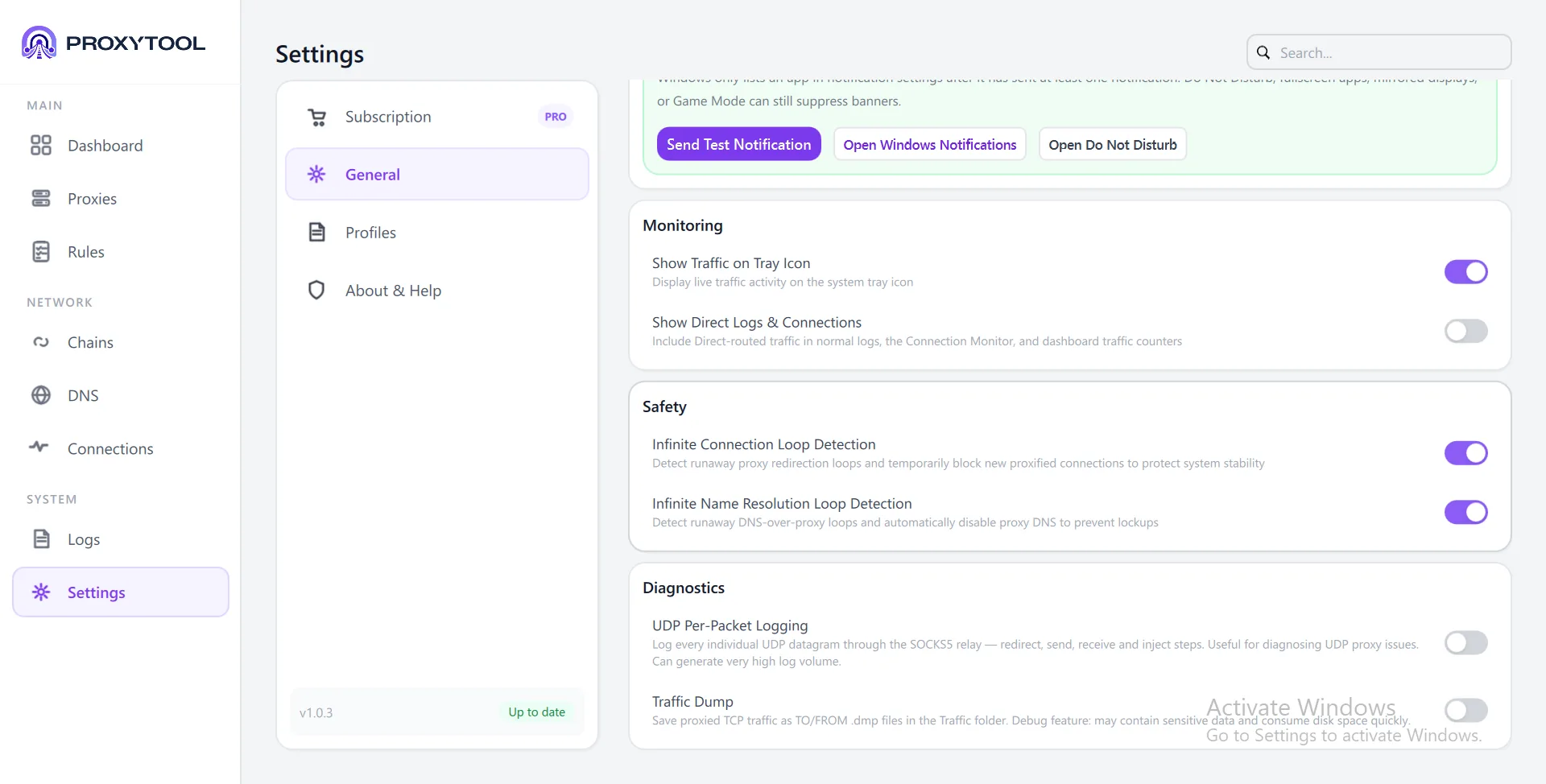
| Show Traffic on Tray Icon | On | Display live upload/download activity on the tray icon |
| Show Direct Connections | On | Include bypassed (direct) traffic in logs and monitoring |
Safety
| Setting | Default | Description |
|---|---|---|
| Connection Loop Detection | On | Detects and blocks runaway proxy redirection loops |
| DNS Resolution Loop Detection | On | Detects DNS-over-proxy loops and auto-disables proxy DNS to prevent lockout |
Diagnostics
| Setting | Default | Description |
|---|---|---|
| Traffic Dump | Off | Save proxied TCP traffic as .dmp files for debugging. Warns when files exceed 1000 or 500 MB total |
Profiles & Migration
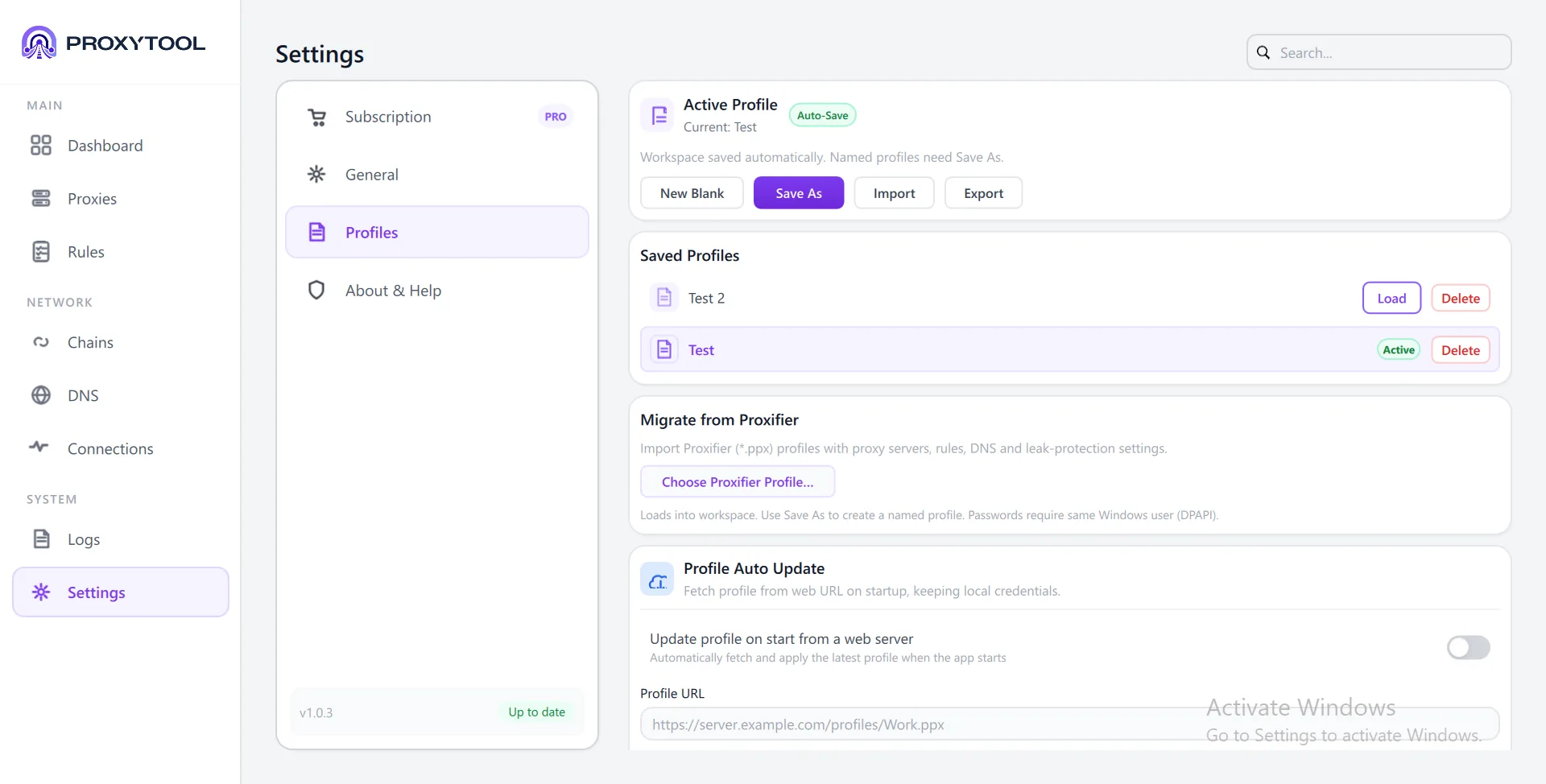
Profiles save your complete configuration (proxies, chains, rules, DNS settings) as portable .ppx files. You can maintain multiple profiles and switch between them.
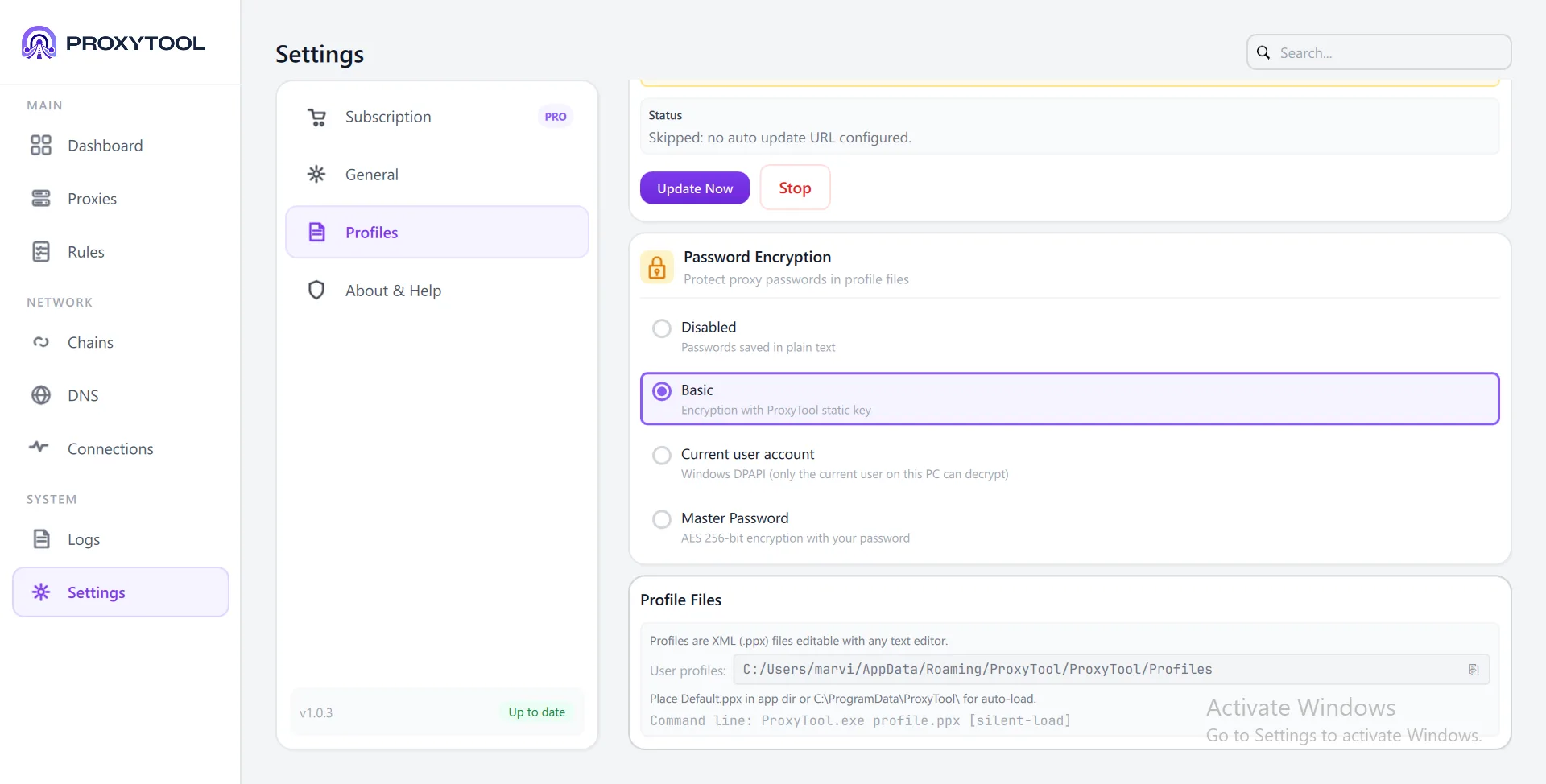
Active Profile
The current workspace is auto-saved continuously. To persist a configuration as a named profile, use Save As. The active profile name is displayed at the top of the Profiles tab. Additional controls include:
- New Blank — Reset to a clean empty configuration
- Save As — Save current workspace as a named profile
- Import — Load a
.ppxfile from disk (or a Proxifier.ppx/.xml) - Export — Save the current configuration to a file for sharing or backup
Saved Profiles
All saved profiles appear in a list below the active profile. Each entry shows the profile name and provides Load and Delete actions. The currently active profile is highlighted. Loading a profile replaces the entire active workspace configuration.
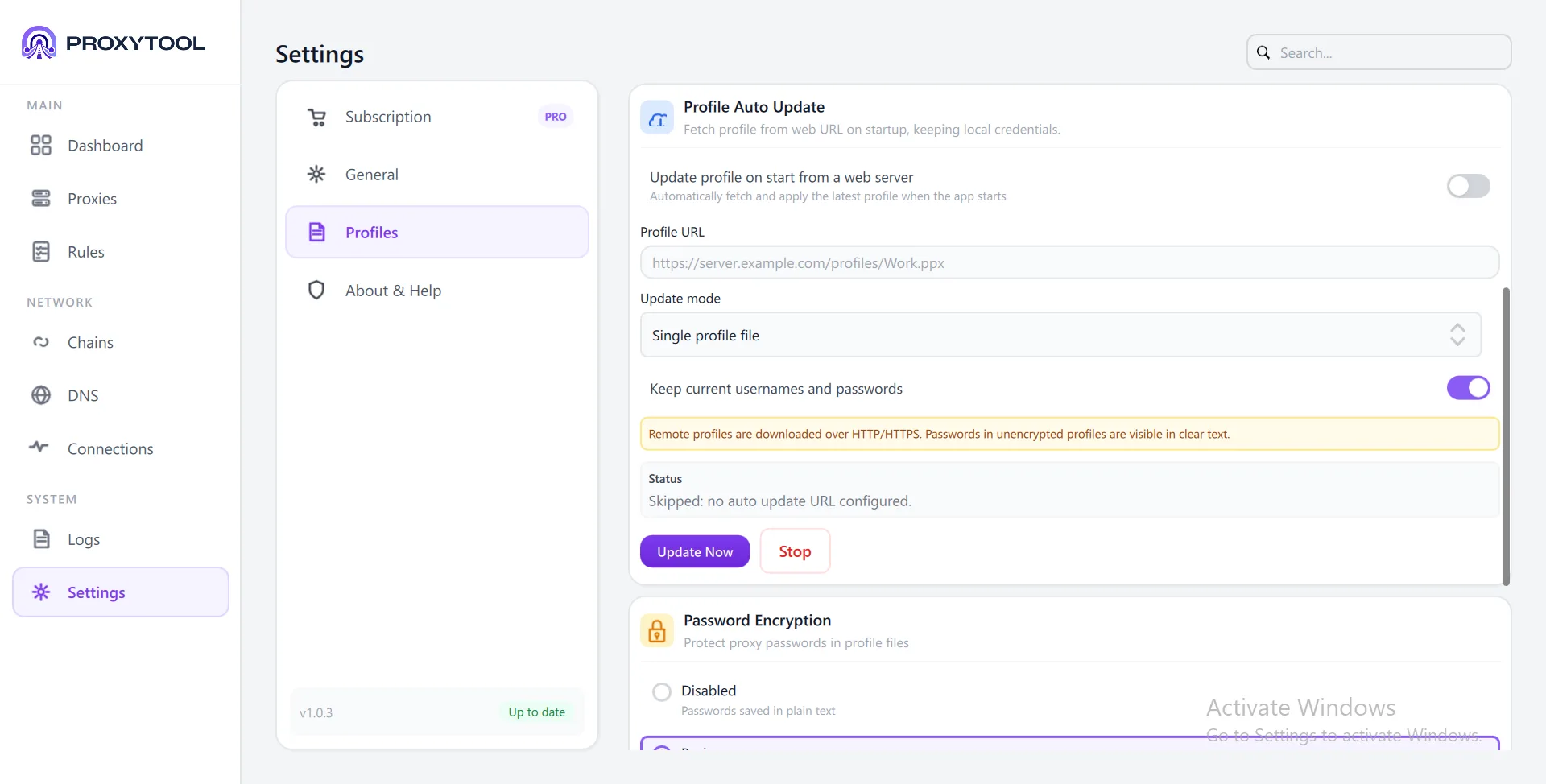
Profile Auto Update
Profiles can be fetched automatically from a remote server. This is useful for team deployments or managed environments where configuration changes need to propagate to all devices.
| Setting | Description |
|---|---|
| Auto Update Toggle | Enable or disable automatic profile fetching at startup |
| URL | Remote URL pointing to a .ppx file or a folder containing multiple profiles |
| Update Mode | Dropdown to select update behavior (e.g. replace entire profile, merge additions only) |
| Keep Credentials | When enabled, existing proxy passwords are preserved during the update |
| Update Now / Stop | Manually trigger an immediate update or cancel an in-progress fetch |
Password Encryption
Profile files can encrypt stored proxy passwords using one of four modes. The encryption mode selector is a radio button group in the Profiles tab.
| Mode | Security Level | Notes |
|---|---|---|
| Disabled | None | Passwords stored as plain text in profile |
| Basic | Windows only | Superseded by This Device Only and no longer offered on macOS or Linux. On Windows it is the same DPAPI as This Device Only; on the other platforms it stores the passwords unencrypted, so existing profiles are still read but nothing new is written with it |
| This Device Only | High | Encrypted with a key the operating system keeps for this user account: DPAPI on Windows, the keychain on macOS, the desktop keyring on Linux. A copied profile cannot be decrypted on any other machine or by any other user |
| Master Password | Highest | Key derived from a user-chosen master password over 100,000 HMAC-SHA256 rounds. The only mode every ProxyTool client can read, and portable between devices; the password is required each time the profile is loaded |
Profile Files
Profiles are stored as XML .ppx files. The Profiles tab shows the user profile directory path with a copy button for quick access in file explorer.
- User profile directory — Default location where named profiles are saved
Default.ppx— Place this file in the application directory orC:\ProgramData\ProxyTool\to auto-load a profile for all users on the machine- CLI loading — Run
ProxyTool.exe profile.ppx [silent-load]to load a specific profile at launch. Thesilent-loadflag suppresses the load confirmation dialog
Migrate from Proxifier
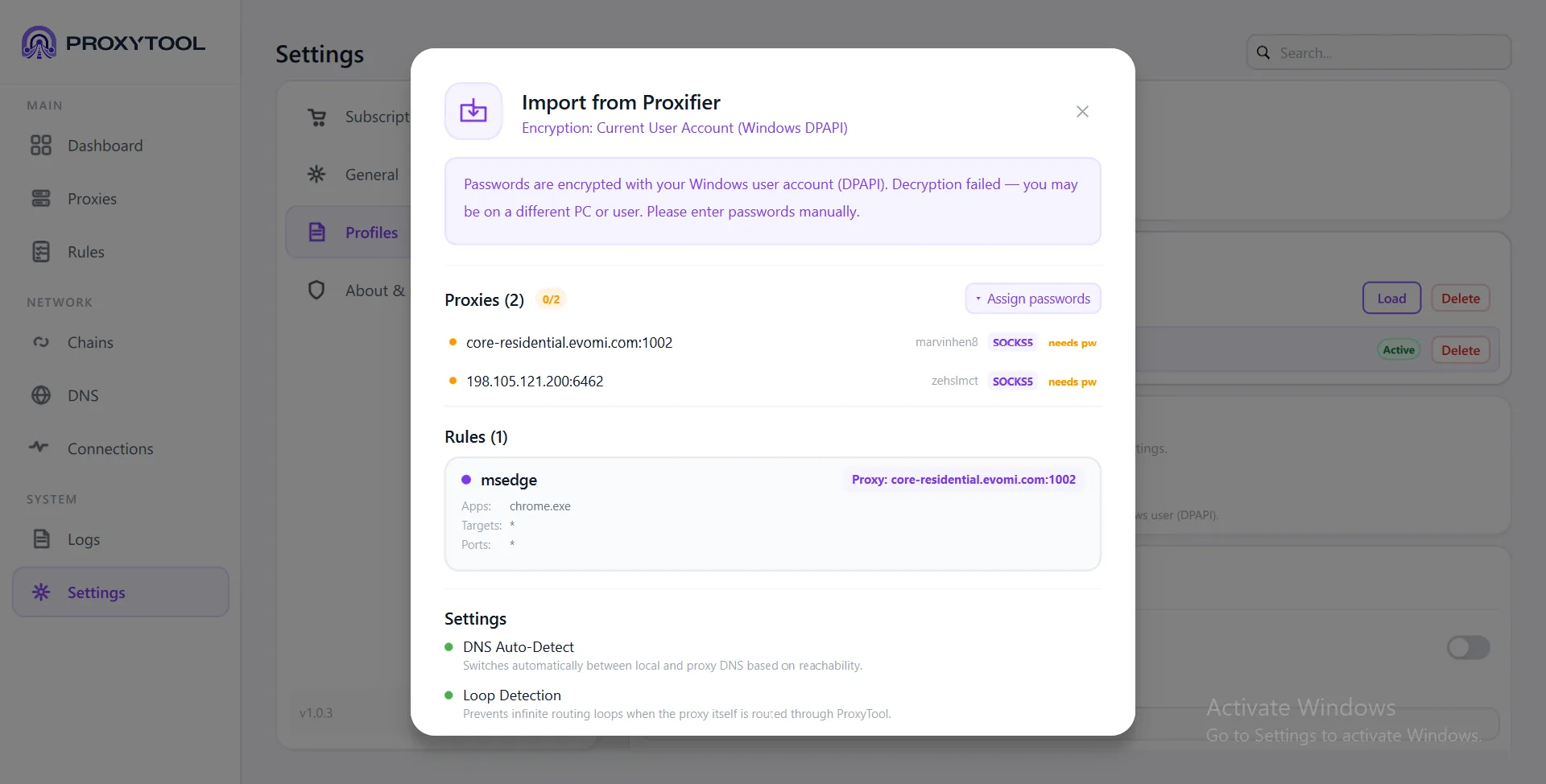
ProxyTool can import your existing Proxifier configuration (.ppx / .xml) including proxy servers, chains, rules, DNS settings, and leak-protection options. The import wizard detects all components and guides you through any manual steps required.
What It Imports
- Proxy servers — Host, port, protocol, and authentication credentials
- Proxification rules — Application-based routing rules (process name → proxy assignment)
- Proxy chains — Multi-hop configurations and failover setups
- DNS settings — Name resolution preferences from the Proxifier profile
- Leak-protection options — UDP blocking and related privacy settings
Encryption Handling
Proxifier profiles may store proxy passwords using different encryption methods. ProxyTool detects the encryption mode and handles decryption automatically when possible:
| Encryption Mode | Auto-Decrypt | Details |
|---|---|---|
| Basic (Static Key) | Not yet | Proxifier uses a built-in static key. Auto-decryption support is planned; use Password Manager for now |
| Current User Account (DPAPI) | Yes* | Automatically decrypted if importing on the same Windows user account that created the Proxifier profile. Fails on a different PC or user — use Password Manager |
| Master Password | Not yet | Requires the original master password. Auto-decryption support is planned; use Password Manager for now |
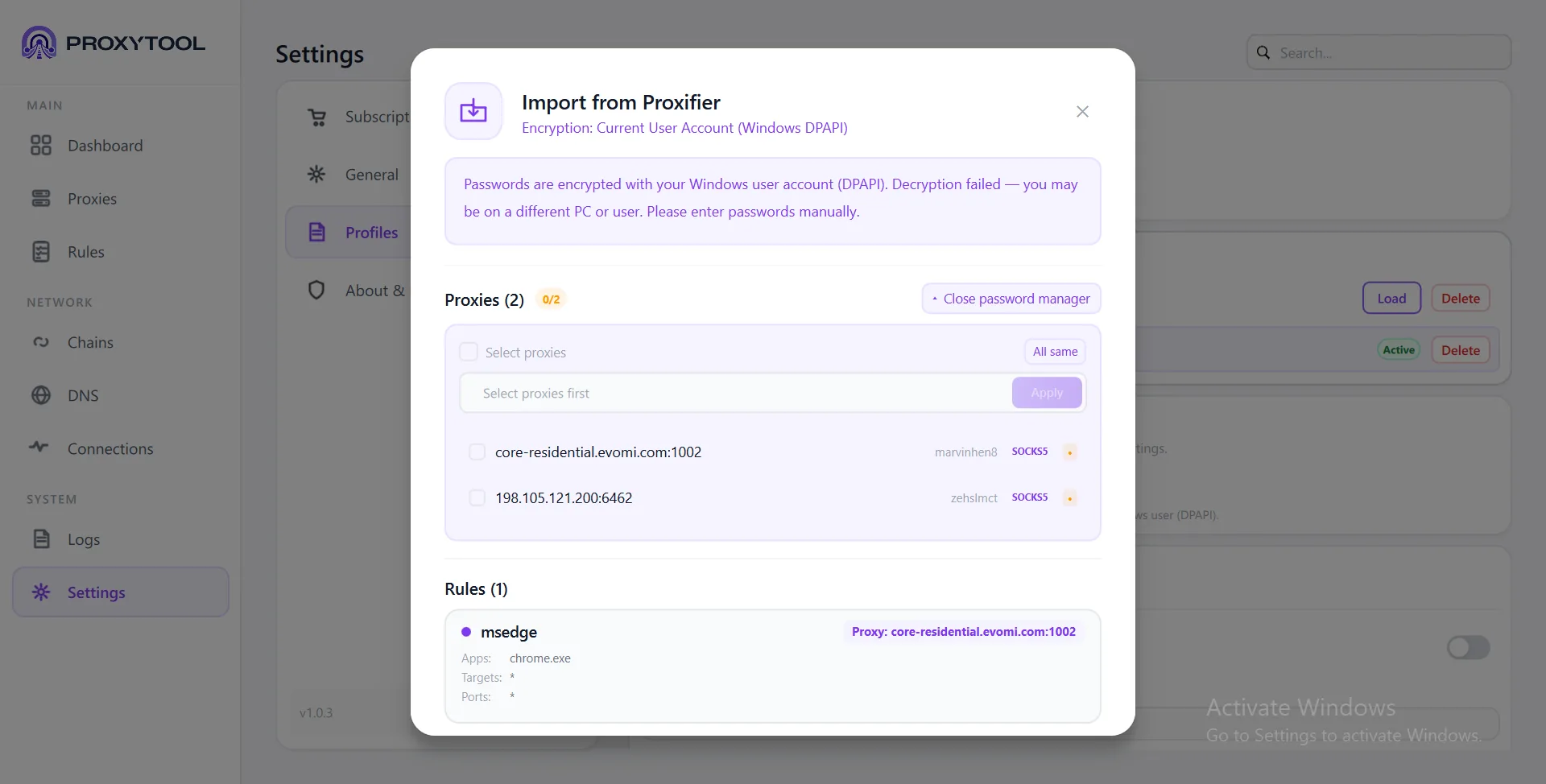
Password Manager Workflow
The Password Manager appears inside the import modal when automatic decryption is not available. It provides a bulk interface for entering proxy passwords:
- Proxy selection — Select individual proxies via checkboxes, or use the header checkbox to select all
- "All same" bulk-apply — Enter one password and apply it to all selected proxies at once
- Per-proxy fields — Individual password input fields for each proxy that needs credentials
- Apply button — Commits the entered passwords to the import configuration
- Progress badge — Shows completion status (e.g. "0/3") indicating how many proxies still need passwords
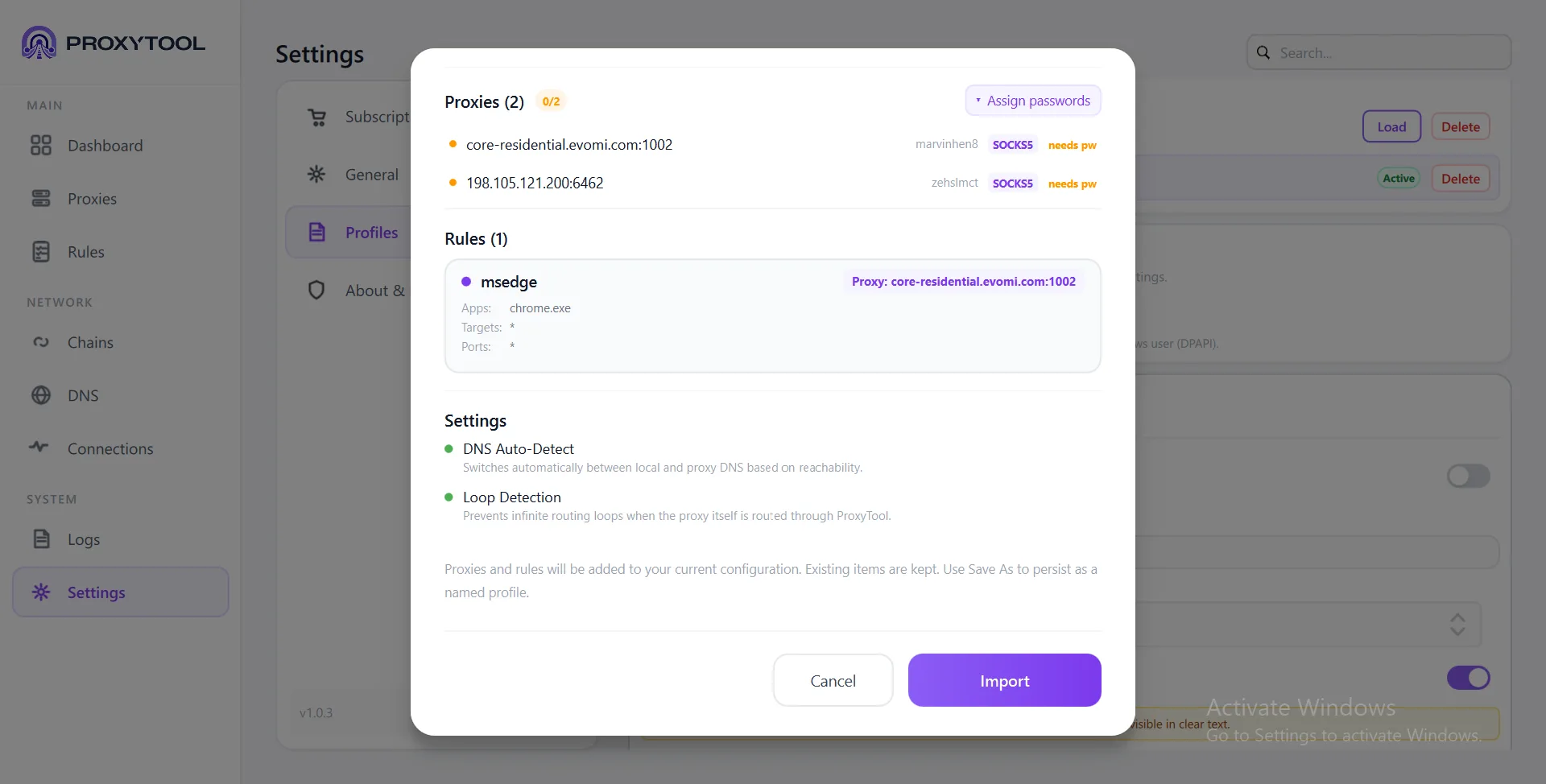
After Import
Imported items are added to the current active configuration. Proxies, chains, rules, and settings merge into the workspace immediately. To persist the imported configuration as a named profile, use Save As in the Profiles tab.
AI Configuration Assistant
The Assistant page in the desktop client turns a sentence into a configuration change. You describe what you want — "route Discord through my US proxy", "block Steam", "chain these two proxies" — and the assistant replies with an explanation plus the concrete changes it proposes, shown as cards below the answer.
Step by step in the client
- 1. Open the page — Click Assistant in the left sidebar of the desktop client. The start screen shows three shortcuts: Route Discord sends that request straight away, Parse Proxy String puts the cursor in the input, and Analyze Screenshot opens the file picker.
- 2. Describe what you want — Type into the message box at the bottom, for example "Route Discord through my Evomi proxy" or paste a proxy string such as
socks5://user:pass@host:1080. Enter sends, Shift+Enter starts a new line. If you are unsure of an executable name, open the App Catalog, search for the program and click it — its name is inserted into your message. - 3. Add a screenshot (optional) — Click the image button next to the input or press
Ctrl+Vwith a screenshot in the clipboard. An Image attached chip appears above the input and can be removed before sending. - 4. Wait for the answer — While the request runs, the input is locked and the client shows "ProxyTool AI is thinking…". A typical answer takes a few seconds.
- 5. Read the reply and its cards — Below the text answer, every proposed change appears as its own card with an icon and a short summary, for example Rule created (6 Apps) or Proxy updated. The chat text is selectable, so you can copy it with
Ctrl+C. - 6. Apply what you want — Click Apply on a single card, or Apply All (n) above the group to take everything at once. Applied cards turn green with a past-tense label and cannot be applied twice; the header switches to All applied (n) once nothing is left.
- 7. Check the result — The change lands in the client immediately. Open Proxies, Routing Rules or Proxy Chains to see it in the normal editors, where you can fine-tune or delete it by hand like any other entry.
chrome.exe, firefox.exe, msedge.exe and the rest, not six separate ones. If you want them split, say so in the message.
Adding a whole list
Some providers hand you one generated string that already holds every proxy, often dozens of lines. Rich Proxies is one of them. Click the name to open their site, generate the list there and paste it in. You do not type those in one by one.
- Copy the list — Open Rich Proxies, generate your proxies there and copy the whole string.
- Tell the assistant — Paste it into the message box and say to add every proxy in the list, however many there are. For example: "Add all of these Rich Proxies proxies."
- Apply all — It reads the full list and proposes one card per proxy. Click Apply All and every proxy is in the client within seconds. The same works on macOS and Android.
Chats, history and the credit badge
- New Chat — Starts a fresh conversation. The previous one is saved automatically and titled after your first message.
- History list — Past chats sit in the panel on the left with a relative timestamp (just now, 2h ago, yesterday). Click one to reopen it, or delete it there. The client reopens your last chat the next time you start it.
- Stored locally — Conversations live in the client's own settings on that machine. They are not synced to the web dashboard and not kept on our servers.
- Credit badge — The header shows your remaining AI credits and refreshes each time you open the page. When the balance is empty it reads No Credits and the assistant replies with an upgrade note instead of running the request.
- Restricted by an admin — If your organisation blocked AI use, the page shows "AI Assistant has been restricted by your administrator" and the input is hidden. If the whole page was hidden, the sidebar entry disappears. See Device Restrictions.
What it can change
| Area | What the assistant can do |
|---|---|
| Proxies | Add a proxy, or a whole pasted list in one go — see Adding a whole list — plus edit one or update all of them, for example when a provider changes your password |
| Routing Rules | Create, edit and delete rules, enable or disable them, and change advanced rule options |
| Proxy Chains | Create, edit and delete chains, and assign a chain to a rule |
| Settings | DNS behaviour, IP leak protection and logging options |
What the assistant knows about your setup
So that answers fit your actual configuration, a short summary of the current workspace is sent with every message:
Screenshots
You can attach an image with the paperclip button or paste one with Ctrl+V — an error dialog from an app that refuses to connect, for instance. Accepted formats are PNG, JPEG, WebP and GIF, up to 4 MB per image, at most 5 images and 16 MB per message.
Language and history
The assistant answers in the language you write in. Conversations are stored on your device only — they are not kept on our servers, and clearing them in the app removes them for good.
Requirements and limits
- You need to be signed in — the assistant runs through your ProxyTool account
- Every message costs AI credits
- Up to 10 messages per minute per device, and 15 per minute per account across all clients
- Organisation admins can hide the Assistant page or block its use through Device Restrictions
socks5://host:port:user:pass or a curl -x command locally on your machine — no request, no credits. See Adding a Proxy.
What leaves your device
gemini-2.5-flash) through ProxyTool's backend — the API key stays on our servers. Passwords inside proxy URLs and host:port:user:pass strings are masked before the request leaves us. Images are forwarded as they are, so avoid screenshots that show credentials. Message content is not stored in our database; only the credit usage of a request is recorded. Details in the privacy policy.
AI Credits & Limits
The assistant in the Windows client, the macOS client, the Android app and the AI Policy Assistant in the web dashboard share one credit balance per account. You find it under Account → Billing → AI Credits.
Included every month
| Plan | Credits per month |
|---|---|
| Free | 20 |
| Trial | 20 |
| Standard | 100 |
| Team Premium | 500 |
The monthly allowance resets 30 days after the last reset.
What a message costs
Each request reserves 3 credits, plus 8 credits per attached image. The real cost is then calculated from the tokens the model actually used, with a minimum of 1 credit per message — whatever was reserved but not needed is returned to your balance right away. Short questions therefore usually cost a single credit.
Buying more
| Package | Price |
|---|---|
| 500 credits | $3.99 |
| 1,100 credits | $5.99 |
| 2,000 credits | $9.99 |
Teams
- Members without their own paid plan spend from the organisation owner's balance
- An owner can cap how many credits a single member may use per month; once the cap is reached, the assistant asks the member to contact their admin
- Team root admins can delegate credits to sub-organisations under Account → Billing
- When the balance is empty, the assistant declines the request instead of answering — nothing is charged and nothing is changed
macOS Client
Same account, same rules, same proxies — captured through a macOS Network Extension instead of a Windows kernel driver. Screenshots below are from the live app at 1920×1050.
Getting Started
ProxyTool for macOS routes traffic through a Network Extension (system extension) that macOS loads once you approve it. Every connection the extension sees is then matched against your rules — proxy, chain, direct, or block — without changing Chrome, Safari, or any other app.
Quick Setup (4 Steps)
- Sign in — the client opens your browser (PKCE). Your password is never typed into ProxyTool
- Install the system extension — Settings → Engine → Install, then allow it in System Settings when macOS asks. The app must live in
/Applications - Add a proxy and create a routing rule
- Start — sidebar Start, or Start Routing on the Dashboard. Traffic follows the rules immediately
Account & Sign-In
The same account covers the web dashboard, Windows, macOS and Android. Sign in at /auth/login. Two-factor authentication finishes in the browser before the client receives a session.


Dashboard at a Glance
Customize Your Dashboard
Click Customize, then toggle each stat card and widget. Reset restores the default set. Done leaves edit mode. Unlike Windows, the macOS layout is remembered after a restart.
Navigation
The sidebar uses the same groups as Windows:
- MAIN — Dashboard, Proxies, Rules, Assistant
- NETWORK — Chains, DNS, Monitoring
- SYSTEM — Logs, Settings
/Applications. Keep ProxyTool there. The first install asks for your approval in System Settings; until that is granted, Start does nothing useful.
Adding a Proxy
Open Proxies and click + Add Proxy. Paste a provider string into Name (host:port:user:password, a proxy URL, or a curl -x command) or fill in the fields. Test checks the endpoint before you save; Add Proxy stays disabled until Host and Port are valid.


Server Details
Options by Protocol
| Option | HTTP / HTTPS | SOCKS4 | SOCKS5 |
|---|---|---|---|
| Authentication | None or Username/Password. NTLM and Kerberos are listed as not implemented on macOS | User ID (optional, not a password) | None or Username/Password |
| SOCKS4a Extension | N/A | Resolve names on the proxy | Built-in remote DNS |
| Use Target Hostname | Send the name in CONNECT instead of a resolved IP | N/A | N/A |
| Encrypt Connection to Proxy (TLS) | TLS to the proxy itself. Leave off for a bought “HTTPS proxy” | N/A | N/A |
| Appear as Web Browser / Send User-Agent | CONNECT headers some gateways require | N/A | N/A |
| Cost per GB / Location | Yes — used on Monitoring. Test fills location and country | Yes | Yes |
Advanced Proxy Settings
Expand ADVANCED OPTIONS in Add / Edit Proxy. The subtitle while collapsed is “Credential prompts and authentication URL”.
Advanced Options — credential prompts when fields are empty or auth fails
| Option | Default | What it does |
|---|---|---|
| Ask Credentials if Empty | On | Prompt for user name and password when the fields are blank instead of failing the connection |
| Ask Credentials if Auth Fails | On | Prompt again when the proxy rejects the stored credentials |
| Use Authentication URL | Off | Authorise through a web address (Blue Coat and similar) instead of a dialog |
Proxy test
Test in the dialog footer runs the checker in place: TCP, protocol handshake, authentication, then a target connection. A success panel shows IPv4 / IPv6 / UDP / Remote DNS badges when the probe can tell. A failure names the stage and, on a credential reject, offers a jump back to the username and password fields.
Test All on the Proxies page runs the same check for every listed server without opening the editor.
Managing Proxies
The list shows protocol badge, address, IPv4/IPv6, remote DNS, location and latency once a test has run. Search filters name, host, port or location. The protocol chips (All / HTTP / HTTPS / SOCKS4 / SOCKS5) narrow the list.
Proxies — protocol filters, search, Test All and Add Proxy
Row actions
- Test — reachability without opening the editor
- Edit — same dialog as Add Proxy
- Delete — confirms which rules fall back and which chains lose a hop
Select several rows to Test or Delete in bulk. A restriction profile can hide Add Proxy or lock passwords — see Restriction Editor.
Routing Rules
Rules are matched top to bottom — the first matching enabled rule wins. Click + Add Rule. Enable or disable a rule from the list (not inside the dialog), so you see immediately which rule takes over. Drag a row, or use the arrows, to change priority. The fallback rule stays locked at the bottom.


Seeded rules
- localhost — Direct for loopback and typical local names
- Default — catch-all, always last. You can change its action (Direct / Proxy / Chain / Block) but not its match fields
Rule setup
| Field | Format | Examples |
|---|---|---|
| Rule Name | Label | Browsers via Frankfurt |
| Applications | Bundle ID, executable name or path; ;-separated; * = every app | com.apple.Safari; com.google.Chrome |
| Target Hosts | Names, IPs, CIDR, wildcards. An entry without a wildcard is exact — example.com does not cover www.example.com | *.google.com; 10.0.0.0/8 |
| Target Ports | Ports, ranges, or * | 80; 443; 8000-9000 |
| Protocol | TCP, UDP, or both. UDP needs a SOCKS5 hop | |
| Action | Proxy, Chain, Direct, Block — one picker, not two steps |
Choose… opens a file panel on /Applications. Apple’s own apps are not in that folder — type com.apple.Safari (or ask the Assistant from the notice under the field).
Advanced Routing
| Option | What it does |
|---|---|
| Allow IPv6 targets | Off by default. On, IPv6 destinations follow this rule. If the proxy cannot carry IPv6, those connections fail instead of leaking. |
| Outgoing Interface | Bind the rule to a specific Mac interface (Wi-Fi, Ethernet, …) or any interface. |
| If That Interface Is Down | What to do when the chosen interface is missing — shown when a specific interface is selected. |
Proxy Chains
A chain is one routing target made of several proxies. Open Chains and click + Add Chain. Unlike Android, macOS has a Chain Active switch: a switched-off chain stays configured but carries no traffic; rules pointing at it fall back to the global default.


| Aspect | Chain | Redundancy | Load Balancing |
|---|---|---|---|
| How it works | Every hop in order (multi-hop) | First reachable hop; the rest stay in reserve | Each connection picks one hop |
| Windows name | Simple | Redundancy | Load Balancing |
| UDP | Not carried through nested hops | Yes, if the chosen hop is SOCKS5 | Yes, if the chosen hop is SOCKS5 |
| On failure | The whole chain fails | Tries the next hop | Drops the failed hop from the pool |
Type-specific options
| Option | Applies to | Description |
|---|---|---|
| Connection Timeout (s) | All | How long a hop may take to accept |
| Recheck Failed Hops (s) | Redundancy / Load Balancing | Background re-test of hops that failed |
| Connect Directly if All Hops Fail | Redundancy / Load Balancing | Bypass instead of blocking when the list is exhausted — a kill-switch exception, shown as a warning |
| Same Proxy for Same Process | Load Balancing | A process keeps the hop it first got (sticky PID) |
Creating a Chain
- Chain Name — required, so rules can refer to it
- Chain Active — leave on unless you want the chain configured but idle
- Chain Type — Chain, Redundancy or Load Balancing. The purple note under the selector explains the chosen type
- Available Proxies — click + to add a hop
- Chain Order — reorder with the arrows; traffic on a sequential chain flows top to bottom
- Add Chain — then pick it as the action on a rule
TLS to the proxy itself can only be the first hop of a chain. Inner hops cannot wrap another TLS session to the next proxy.
DNS & Name Resolution
DNS opens Name Resolution. The status card shows what is actually happening right now — with auto-detect on, that can differ from the switch below. Run Probe asks the running extension to check the local resolver (Start routing first).
 Name Resolution — current mode, resolution switches, upstream resolvers and name list
1.1.1.1; 8.8.8.8.
localhost; *.local; %ComputerName%.
198.18.0.0/15 / fc00:7074::/32) so apps that resolve themselves still match hostname rules. Only active while names are resolved through the proxy.
_dns.resolver.arpa with NXDOMAIN (Apple’s own DoH upgrade path). Block known DoH endpoints turns away Cloudflare, Google, Quad9, AdGuard and similar.
IP Protection
Leak protection lives on the same DNS page, in the Leak Protection card — not under Settings (that is the Android layout). Independent of every switch here: when a rule sends a process through a proxy that cannot carry UDP (HTTP, HTTPS, SOCKS4), that UDP is dropped rather than sent in the clear.
| Setting | What it does |
|---|---|
| Enable leak protection | Master switch. Off, none of the rows below apply |
| Apply to all connections | Extend the checks to Direct flows, not only proxied ones |
| Protect IPv6 UDP paths | Block IPv6 UDP that is not on a safe relay path |
| Harden browser QUIC | Block UDP/443 from browsers so they fall back to TCP+TLS through the proxy |
| Strict DNS over proxy | While resolving through the proxy, only allow query types the proxy can carry |
| Detect connection loops | Stop a program that reconnects endlessly after the configured attempts / window |
Traffic Monitor
Monitoring has two tabs: Traffic Monitoring (analytics) and Live Connections (the table). Logs are a separate sidebar item under SYSTEM.


Application Settings
Settings is two columns: a searchable section list, then the page. Five entries — Subscription, General, Engine, Profiles, About & Help. Apply Now in the header pushes unapplied configuration to the running extension.


Subscription
Signed-in identity, plan (for example Team Premium), licence state (whether the engine may use proxies), last online check, and Sign out. Sign-out is never restricted. Seats and billing for a team plan belong to the administrator and are not shown on the device — open Manage Account for those.
General
| Card | Settings |
|---|---|
| Appearance | Theme: System, Light, Dark |
| Behaviour | Launch at login (may need approval under System Settings → General → Login Items), Show the menu bar icon, Close to the menu bar, Start the engine on launch |
| Notifications | Master switch, then “A proxy failed” and “A proxy asks for credentials”. If macOS is blocking notifications, a notice links to System Settings |
Engine
| Card | Settings |
|---|---|
| Logging | Log level, Show direct connections, Log UDP packets |
| Limits | Connect timeout, idle timeout, relay buffer, maximum connections — with Reset |
| System extension | Installation state, tunnel state, version. Install / Reinstall / Remove. macOS requires the app in /Applications |
| Diagnostics | What the extension reports about itself; copy / send a support report |
Profiles & Migration
Settings → Profiles is a named profile library (Windows-style), not Android’s import/export-only page.
Profiles — library, encryption modes and Proxifier migration
- New Profile… / Save Current Setup as Profile — snapshot of proxies, chains, rules, DNS and leak protection
- Import… / Export Current… —
.ppxfiles, with encryption matching this Mac, none, or a password of their own - Password Encryption — No encryption; This Mac only (Keychain, the counterpart of Windows “Current user account”); Master password (needs a password set first)
Migrate from Proxifier
Settings → Profiles → Start Migration… reads a Proxifier .ppx / .xml and shows what it found before anything is changed — including which passwords it can carry over and which have to be typed again. Process names become bundle identifiers where ProxyTool knows the match; edit the rest with Choose… or by typing the bundle ID.
Configuration Assistant
Assistant in the sidebar turns a sentence into a configuration change. Nothing is applied until you click Apply on a card.
 Assistant — chat list, credit balance and an Apply card
- Enter sends, Shift+Enter adds a line, ⌘V attaches a screenshot from the clipboard
- A generated list, such as the proxy string from Rich Proxies, goes in as one message — see Adding a whole list
- Paperclip attaches images (same limits as the other clients)
- Credits are the same balance as Windows, Android and the web policy assistant — see AI Credits & Limits
- A restriction can hide the page or leave it visible but locked
Getting Started
ProxyTool for Android routes traffic through a local VPN tunnel. Every connection on the phone enters the tunnel; the engine then decides — per app, host, port and protocol — whether it goes through a proxy, a chain, direct, or is blocked. You do not change proxy settings inside Chrome, WhatsApp or anything else.
Get the app from Google Play. Phones without the Play Store can take the signed APK from /download.
Quick Setup (4 Steps)
- Sign in — the app opens your browser. Your password is never typed into ProxyTool
- Add a proxy — paste a provider string or fill in host, port and type
- Create a routing rule — pick the apps (package names) that should use the proxy
- Start proxifying — grant the VPN permission when Android asks, then traffic follows your rules
Account & Sign-In
The same account covers the web dashboard, Windows, macOS and the Android app. Sign in at /auth/login. Two-factor authentication (TOTP or email OTP) is completed in the browser before the app receives a session.


Dashboard at a Glance
Customize Your Dashboard
Tap the tune icon under the page title to open Customize dashboard. Toggle each stat card and widget, reorder with the arrows, then Done. Reset all restores the default layout.
Navigation
On a phone the floating bar shows Dashboard, Proxies, Rules, Assistant, Logs and Settings. More (the three dots) opens Chains, DNS and Connections. On a tablet you get a sidebar with the same MAIN / NETWORK / SYSTEM groups as the desktop client.
VPN permission
The first Start proxifying asks Android for a VPN. ProxyTool uses that VPN only as a capture interface — it does not send your traffic to a ProxyTool server. Another VPN app cannot run at the same time. Always-on VPN and lockdown (block connections without VPN) are set in Android Settings → VPN, not in the app; Settings → Startup & Tunnel shows the current state and links there.
Adding a Proxy
Open Proxies and tap + Add proxy. Paste a provider string into Proxy name or quick add, or fill in the fields. Supported paste formats include socks5://user:pass@host:port, host:port:user:pass and a curl -x command.


Server Details
Options by Protocol
| Option | HTTP / HTTPS | SOCKS4 | SOCKS5 |
|---|---|---|---|
| Requires authentication | Username + Password + Method | Replaced by User ID | Username + Password |
| Authentication method | None, Basic, NTLM, Negotiate | N/A | Auto-negotiated |
| SOCKS4a extension | N/A | Remote DNS on the proxy | N/A (built-in) |
| Send User-Agent | CONNECT header (HTTP/HTTPS only) | N/A | N/A |
| Cost per GB | Yes — stored on the proxy | Yes | Yes |
SOCKS4a Extension
Standard SOCKS4 resolves the hostname on the phone first. With SOCKS4a extension on, the hostname is sent to the proxy so local DNS never sees it — the same remote-DNS behaviour SOCKS5 already has.
Advanced Proxy Settings
Expand Advanced options in the Add proxy sheet. The same keys exist on desktop.
| Option | Default | What it does |
|---|---|---|
| Ask for credentials if empty | On | Shows a login sheet at connect time when no password is stored |
| Ask again if authentication fails | On | Re-prompts after HTTP 407 or a SOCKS reject |
| Use authentication URL | Off | Enterprise web-auth portals (Blue Coat and similar) |
| Use target hostname | Off | Sends the destination name to the proxy instead of a locally resolved IP |
Proxy checker
Before you save, open Proxy checker, set a target (default google.com) and tap Check. The steps are DNS resolution, TCP connection, Protocol handshake and Tunnel to target. HTTPS proxies also validate the proxy’s TLS certificate.
Runtime login
When a proxy needs a password, a sheet titled Proxy authentication appears. Save to profile stores the password encrypted on the device; otherwise it lasts for this session only. Ignore this session skips that proxy until you restart.
Managing Proxies
The Proxies page lists every server with reachability, protocol badge and latency. The subtitle reads e.g. 1 proxies · 1 reachable. Search filters by name, host or type.
Proxies — reachable SOCKS5 server with Test all and Add proxy
Row actions
- Test proxy / Test all — reachability check without opening the editor
- Edit / Duplicate
- Set as default route — points the locked Default catch-all rule at this proxy (or back to Direct)
- Enable / Disable
- Enter credentials / Forget session login
- Delete — shows which rules fall back to Direct and which chains lose a hop
Badges
Default, Disabled, Session login, Login needed, {method} unavailable (NTLM/Negotiate on Android).
Routing Rules
Rules are matched top to bottom — the first matching rule wins. Tap + New rule to open the editor. New rules start disabled so nothing routes until you turn them on. Long-press a card to drag it into position, or use the up/down arrows.


Seeded rules
- localhost — Direct for loopback and private ranges
- Default — catch-all, locked: you cannot delete it, disable it, or edit its targets. Change where leftover traffic goes with Set as default route on a proxy, or by editing the action
ProxyTool itself is never listed in the app picker; its own traffic (licence, heartbeat) always goes direct so the tunnel cannot lock itself out.
Rule setup
| Field | Format | Examples |
|---|---|---|
| Name | Label | Chrome through EU |
| Applications | Packages, ;-separated, or * | com.android.chrome; org.mozilla.* |
| Target hosts | Names, IPs, CIDR, wildcards | *.example.com; 10.0.0.0/8 |
| Target ports | Ports or ranges | 443; 8000-9000 |
| Protocol | TCP / UDP / TCP + UDP | UDP needs SOCKS5 |
| Action | Proxy, Chain, Direct, Block |
Choose installed apps opens a picker split into Apps and System and background packages. Turn on Show every package if the app you want is hidden.
Advanced Routing
| Option | What it does |
|---|---|
| Allow IPv6 | Let this rule match IPv6 destinations. Combined with Suppress AAAA answers on the DNS page. |
| Interface / Transport | Limit the rule to Wi-Fi, Mobile data, Ethernet, VPN or Bluetooth — or any interface. |
| If the interface is down | Fall back automatically, connect directly, or block. |
Chips on a rule card call out Catch-all, IPv6, UDP not supported (sequential chain + UDP), {n} hops and Route missing (the proxy or chain was deleted).
Proxy Chains
A chain is a single routing target made of two or more proxies. Open More → Chains and tap + New chain. You need at least two proxies first. Chains have no on/off switch of their own — assign one to a rule.


| Aspect | Sequential | Failover | Load balancing |
|---|---|---|---|
| How it works | Every hop in order (multi-hop) | First reachable hop; the rest stay in reserve | Spread across enabled hops |
| Desktop name | Simple | Redundancy | Load Balancing |
| UDP | Not carried — nested UDP ASSOCIATE is not possible. Matching UDP falls through | Yes, if the chosen hop is SOCKS5 | Yes, if the chosen hop is SOCKS5 |
| On failure | The whole chain fails | Tries the next hop | Drops the failed hop from the pool |
Type-specific options
| Option | Applies to | Description |
|---|---|---|
| Connection timeout | Failover | How long to wait before declaring a hop failed |
| Recheck failed hops | Failover | Background re-test of hops that failed |
| Connect directly if all hops fail | Failover | Bypass instead of blocking when the list is exhausted |
| Keep an app on one hop | Load balancing | Sticky sessions — one hop per app instead of per connection |
Creating a Chain
- Name — e.g. “EU double hop”
- Chain type — Sequential, Failover or Load balancing
- Hops — add at least two proxies, drag to reorder, enable or disable a hop without removing it
- Options — timeout / recheck / sticky session as above
- Create chain — then pick it as the action on a rule
Runtime badges: UDP, TCP only, Used by {n} rules, {n} failed, Proxy deleted. Reset failure status clears a hop that Failover marked down.
DNS & Name Resolution
More → DNS opens Name Resolution. The status card shows Detection (Automatic / Manual), Resolution (Proxy / Local) and the name-list mode. Changes apply to a running tunnel immediately — tap Apply Settings.


*.local;*.lan.
198.18.0.0/15 so a TCP flow can still match a hostname rule. Off, *.example.com never matches.
IP Protection
Leak protection lives in Settings → Leak protection (and a subset is pushed from a policy). The master switch turns the group on; Detect connection loops works even when the master is off.
| Setting | Default | What it does |
|---|---|---|
| Leak protection | On | Master switch for the rows below |
| Apply to every connection | Off | Protect Direct flows too, not only proxied ones |
| Block unsafe UDP fallback | On | Drop UDP that cannot be tunnelled instead of sending it in the clear |
| Protect IPv6 UDP paths | On | Same protection for IPv6 destinations |
| Harden browser QUIC | On | Reject QUIC on port 443 so browsers fall back to TCP through the proxy |
| Strict DNS over proxy | On | Shared with the DNS page |
| Block an app's own proxy | Off | Refuse connections an app makes to a proxy it configured itself |
| Detect connection loops | On | Blocks a proxied flow whose destination is one of your own proxies |
There is no “name-resolution loop” switch. The engine always resolves proxy hostnames outside the tunnel, so that loop cannot happen.
Traffic Monitor
More → Connections is the live monitor — one page, no Analytics tab. Freeze, resume, clear history, open Statistics, search, and filter by state, route, protocol or source.
 Connections — live table with app, target, rule and traffic
Logs (bottom bar) is the engine log: level and source filters, auto-follow, copy, share, clear, and font size. That is the phone equivalent of the desktop live log stream.
Application Settings
Settings is searchable. A lock banner Managed by your organisation means a restriction profile owns that control.


Profile files
Import and export .ppx configurations from Settings → Profiles. See Profiles & Migration for encryption modes and Proxifier import details.
Appearance
Theme — System, Light, Dark. Language — System default, English, Deutsch. The screen redraws immediately.
Startup & Tunnel
| Setting | Notes |
|---|---|
| Start with the device | Read-only. Android owns this as always-on VPN. Open VPN settings jumps there. Lockdown (“block connections without VPN”) is also a system setting. |
| Ongoing notification | Connections and throughput, or only that proxifying is running |
| Clamp the TCP MSS | Avoids blackholes on carriers that drop ICMP |
| When a connection cannot be attributed to an app | Apply the default rule, send it direct, or block it |
| Tunnel MTU | 1280–9000, default 1500 |
| Timeouts | Connection (1–120s), idle (10–3600s), UDP session (5–600s) |
Logging & Diagnostics
Log level (Errors only → Trace), Show direct connections in the log, UDP per-packet logging, retention 100–100000 entries. There is no traffic-dump recorder on Android; a policy may still carry the desktop switch and the app ignores it.
Reset, Support, Account
Restore defaults resets settings and DNS only — proxies, chains and rules stay. Send log to support uploads the stored log and returns a reference number. Sign out is never restricted.
Profiles & Migration
Android has no named profile library. You import and export .ppx files from Settings → Profiles. A policy push from the dashboard is a separate path — see Policy Profiles.
- Export… — pick a name and an encryption mode, then the system document picker
- Import… — Add to the current configuration or Replace the current configuration. Optionally apply settings from the file. Imported rules arrive disabled
- Encryption — None, Basic, Windows account (DPAPI), Master password (GCM), Master password (compatible)
Migrate from Proxifier
Settings → Profiles → Choose Proxifier profile… merges proxies, chains and rules from a Proxifier .ppx / .xml. Process names are mapped to Android packages where ProxyTool knows the match (Chrome, Firefox, Signal, …). Unknown names stay as they were — edit those rules and pick packages with Choose installed apps.
Configuration Assistant
The Assistant is on the bottom bar. Describe what should run through a proxy; it proposes proxies, rules, chains and settings. Nothing is applied until you tap Apply on a card. Rules created this way are enabled immediately (unlike a manual New rule).
 Assistant — quick prompts and credit balance
- Quick prompts: Route an app, Parse a proxy string, Read a screenshot
- A generated list, such as the proxy string from Rich Proxies, goes in as one message — see Adding a whole list
- Up to 5 images, 4 MB each (PNG, JPEG, WebP, GIF)
- Credits are the same balance as desktop and the web policy assistant — see AI Credits & Limits
hideAssistantremoves the page;canUseAileaves it visible but locked
Web Dashboard
Administration for every client type — Windows, macOS, Android, and fleet devices — from one portal. Policies, restrictions, users, and billing live here.
Web Dashboard Overview
The web dashboard at /dashboard is where administrators manage organizations, deploy proxy configurations to managed devices, and control what end users can do in the Windows, macOS and Android clients. It is separate from any client's own Dashboard page — this section documents the web admin portal.
Sidebar Navigation
| Section | Pages | Availability |
|---|---|---|
| Overview | Dashboard, Proxies, Download Client, Network Overview | Network Overview requires Fleet access |
| Management | Fleet, Users, Groups, Policies, Restrictions, Permissions & Roles | Plan-dependent (see below) |
| Account | Billing, Referral, Settings | Always |
| Support | Help & Support | Always |
Plan Features
| Feature | Standard / Trial | Team Premium |
|---|---|---|
| Fleet | Yes | Yes |
| Groups | Yes | Yes |
| Policies | Yes | Yes |
| Automations | Yes | Yes |
| Users & Roles | No | Yes |
| Device Restrictions | No | Yes |
| Permissions & Roles | No | Yes |
| Entitlements / Credit Pool | No | Yes |
Deployment Flow
Managed configurations reach devices through groups — not by assigning directly to individual devices:
- Create a Policy — define proxies, chains, rules, DNS, and app settings in the Policy Editor
- Create a Restriction (Team Premium) — optionally limit what users can change on Windows, macOS and Android
- Create a Device Group — add the target devices as members
- Assign Policy & Restriction to the group — from the Policy or Restriction editor (Summary / Assignments tab)
- Push — configurations are queued for every device in the group and collected with the device's next heartbeat
- Verify in Fleet — check device status, applied policy version, and active configuration
- Policy = what configuration devices use (proxies, rules, chains, DNS, app settings)
- Restriction = what users are allowed to see and change on each client. Shared keys reach every device; desktop, Windows-only, macOS-only and Android-only keys are delivered only to those platforms
Device Groups
Device groups organize managed devices for bulk policy and restriction deployment. Navigate to Management → Groups in the web dashboard.
Creating a Group
Managing Members
- + Add Devices — select one or more fleet devices from a multi-select panel and add them to the group
- Remove — remove individual devices from the expanded group view
- Device count and member previews are shown in the collapsed group row
Assigned Policy & Restriction
When a group has an assigned policy or restriction, they are shown in the group detail panel. To change assignments, use the Policy Editor (Summary tab) or Restriction Editor (Assignments tab).
Policy Profiles
Policy profiles are managed configurations (proxies, chains, rules, DNS, app settings) that can be pushed to device groups. Navigate to Management → Policies.
Policy List
Apply Mode
On Android, Additive merges proxies, chains and rules into the current file and then applies only the androidSettings keys you marked as managed. Override replaces the file, then applies those settings. Windows devices receive the Windows settings block instead.
Group Assignment
From the expanded policy row or the Policy Editor Summary tab:
- Select a group from the dropdown and click Assign to Group
- If the group already has a different policy, a confirmation dialog asks whether to override
- Assigned groups show device counts and online status; outdated devices (running an older policy version) are highlighted
- Unassign removes the policy from a group without deleting the policy itself
Policy Editor
The Policy Editor has six tabs. Use Import .ppx to load an existing Proxifier or ProxyTool profile, or build from scratch. Save with Save or deploy immediately with Save & Push.
Tab: Proxies
Define proxy servers included in this policy. Toolbar: + Add Proxy, Expand All, Collapse All.
| Field | Description |
|---|---|
| Proxy Name | Display label used in rules and chains |
| Host Address / Port | Proxy server connection details |
| Proxy Type | HTTP, HTTPS, SOCKS4, or SOCKS5 |
| Requires Authentication | Enable username/password auth (HTTP/HTTPS/SOCKS5) |
| Method | Basic, NTLM, or Negotiate (Kerberos) — HTTP/HTTPS only |
| Use Windows Login (SSPI) | Use current Windows credentials for NTLM/Negotiate |
| Username / Password | Inline credentials when not using SSPI |
| Send User-Agent in CONNECT | Include a custom User-Agent header in HTTP CONNECT |
| User-Agent | Custom User-Agent string value |
| User Identification (SOCKS4) | SOCKS4 user ID field |
| SOCKS4a Extension | Let proxy resolve hostnames remotely (SOCKS4a) |
| Cost per GB ($) | Rate used for cost tracking in the desktop monitor |
| Ask credentials if empty | Prompt user when credentials are missing |
| Ask if auth fails | Re-prompt on authentication failure |
| Use Target Hostname | Send hostname instead of IP to proxy |
| Authentication URL | Web-based auth URL for enterprise proxies (Blue Coat, etc.) |
Tab: Chains
| Setting | Description |
|---|---|
| Chain Name | Label referenced by routing rules |
| Simple (Sequential) | Traffic passes through all proxies in order (multi-hop). HTTP/HTTPS must be the last hop. |
| Redundancy (Failover) | Try proxies in order; switch on failure. Options: Timeout (sec), Recheck (sec), Direct if all fail. |
| Load Balancing | Random proxy per connection. Option: Same proxy per PID (session stickiness). |
| Hop Sequence / Failover Order / Pool Members | Ordered list of proxies in the chain — add via proxy buttons |
Tab: Rules
Rules are evaluated top to bottom — rule #1 has highest priority. Built-in rules: localhost (Direct) and Default (Direct).
| Field | Description |
|---|---|
| Rule name | Descriptive label |
| Enable toggle | Activate or deactivate without deleting |
| App (process / package) | Desktop uses process names (firefox.exe; chrome.exe). Android uses package names (org.mozilla.firefox; com.android.chrome). A mixed fleet can carry both in the same field — each client matches the form it understands. |
| Hosts (targets) | Target hostnames or IP patterns |
| Ports (targets) | Target port numbers or ranges |
| Protocol | TCP + UDP, TCP only, or UDP only (UDP requires SOCKS5) |
| Action: Direct | Bypass proxy — connect directly |
| Action: Proxy | Route via a specific proxy. Options: Via Proxy, IPv6 through proxy, Interface (Auto/Specific) |
| Action: Chain | Route via a proxy chain. Options: Via Chain, IPv6 through proxy, Interface |
| Action: Block | Drop matching connections |
Tab: DNS & Security
%ComputerName%, *.local, etc.Tab: App Settings
Each setting has a Manage checkbox (include in policy) and a value control. Unmanaged settings stay under user control on the device. The tab is split by platform: a device receives only its own group. An empty group leaves the device on its own defaults — there is no inheritance from another platform. Windows and Linux share the first group (same Qt client). A Mac never receives Windows, iOS or Android keys; an iPhone or iPad never receives desktop or Android keys; Android never receives desktop or Apple keys.
Windows + Linux
| Category | Settings |
|---|---|
| System | Icon in System Tray, Minimize to System Tray, Start with Windows |
| Notifications | Desktop Notifications |
| Monitoring | Show Traffic on Tray Icon, Show Direct Logs & Connections |
| Safety | Infinite Connection Loop Detection, Infinite Name Resolution Loop Detection |
| Diagnostics | Debug Mode (logs to %LOCALAPPDATA%/ProxyTool/Logs/) |
| Profile & Updates | Update Profile on Start, Keep Credentials on Update, Password Encryption (Disabled / Basic / DPAPI / Master Password) |
macOS
Stored as macosSettings on the policy. Keys match Settings on the Mac. A Mac uses only this group. With nothing managed here it keeps its own defaults — it never inherits the Windows + Linux group.
| Category | Settings |
|---|---|
| Appearance | Theme (Follow system / Light / Dark) |
| Startup & menu bar | Launch at login, Show the menu bar icon, Close to the menu bar, Start the engine on launch |
| Notifications | Master switch, report a failed proxy, report a credential prompt |
| Logging | Log level, show direct connections, log UDP packets |
| Limits | Connect timeout, idle timeout, relay buffer, maximum connections |
| Updates & diagnostics | Check for updates automatically, update channel, send diagnostics |
iOS + iPadOS
Stored as iosSettings on the policy. iPhone and iPad share this group because they are the same app. Keys match Settings on the device. With nothing managed here the device keeps its own defaults — it never inherits Windows + Linux, macOS or Android keys.
| Category | Settings |
|---|---|
| Appearance | Theme (System / Light / Dark), Language (System / English / Deutsch) |
| Behaviour | Start the engine on open, keep routing on, haptic feedback, confirm before delete |
| VPN profile | Connect VPN automatically (on-demand), block until the tunnel is up, exclude local networks |
| Notifications | Master switch, report a blocked leak, report a failed proxy, report a tunnel restart |
| Logging | Log level, show direct connections, log UDP packets, traffic dump |
| Limits | Connect timeout, idle timeout, relay buffer, maximum connections, tunnel MTU |
Android
Stored as androidSettings on the policy. Keys match the field names on the phone. An Android device uses only this group — it never inherits Windows + Linux, macOS or iOS keys.
| Category | Settings |
|---|---|
| Appearance | Theme (System / Light / Dark), Language (System default / English / Deutsch) |
| Notification & tunnel | Ongoing notification content, Clamp the TCP MSS, unknown-app policy, Tunnel MTU, connection / idle / UDP session timeouts |
| Leak protection | Master switch, apply to every connection, block unsafe UDP fallback, protect IPv6 UDP, harden browser QUIC, strict DNS over proxy, block an app's own proxy, detect connection loops |
| Logging | Log level, show direct connections, UDP per-packet logging, retention. Traffic dump is accepted and ignored — the Android engine does not record payloads |
| DNS | Resolve via proxy, auto-detect, name-list mode and list, local / proxy resolvers, FakeIP, suppress AAAA, cache TTL. These win over the same four fields in the shared .ppx DNS block |
Tab: Summary
Shows policy statistics (proxy, chain, rule counts) and the Group Assignments section — assign or unassign groups directly from the editor before pushing.
AI Policy Assistant
The dashboard has its own assistant for building policies. Open Management → Policies and click AI Assistant — a panel slides in from the side of the policy list.
What it can do
As in the desktop client, each proposal carries an Apply button and nothing reaches a device before you press it. After applying, the policy list reloads so you can open the result in the Policy Editor and adjust it by hand.
Context and limits
- The assistant sees your existing policies — their names, proxies and rules. Fleet devices, telemetry and screenshots are not part of the request
- Up to 8,192 characters per message, with the last 16 messages of the conversation as context
- Up to 15 requests per minute per account
- Image attachments are available in the Windows, macOS and Android assistants, not in this dashboard panel
- Conversations are not stored on the server — closing the panel or reloading the page clears them
- Messages are charged against the same AI credit balance as the Windows, macOS and Android assistants
Device Restrictions
Device restrictions control what end users can see and do in the Windows, macOS and Android clients. Available on Team Premium plans. Navigate to Management → Restrictions.
Restriction List
- + New Restriction Profile — create with name and description
- Each profile shows active restriction count and assigned group count
- Edit opens the Restriction Editor
- Delete removes the profile (also unassigns from groups)
Templates
Save & Apply
Save & Apply stores the restriction profile and reports how many devices it covers. Every device in the assigned groups applies it with its next heartbeat, which it sends once a minute. There is no separate push step: each heartbeat carries the restrictions currently in force, so a device cannot stay out of sync.
Hide (UI Visibility) — removes a page or section from the client's navigation entirely.
Allow (Permissions) — when OFF, the user cannot perform that action (e.g. add a proxy).
Lock (Permissions) — when ON, the user cannot change that setting even if they can see it.
Each key is Shared (all three clients), Desktop (Windows and macOS), Windows only, macOS only, or Android only. A phone is never sent a tray-icon lock; a Mac is never sent a DPAPI lock; a desktop is never sent a tunnel-MTU lock.
Restriction Editor
Three tabs: UI Visibility, Permissions & Locks, and Assignments. Inside each tab the editor groups keys as Shared, Desktop, Windows only, macOS only and Android only, with a badge on every row.
Tab: UI Visibility
Hiding a page removes it from the client's navigation and blocks its route, so a deep link cannot reach it either.
Shared — all three clients
| Toggle | Effect when enabled (hidden) |
|---|---|
| Hide Dashboard | Dashboard page removed |
| Hide Proxies | Proxies page removed |
| Hide Rules | Rules page removed |
| Hide AI Assistant | Assistant page removed |
| Hide Chains | Chains page removed |
| Hide DNS | DNS / Name Resolution page removed |
| Hide Connections | Connections page removed |
| Hide Logs | Logs page removed |
| Hide Settings | Whole Settings page removed |
| Hide Settings — Profiles | Profiles section inside Settings hidden on all three clients |
Windows only
| Toggle | Effect when enabled (hidden) |
|---|---|
| Hide Analytics tab | Analytics sub-tab on the desktop Connections / Monitoring page (Windows and macOS) |
| Hide Connections tab | Connections sub-tab on the desktop Connections / Monitoring page |
| Hide Settings — General | The desktop “General” settings item. On macOS this also hides Engine. Android has no General page |
| Hide Settings — About & Help | Desktop About & Help item. To drop only Updates or Help on a Mac, use the macOS keys below |
| Hide Settings — AI Assistant | Windows-only settings item. macOS hides the Assistant page with “Hide AI Assistant” |
macOS only
| Toggle | Effect when enabled (hidden) |
|---|---|
| Hide Settings — Engine | Logging, limits, system extension and diagnostics — without hiding General |
| Hide Settings — Updates | Update card on About & Help; version line and support links stay. Required updates still arrive |
| Hide Settings — Help & Support | Documentation and support links on About & Help |
| Hide the system extension card | Install / Reinstall / Remove. Status notices stay |
| Hide Diagnostics | Diagnostics report and support upload on Engine |
| Hide “Migrate from Proxifier” | Proxifier import card on Profiles. Windows still uses its own migration UI |
Android only
| Toggle | Effect when enabled (hidden) |
|---|---|
| Hide Settings — Appearance | Theme and language |
| Hide Settings — Startup & Tunnel | Always-on status, notification, MTU, timeouts |
| Hide Settings — Leak protection | The leak-protection section |
| Hide Settings — Logging & Diagnostics | Log level, direct/UDP logging, retention |
| Hide Settings — Reset | Restore defaults. Worth setting on a managed phone so a user cannot undo a locked value until the next heartbeat |
Tab: Permissions & Locks
Proxies
| Toggle | Type | When restricted |
|---|---|---|
| Allow Add Proxy | Allow | User cannot add new proxy servers |
| Allow Edit Proxy | Allow | User cannot modify existing proxy settings |
| Allow Delete Proxy | Allow | User cannot remove proxy servers |
| Lock Proxy Authentication Credentials | Lock | Username/password fields are read-only |
Rules
| Toggle | Type | When restricted |
|---|---|---|
| Allow Add Rule | Allow | User cannot create new routing rules |
| Allow Edit Rule | Allow | User cannot modify existing rules |
| Allow Delete Rule | Allow | User cannot remove rules |
| Allow Activate Rule | Allow | User cannot enable disabled rules |
| Allow Deactivate Rule | Allow | User cannot disable active rules |
Chains
| Toggle | Type | When restricted |
|---|---|---|
| Allow Add Chain | Allow | User cannot create new proxy chains |
| Allow Edit Chain | Allow | User cannot modify existing chains |
| Allow Delete Chain | Allow | User cannot remove chains |
AI Assistant
DNS & Network Protection
Profiles
| Toggle | Scope | When restricted |
|---|---|---|
| Allow Import Profiles | Shared | User cannot import a .ppx file |
| Allow Export Profiles | Shared | User cannot export a .ppx file |
| Lock Password Encryption | Shared | Export encryption choice is locked |
| Allow Load / Save / Create / Delete Profiles | Desktop | Profile library on Windows and macOS. Android has no library — it only imports and exports files |
macOS only — actions
| Toggle | When restricted |
|---|---|
| Allow Managing the System Extension | User cannot install, reinstall or remove the network extension |
| Allow Running Diagnostics | User cannot produce the local diagnostics report |
| Allow Sending Logs to Support | User cannot upload engine, system and crash logs |
| Allow Checking for Updates | User cannot run the update check by hand. Required updates still arrive |
| Allow Migrating from Proxifier | User cannot start a Proxifier import |
Settings & System — Windows only
| Toggle | When locked |
|---|---|
| Lock Auto-Update | User cannot disable the desktop updater (Windows and macOS) |
| Lock Start with Windows / Launch at login | User cannot change launch-at-sign-in. Android uses always-on VPN instead |
| Lock System Tray / Menu bar icon | User cannot hide/show the tray or menu bar icon |
| Lock Minimize to Tray / Close to the menu bar | User cannot change close-to-tray / close-to-menu-bar behaviour |
| Lock Show Traffic on Tray | Windows only — live traffic on the tray icon. macOS has no equivalent |
| Lock Name Resolution Loop Detection | Windows only. On macOS, lock Connection Loop Detection instead |
Settings & System — macOS only
| Toggle | When locked |
|---|---|
| Lock Appearance | Theme (system / light / dark). Android has its own Appearance lock, which also covers language |
| Lock Start the Engine on Launch | User cannot change whether the extension comes up as soon as the app starts |
| Lock Notifications | Master switch and the two reports (failed proxy, credential prompt) |
| Lock Log Level | How much detail the engine records |
| Lock Engine Limits | Timeouts, relay buffer, connection ceiling, and the Reset button |
| Lock Update Channel | Stable vs beta. Independent of the auto-update lock |
| Lock Send Diagnostics | Background throughput and leak telemetry to the organisation |
| Lock the System Extension | State stays visible; install / reinstall / remove are refused. Milder than hiding the card |
Settings & System — Android only
| Toggle | When locked |
|---|---|
| Lock Appearance | Theme and language |
| Lock Startup & Tunnel | The whole section. Implies the two locks below |
| Lock Ongoing Notification | What the shade notification shows while proxifying |
| Lock Tunnel Tuning | MSS clamping, unknown-app policy, MTU, the three timeouts |
| Lock Logging & Diagnostics | The whole logging section. Implies direct-connection, UDP and traffic-dump locks |
| Lock All General Settings (retired) | Old umbrella for Appearance + Tunnel + Logging. Still honoured if a stored profile already has it; not offered for new profiles. Turn it off and use the section locks |
Monitoring & Diagnostics — shared
| Toggle | When locked |
|---|---|
| Lock Show Direct Connections in Logs | User cannot toggle direct-routed traffic in logs |
| Lock Connection Loop Detection | User cannot disable loop detection |
| Lock UDP Packet Logging | User cannot enable per-datagram logging |
| Lock Traffic Dump | Desktop dump is blocked. Android accepts the key and records nothing |
Tab: Assignments
- Assigned Groups — lists groups receiving this restriction; click Remove to unassign
- Select a group to assign… dropdown + Assign Group button
- One restriction per group — override confirmation if group already has a different restriction
- All devices in assigned groups receive the restriction automatically on push
Fleet Management
Monitor all enrolled managed devices. Navigate to Management → Fleet.
Fleet Dashboard
Device Table Columns
| Column | Description |
|---|---|
| Device | Device name and identifier |
| Platform | Operating system |
| Status | ONLINE, OFFLINE, PENDING_ENROLLMENT, or ERROR |
| Groups | Assigned device groups |
| Policy | Currently applied policy name and version |
| Restrictions | Applied restriction profile |
| Last Seen | Last heartbeat timestamp |
Device Detail Page
Click a device row to open its detail view:
- Device Information — platform, OS version, app version, enrollment date, last heartbeat
- Applied Policy — server policy version vs device-reported version; "Update pending" when outdated
- Current Configuration — active profile, proxy list, chains from device heartbeat
- Groups & Tags — group membership and custom tags
- Command History — remote commands with status (PENDING, DELIVERED, EXECUTING, COMPLETED, FAILED, EXPIRED)
Users & Roles
Manage organization members and invitations. Available on Team Premium. Navigate to Management → Users.
Tabs
Member Actions
- Change role — assign a different built-in or custom role
- Reset password — force password reset for the member
- Ban / Unban — suspend or restore account access
- Remove from organization — revoke membership
Built-in Roles
Owner, Admin, Operator, Viewer, Device Manager, Policy Manager, Help Desk — plus custom roles created in Permissions & Roles.
Permissions & Roles
Fine-grained access control for dashboard users. Navigate to Management → Permissions & Roles (Team Premium).
Tabs
Permission Categories
| Category | Examples |
|---|---|
| Proxies | View, create, edit marketplace proxies |
| Chains | Manage proxy chains |
| Devices | View fleet, wipe devices, remote commands |
| Groups | Create, edit, delete device groups |
| Policies | Create, edit, deploy (policy:deploy) |
| Config Overrides | Temporary JSON config overrides |
| Users & Roles | Invite, ban, assign roles |
| Licenses | Manage license allocations |
| AI Credits | Manage organization credit pool |
| Device Restrictions | Create, edit, assign restrictions |
| Organization | Org settings, billing visibility |
| Automations | Automation rule management |
Custom Roles
Click Create Custom Role, set name, description, scope (root or sub-org), and pick permissions from the catalog. Custom roles can be assigned to members alongside built-in roles.
Account, Billing & More
Billing
Navigate to Account → Billing.
- View current plan (Standard or Team Premium), cost, device count, renewal date
- Upgrade or downgrade between plans; adjust device seat quantity
- Switch billing interval (monthly / annual)
- Manage in Stripe Portal — update payment method, view invoices
- Cancel subscription or reactivate a cancelled plan
- Team root admins: delegate license and AI credit pools to sub-organizations
Devices (License Slots)
Navigate to Devices in the sidebar (personal license management, not Fleet).
- Shows how many of your subscription's device slots are in use
- Lists active and revoked desktop and Android installations tied to your account
- Remove Device frees a license slot for another installation
- When all slots are used, an upgrade banner links to Billing
Proxies Marketplace
Navigate to Overview → Proxies.
- Marketplace tab — purchase residential proxy bandwidth from Evomi (PAYG or Membership subscription)
- My Products tab — manage accounts, view usage statistics, use the Proxy Generator
- Proxy Generator: configure protocol, countries, session type, output format, and expert multipliers (ISP targeting, TCP fingerprint, etc.)
Account Settings
Navigate to Account → Settings.
- Profile — view name and email (read-only)
- Password — change account password
- Two-Factor Authentication — enable TOTP (QR code + backup codes) or email OTP fallback
- Sign Out — log out of the web dashboard
- Delete Account — permanently delete account (requires password confirmation)
Referral Program
Navigate to Account → Referral to share your referral link and track commissions.
Download Client
Navigate to Overview → Download Client or visit /download. Windows and macOS installers are there; Android is on Google Play, with the APK as a fallback for phones without a store.
Frequently Asked Questions
Does the AI assistant see my proxy passwords?
No. The configuration summary sent with each message contains proxy names, hosts, ports, protocols and usernames — passwords are left out. If you paste a proxy string containing a password into the chat, it is masked before the request goes to the model. The one exception is images: an attached screenshot is forwarded as it is, so do not attach one that shows credentials. See AI Configuration Assistant.
Can the AI assistant change my configuration without asking?
No. Every proposed change — a proxy, a rule, a chain, a setting, or a whole policy in the web dashboard — appears as a card with an Apply button. Nothing is written to your configuration, and nothing is pushed to a device, until you click it. Organisation admins can also switch the assistant off entirely with Allow Using AI.
What's the difference between SOCKS4, SOCKS4a, and SOCKS5?
SOCKS4 supports TCP only and requires the client to resolve DNS locally (your ISP sees the domain lookup). SOCKS4a is an extension that lets the proxy resolve DNS instead — better for privacy. SOCKS5 supports both TCP and UDP, has built-in username/password authentication, and always resolves DNS remotely by default. For most use cases, SOCKS5 is recommended.
Which chain type should I use?
Simple if you need multi-hop anonymity (traffic passes through all proxies). Redundancy if you need high availability and want automatic failover to a backup proxy. Load Balancing if you want to distribute connections across multiple proxies (useful for scraping or rate-limit avoidance). Enable "Same proxy per PID" in Load Balancing if an application needs a stable IP across its session.
When will I see a TLS fingerprint warning?
On Windows, warnings appear when an application produces a TLS fingerprint (JA3 hash) that matches known automation tools or bot-like clients. For example: Python's requests library, plain curl, Go's net/http, or Selenium/Puppeteer produce recognizable fingerprints that anti-bot services can detect. Real browsers (Chrome, Firefox, Edge) produce normal fingerprints and don't trigger warnings. macOS and Android inspect TLS Client Hello bytes to recover a hostname when DNS did not; they do not show the Windows DETECTABLE / BLOCKED fingerprint cards.
How do I prevent DNS leaks?
Enable "Resolve host names through the proxy" in DNS settings. For maximum protection, also enable leak protection (IP Protection on Windows; the Leak Protection card on the macOS DNS page; Settings → Leak protection on Android), which blocks unsafe UDP fallback, IPv6 leaks, and forces strict DNS-over-proxy. On macOS, Block encrypted DNS discovery and Block known DoH endpoints stop Apple's DoH upgrade path and well-known resolvers. On Windows, consider disabling Smart Multi-Homed Name Resolution (registry setting) and your browser's Secure DNS (DoH).
What happens if all proxies in a chain fail?
For Redundancy chains: if "Connect directly if all fail" is enabled, traffic bypasses proxies and goes direct. If disabled (default), the connection is blocked entirely. Failed proxies are automatically rechecked at the configured interval (default: every 5 minutes). For Load Balancing chains: there's no automatic recheck — use the "Reset Fail Status" button or manually re-test proxies. For Simple chains: the entire chain fails if any single hop fails.
Can I use HTTP proxies for UDP traffic (QUIC/WebRTC)?
No. HTTP and SOCKS4 proxies only support TCP. UDP traffic (including QUIC/HTTP3, WebRTC, mDNS) cannot be routed through them. If "Block unsafe UDP fallback" is enabled in DNS settings, UDP from matched applications will be dropped rather than sent direct. Use SOCKS5 if you need UDP relay support — it's the only protocol that handles UDP natively.
How is bandwidth calculated for billing?
Bandwidth = total bytes (upload + download) through proxy connections. Traffic that bypasses the proxy (via Direct rules or split tunneling) is never counted. Protocol overhead (proxy headers) is included but typically negligible (<1%). The "Cost per GB" rate set on each proxy is used for cost calculation in the Monitoring page — this is separate from your ProxyTool subscription.
What does "Use Authentication URL" do?
Some enterprise proxies (like Blue Coat/Symantec) require web-based authentication instead of inline credentials. When enabled, ProxyTool authenticates by accessing the specified URL rather than sending username/password in the proxy protocol handshake. The URL can contain embedded credentials (scheme://user:pass@host) or trigger a browser-based auth flow. This automatically disables the regular credential prompts.
How does the Android app capture traffic?
Through a local VPN tunnel on the phone — not a ProxyTool VPN server. Every app enters the tunnel; rules then send traffic through a proxy, a chain, direct, or block it. Grant the VPN when you tap Start proxifying. Always-on VPN and lockdown live in Android Settings → VPN. Another VPN app cannot run at the same time. Full walkthrough: Android Getting Started.
How does the macOS app capture traffic?
Through a Network Extension (system extension) that macOS loads after you approve it — not a VPN server and not a Windows WFP driver. Settings → Engine → Install, then allow it in System Settings. The app must live in /Applications. After that, Start in the sidebar (or Start Routing on the Dashboard) puts every connection the extension sees through your rules. Full walkthrough: macOS Getting Started.
Can I migrate from Proxifier?
Yes — on Windows, macOS and Android. Go to Settings → Profiles → "Migrate from Proxifier" (macOS: Start Migration…; Android: Choose Proxifier profile…). Import your .ppx or .xml file. Windows DPAPI passwords need the same Windows account and cannot be decrypted on macOS or Android — re-enter them. On macOS, process names become bundle IDs where ProxyTool knows the match; edit the rest with Choose… or by typing the ID. On Android they map to packages; edit the rest with Choose installed apps.
Does ProxyTool work with all applications?
On Windows, yes — a WFP driver intercepts any process. On macOS, a Network Extension captures connections the same way; write rules against bundle identifiers (com.apple.Safari, com.google.Chrome). On Android, a local VPN tunnel captures every app; you then write rules against package names (com.android.chrome). Apps do not need their own proxy settings. ProxyTool's own traffic always goes direct so the engine cannot lock itself out. On Android, another VPN app cannot run at the same time.
What is the difference between a Policy and a Restriction?
A Policy defines the configuration deployed to devices — proxies, chains, rules, DNS, and per-platform app settings (Windows + Linux settings / macOS macosSettings / iOS + iPadOS iosSettings / Android androidSettings). Each platform receives only its own group; there is no inheritance. A Restriction controls what end users can see and change. Shared keys reach every device; desktop, Windows-only, macOS-only, iOS-only and Android-only keys are filtered on delivery. Both are assigned to device groups and delivered with the device's heartbeat.
Can I assign multiple policies to one group?
No. Each device group can have exactly one policy and one restriction. Assigning a new policy to a group that already has one triggers an override confirmation. To use a different policy, assign it from the Policy Editor or Policies list — the previous assignment is replaced.
What does Additive vs Override apply mode do?
Additive merges the pushed policy with existing local configuration — settings not covered by the policy remain on the device. Override replaces the entire device configuration with the policy content. Use Override for strict managed deployments; use Additive when devices may have local additions.
What happens when I hide Proxies vs lock Add Proxy?
Hide Proxies (UI Visibility) removes the Proxies page from the sidebar entirely — the user cannot see or access it. Allow Add Proxy (Permissions) keeps the page visible but blocks creating new proxies when turned OFF. You can combine both: hide the page for a clean UI, or show it but lock editing.
Standard vs Team Premium — what management features do I get?
Standard includes Fleet, Groups, Policies, and Automations. Team Premium adds Users & Roles, Device Restrictions, Permissions & Roles, and organization-level AI credit pool management. Upgrade from Account → Billing in the web dashboard.
How does policy push reach devices?
When you click Push & Release or Save & Apply, the server records the policy (or restriction) for every device in the assigned groups. Each device sends a heartbeat once a minute, collects what is waiting for it, applies the configuration and reports back in the same channel. Check Fleet for applied policy version and "Update pending" status if a device hasn't synced yet.
What is the difference between Fleet devices and License slots?
License slots (Devices page) track how many desktop installations your subscription allows — personal activations tied to your account. Fleet devices (Management → Fleet) are organization-managed endpoints enrolled for remote policy deployment, status monitoring, and restrictions. A device can be both a licensed installation and a fleet-managed device.
Where do I assign a policy to a group?
Assign from the Policy Editor → Summary tab or from the expanded policy row on the Policies list page. The Groups page shows assigned policy/restriction as read-only links — it does not perform assignments. The same applies to restrictions via the Restriction Editor → Assignments tab.